
Choosing which imported details to keep (Import conflicts)
An import never overwrites a detail on an animal you already have on Creatures. Instead, it lists differences in Import conflicts, such as a new birth date, color, or registration number, and you choose which value to keep. If the papers show a different breed, or a different value for an extra detail such as eye color, your animal keeps its own value and nothing is listed.
Open Import conflicts
You can get there two ways:
- Right after an import. The result says how many imported details need your review. Select the Review button with that number, such as Review 3 details.
- Any time. Go to Dashboard, then Animals & Groups, then Import conflicts. The tab shows how many details are waiting.
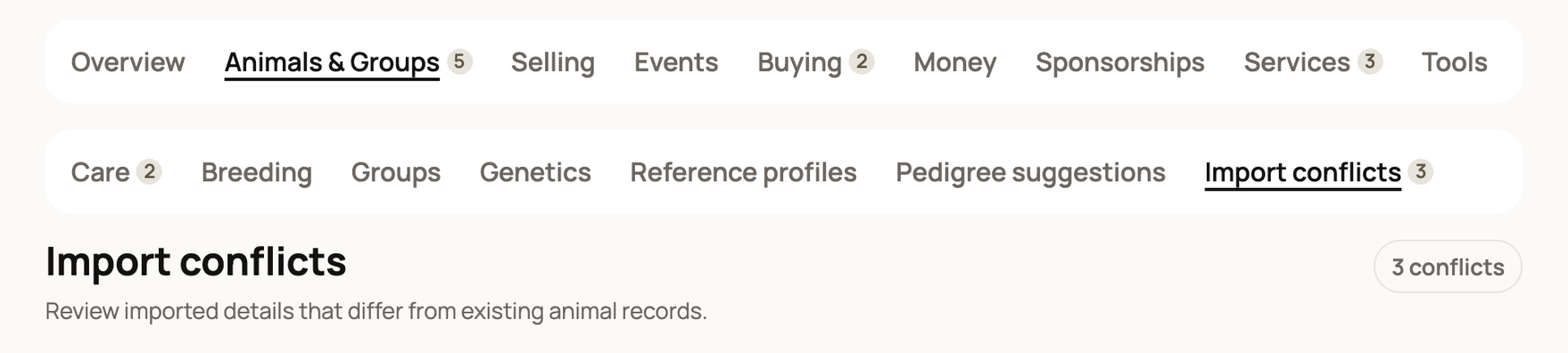
When you open it from one import, you see only that import's details. Back to this import returns to the import, and All import conflicts shows everything.
Compare the two values
Each animal is marked Needs review and lists its differences in two groups:
- Registry records: a registration number from your file that differs from the animal's current number.
- Profile details: other details, such as Date of birth or Color.
Each item shows the Current value beside the Imported value. The button with the file name opens your document. Select Profile to open the animal.
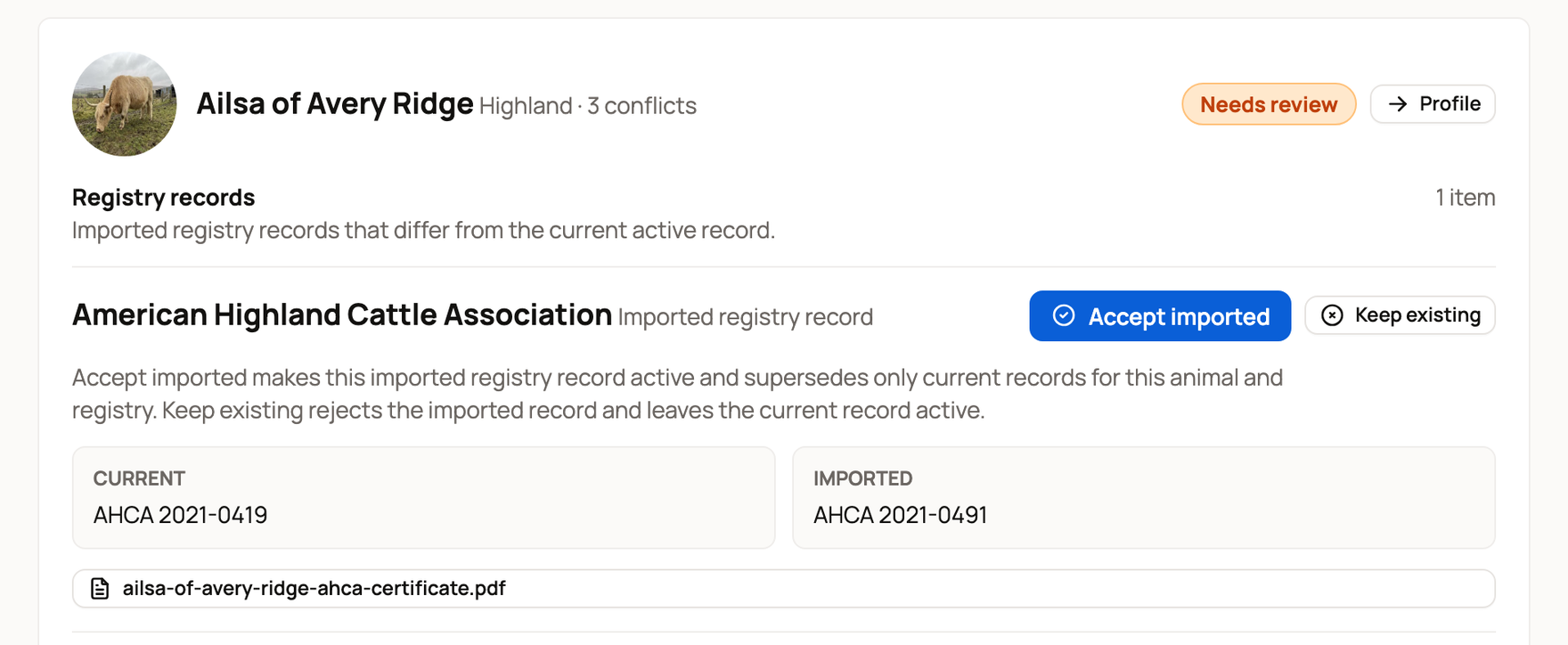
For example, Ailsa of Avery Ridge's profile says AHCA 2021-0419, but her certificate was read as AHCA 2021-0491. Open the certificate before you choose. If it shows 0491, the imported number is right.
Choose what to keep
- Accept imported uses the value from your file. For a profile detail, it changes only that one value, and only if the animal hasn't changed since the import. For a registry record, the imported number becomes the active one, and the old number stays in the animal's history.
- Keep existing leaves the animal as it is. For a registry record, it turns down the imported number.
- Dismiss hides a profile detail from the list without changing anything. Registry records don't have this choice.
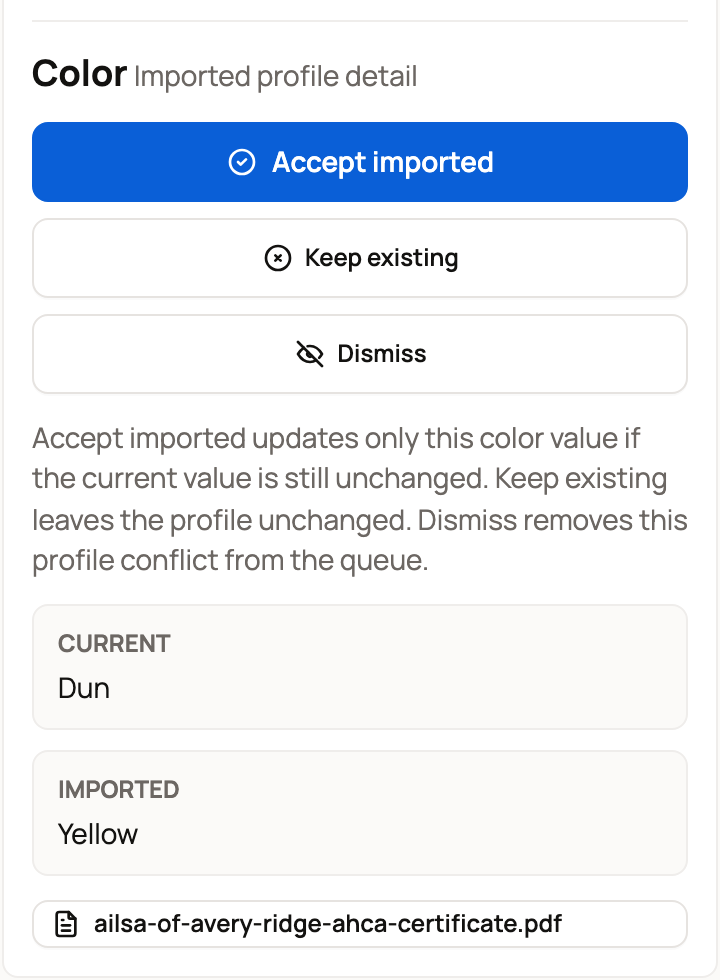
On a phone, the three buttons stack above the values, so scroll down to compare before you tap.
What happens next
A note at the top confirms your choice:
- Imported value accepted: the animal now uses the value from your file.
- Existing value kept: the animal didn't change.
- Conflict dismissed: the item is gone from your list.
- Conflict changed: the animal's value changed after the import, so nothing was applied. If you still want the imported value, edit the animal yourself.
When every difference is settled, the page says All imports are clear, or This import is clear if you opened it from one import.
Related information
- Reviewing, editing, and confirming an import
- Identification and registration papers
- Import your animals from files, photos, or a website
Updated on: 29/10/2026
Thank you!