Reviewing, editing, and confirming an import
Once your import finishes reading your files, it reaches review, and this is where the real work happens. Nothing is created on Creatures until you confirm here, and you can fix everything first. You arrive automatically when the import is ready, or you open it from the Import hub at /dashboard/import/review.

What the review table shows
Each row is a draft: one animal (or, in the records mode below, one record) that Creatures pulled from your files and mapped onto Creatures' own fields, ready for you to check. Every draft is in one of two states:
- Will import: the row is set to be created when you confirm. This is the default for a clean row.
- Skipped: you set the row aside so it will not be created. Use it for anything you do not want.
A tally across the header counts how many rows need review, meaning they have a blocking issue you must resolve before they can import. Frame the whole screen this way: you are confirming Creatures read each animal correctly, fixing what it did not, and skipping anything you do not want.
The fields you can edit on each row
Open a row's drawer to edit it. These are the fields you will actually touch, with what each value means:

- Name (2 to 64 characters, needed to create): the animal's call name. If you leave it blank, at confirm it is auto filled "Animal 1", "Animal 2", and so on, so a row never silently fails for a missing name. Still, fill in real names.
- Registered name (optional): the official name on registry paperwork, separate from the call name.
- Species (required): pick from Creatures' species list. If Creatures could not match the species word in your file, the row is marked "need review" until you choose one. Changing the species clears the breed, because breeds differ by species.
- Breed (optional): the breed within the species. The breed label fills in automatically once you pick. If your breed word was not recognized, you choose it here.
- Sex: one of male, female, or unknown. If it is blank or unrecognized at confirm, it defaults to unknown rather than blocking the row. Set it correctly when you know it.
- Date of birth (optional, written as YYYY-MM-DD): a past date within the last 200 years, no future dates. You can instead enter an age in whole years (0 to 60) and Creatures works with that.
- Color (optional): a color from the breed's palette, or free text. An unrecognized color is a non blocking flag, so the row still imports as is.
- Registrations (optional): one or more sets of registry, registration number, and registered name. Pick the registry from the known list so the number links to "all animals from registry X" later instead of becoming plain text. For the standalone version, see Care, growth, and identity records.
- Tag number (optional): an ear tag, collar ID, or other short identifier. It is also used for matching in the records mode below.
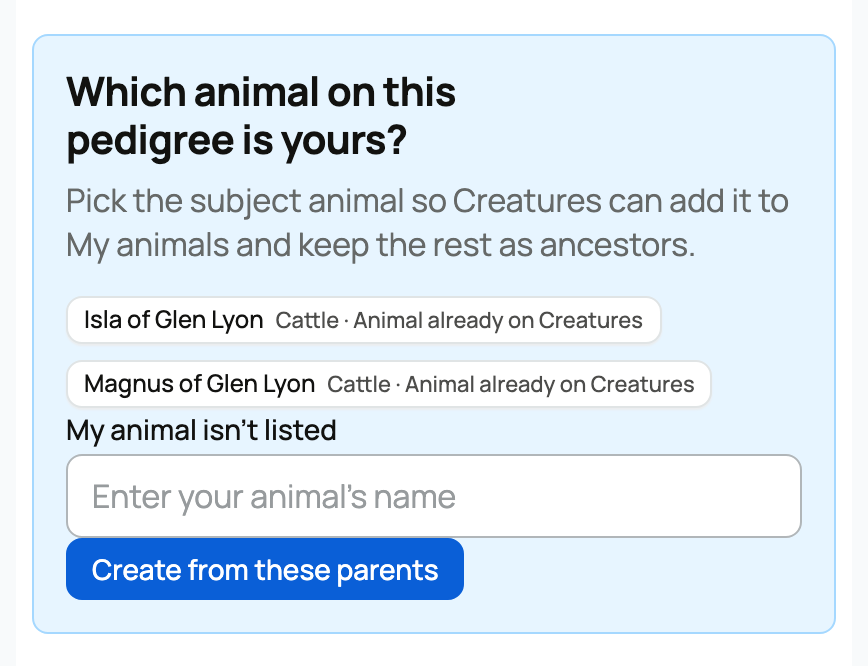
- Sire and dam (optional): the parents. Creatures resolves each one to an existing animal, to another row in this same import, or, for a parent it cannot find, it creates a lineage only reference profile. A reference profile is a public, ownership free ancestor record that lets the pedigree connect without claiming you own that animal. See How to create a reference animal profile. Grandparents and deeper ancestors can be filled the same way.
- Photos: the first photo becomes the main picture and the rest form the gallery. Add them per row by uploading (up to 8 MB each, JPEG, PNG, WebP, or GIF) or by pasting an image URL.
- Records on the animal (optional): health and care history Creatures found (vaccine, medication, examination, reproductive, note, breeding, injury, or other) that will be created together with the animal, including registration and pedigree records. See Care, growth, and identity records.
- Optional flags and custom fields: mark a row deceased (with a date of death), sterilized, or make private, and add free form custom fields for anything Creatures has no native slot for.
Reading the "need review" count
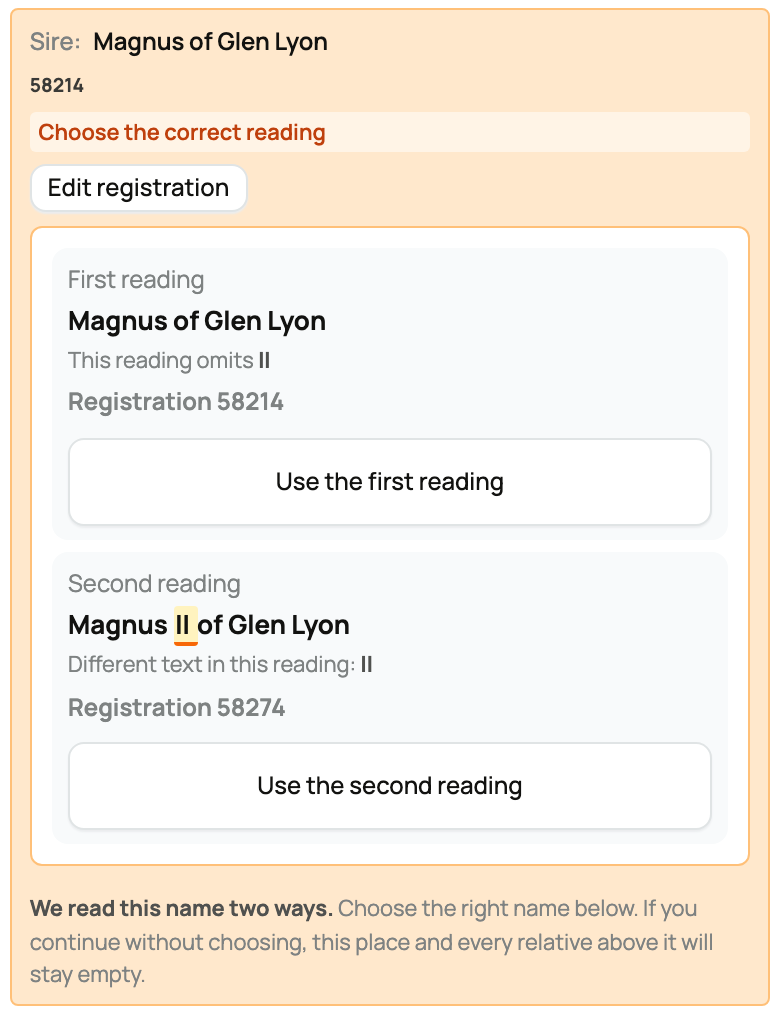
Rows with a blocking problem (no species chosen, a parent that still needs you to resolve it, or a flagged duplicate) are marked "need review" and cannot import until you fix them. Non blocking flags, such as an unrecognized color, let the row import as is. Treat the "need review" count as your to do list before confirming.
Catching duplicates, so you do not add an animal twice
While you review in "Add new animals" mode, if a draft looks like an animal already in your herd (the same name and the same birth date), the row shows a duplicate marker and is held until you decide. Your choice is simple: import it anyway (you really do have two animals), or skip it. The marker is just there so a held row does not confuse you.

Adding records to existing animals (the bulk way)
If you chose "Add records to existing animals" back on the upload screen, this is the bulk way to attach records to animals you already have, with Creatures matching each record to the right animal across your whole herd at once. (To add a single record to one animal from one document instead, that is a different tool: see Importing records.)
Here is how each record is matched, from most to least certain:
- Attached automatically when it matches by a strong, unique identifier: a registration number, a tag number, or a microchip. These cannot be confused between animals, so Creatures links them for you.
- Flagged for your confirmation when it matches only by name, species, and birth date. Creatures never attaches these on its own, because two animals can share a name. You pick the right animal from the suggested candidates, or skip the record.
- Reported as unmatched when nothing matches. You can skip it, or choose to create a new animal for it instead.
- Flagged as out of scope when you limited matching to a group or a set of animals and a record matches something outside that scope. You confirm or skip it.
The takeaway: identifiers attach silently, names always ask first, and nothing wrong attaches without you saying so.
Choosing where the animals land
Before you can confirm, an "Add to:" selector makes you pick a destination explicitly:
- My personal profile: the animals are owned by you personally.
- An organization you manage: the animals belong to that business or farm account instead. Any organization you manage appears in the list.

This selector lives here on the review screen, not on the upload screen, so you choose after seeing exactly what you are importing. You must make a choice on the first pass before the import will run. If you are weighing shared or organization owned animals, How to add co-owners to an animal profile explains that side.
Dropping the batch into a group
You can add the whole batch to an existing animal group (a herd, flock, or pen) during the import. Type to search your groups and pick one. This is a batch level choice, so all of the new animals join that one group, not a per row setting. See Create and manage animal groups. If you want the animals split across several groups, sort them after the import or run separate imports.
Confirming, and what actually gets created
When you confirm, Creatures creates these from your approved rows: the new animal profiles (each owned by you, in the destination and group you chose), their photos, their records, their pedigree links (including any reference profiles for parents it could not find), and any suggested groups you accepted. In the records mode, it instead attaches the records to the matched animals and reports how many attached, were skipped as duplicates, or stayed unmatched. The screen shows you the counts (created, reused, failed, and skipped).

Anything you marked "skipped" stays as a draft, so you can come back and import it later. That means you can finish a big import in passes rather than all at once. The end result is that your animals are now on Creatures exactly as you reviewed them.
Changed your mind? The 72-hour undo
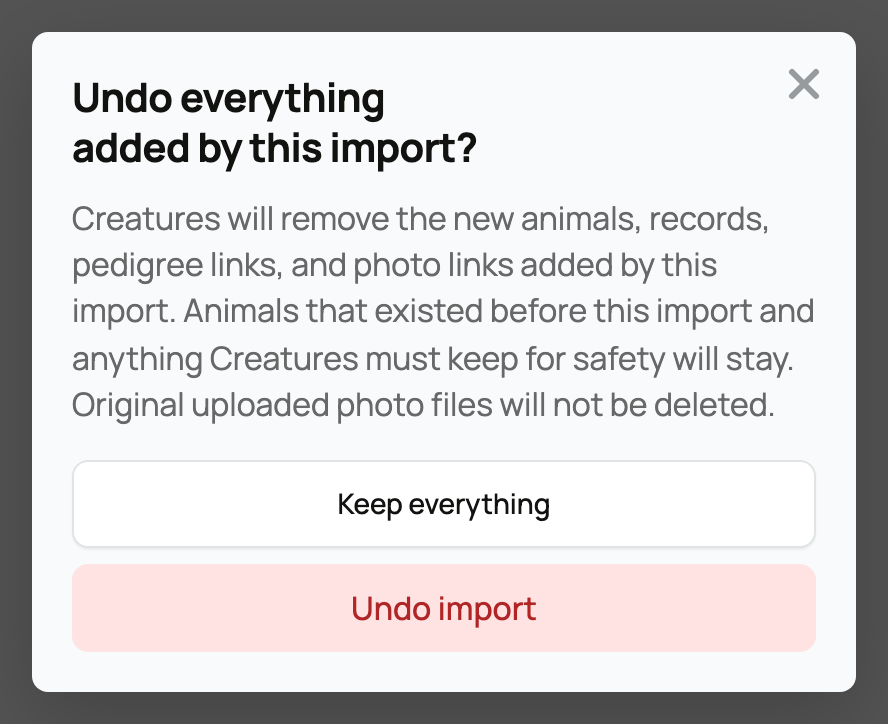
For 72 hours after you confirm, an "Undo Import" option reverses what the import created. It deletes the animals it added, the records it sourced, and the pedigree links it made, and it withdraws any pending pedigree suggestions. A few safety rails are worth knowing:
- The window is rolling. Each time you confirm more rows from the same import, the 72 hours resets from that confirm, so finishing in passes keeps extending your undo window to cover the whole set.
- An animal you edited after importing (say you added a parent claim) is left in place, not deleted, and reported as skipped from the undo, so your later work is never destroyed.
- Records and edits you added by hand after the import are not removed either. Only what the import itself created is reversed.
- After 72 hours the import is permanent. To remove animals then, you delete them individually.
So you can import freely: a fresh import is fully reversible for three days, minus anything you have changed since.

For the upload half of the flow, see Importing your animals. If your herd lives in Evans Software Solutions software, use Importing from Rabbit15, Cavy15, Goat15, and Poultry15.
Related information
- Importing your animals (bring your whole herd in)
- Importing from Rabbit15, Cavy15, Goat15, and Poultry15 (the winrbro import)
Updated on: 23/06/2026
Thank you!