
Importing records
Use Import records to bring existing history into animals already on Creatures. Upload your source material, review the proposed matches and records, then confirm what should be added.
Choose the animals
- Open the animal's Records tab and choose Import records. On a phone, open More record actions first.
- Confirm Add records to existing animals.
- Check Where should we match these records? Starting from an animal selects Choose animals and fills that animal for you.
- Change the scope if needed: All animals, Choose animals, or Choose a group.
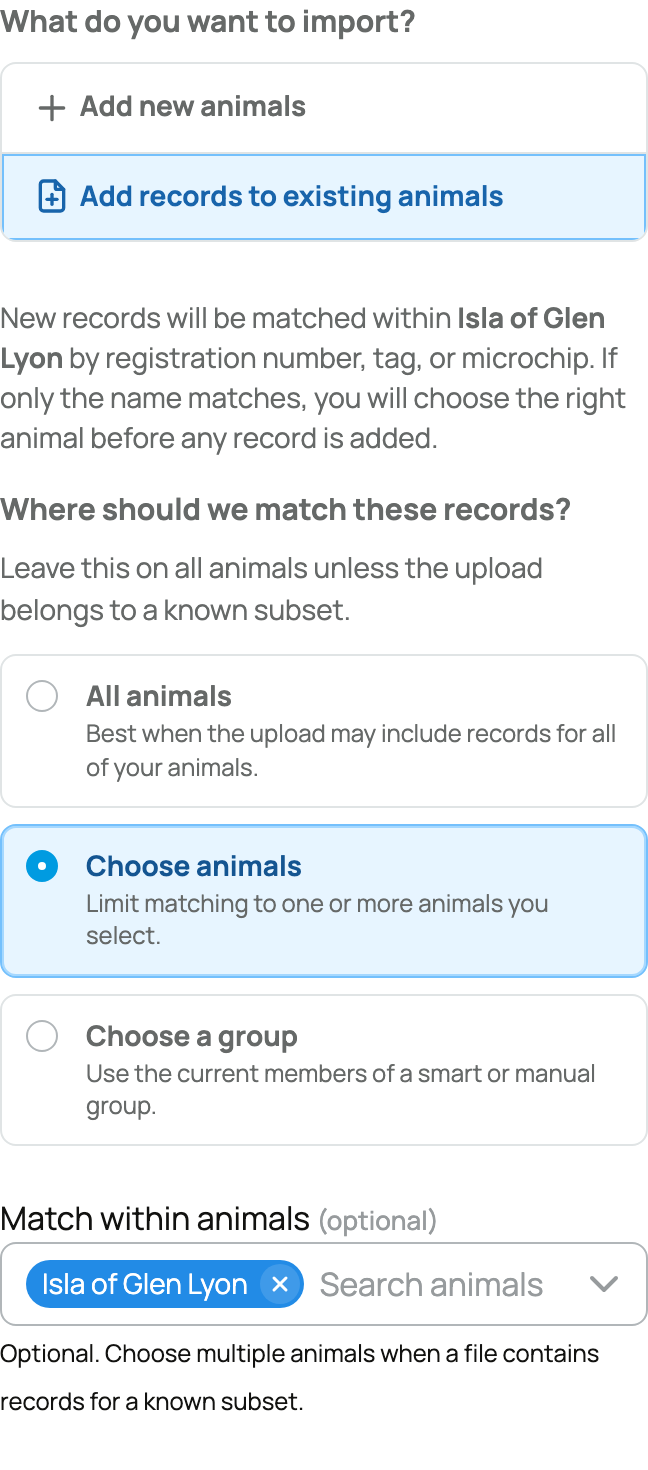
A group scope uses the group's members when the import starts. Keep the scope as narrow as your source allows.
Creatures uses registration numbers, tags, and microchips to help match records. A name-only match needs your choice during review. Always check that the proposed animal is correct.
Add your sources
- Under Upload files, choose Choose or drop files for an export, spreadsheet, PDF, or image.
- Use Take photos for paper records.
- Optionally add a public breeder or registry website.
- Choose Add Records to prepare the review.
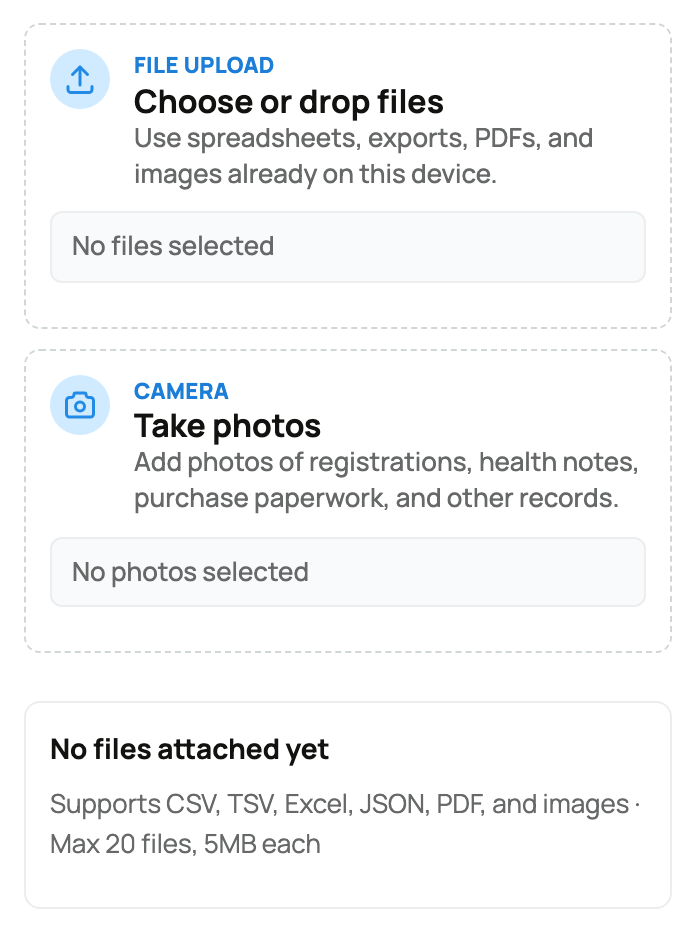
Use clear, complete documents with identifiers and dates. For a logged-in software dashboard or Google Sheet, export the information as CSV, Excel, or PDF and upload the file instead of relying on its link.
Review before confirming
Check the animal match, record type, date, and important fields against your source. Pay particular attention to treatment details, registration numbers, units, and privacy. Correct or exclude anything that does not belong before confirming.
After import, find the entries in Record history. An Imported label distinguishes imported entries from records logged directly.
See Reviewing, editing, and confirming an import for the full review workflow. To create animal profiles as well as records, use Importing your animals. For one manually entered event, see Adding a record.
Related information
Updated on: 03/09/2026
Thank you!