
Editing or ending your listing
To change a listing, open it and select Edit Listing. To end it, select the arrow button next to Edit Listing and choose Cancel listing.
To find your listing, open the animal's profile and select View listing, or tap the listing in a notice.
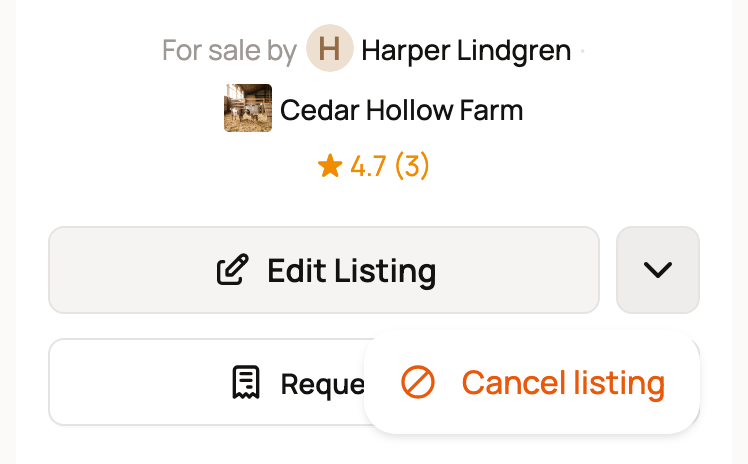
Request a deposit, under these buttons, asks one buyer for a deposit to hold the animal. See Requesting a deposit for one animal.
Change the details
- On your listing, select Edit Listing.
- Change what you need: photos, description, price, how the animal changes hands, delivery or location.
- Select Update Listing (or Update Auction).
Buyers see your changes right away. A private link keeps working after you edit, so there is no new link to send.
An auction locks some details once it starts or gets its first bid, such as the starting bid and the close time. See Listing an animal for auction.
Share or publish a draft or private link
A draft is a listing only you can see. Its page shows Draft preview with two choices: Make private link (only people you send the link to can see it) or Publish publicly (it shows in the marketplace). Tick I agree to the Creatures Terms first.
A private link shows Your private link is ready. Select Copy private link to share it with a buyer. To open it to everyone, tick the Terms box and select Publish publicly.
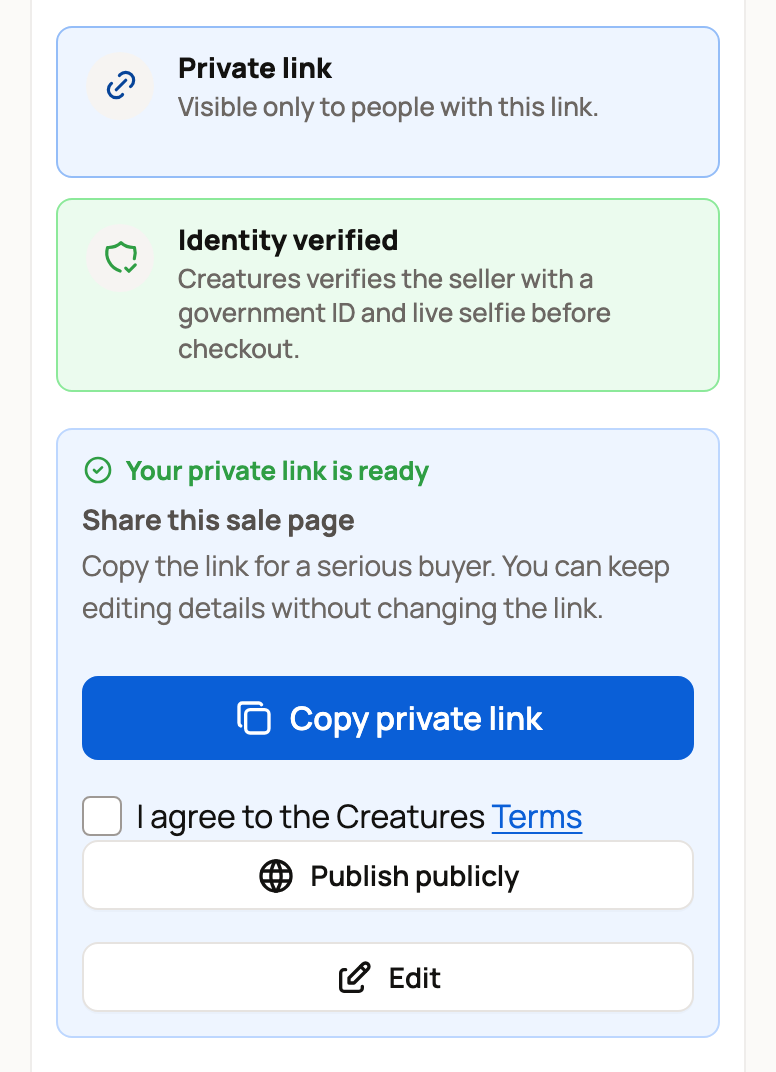
A private link needs a verified phone. Publishing needs a verified phone and ID. If a check is missing, the button asks you to verify first.
Answer "Is this still available?"
About every 60 days, Creatures asks you to confirm a public fixed-price listing. You get a notice, and the listing shows Is this still available? Select Yes, still available to keep it fresh. Nothing else changes.
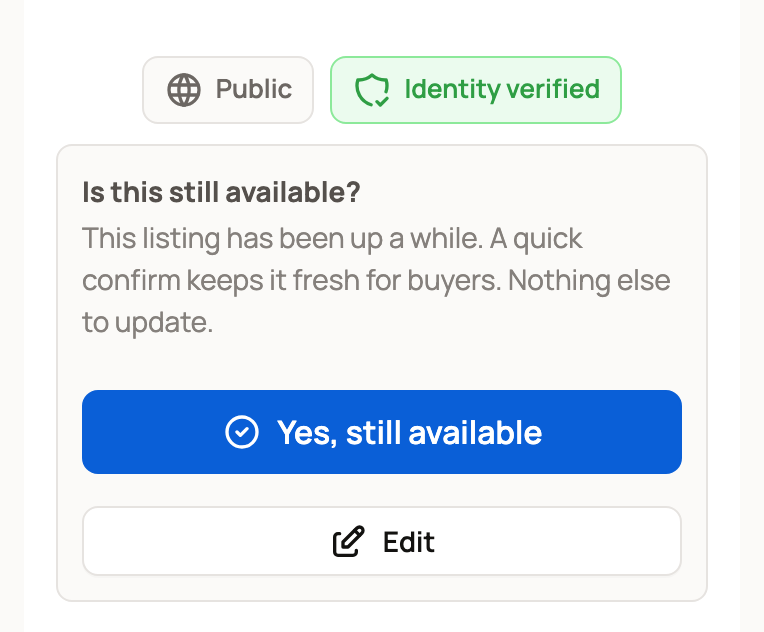
If you don't answer within 30 days, buyers see a note that you haven't confirmed the animal is still available. The listing also shows lower in the marketplace. Confirm any time to clear it. Saving an edit counts as a confirm too. Auctions and listings in a sale event (a timed sale that an organizer runs) skip this check.
End a listing
- Select the arrow button next to Edit Listing and choose Cancel listing.
- Pick a reason: Sold outside Creatures, No longer for sale or Other. Add a note under Anything else? if you like.
- Select Cancel listing.
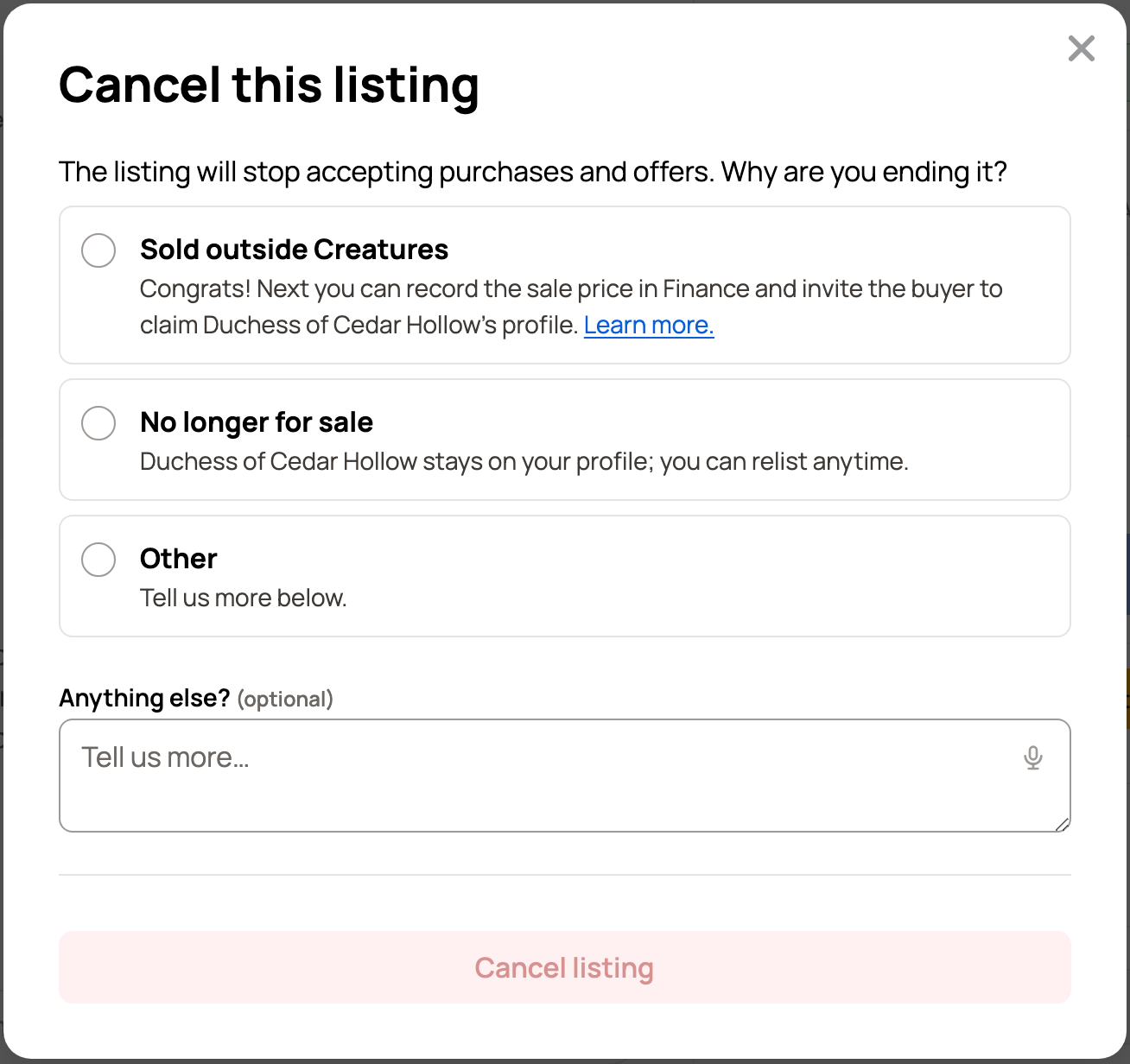
The listing stops taking purchases and offers right away. Buyers with an open offer are told it closed.
If you picked Sold outside Creatures and people messaged you about the listing, Creatures first asks Who bought (Name)? Pick the buyer, or Someone else. Then it asks Record the sale? Select Record sale to save the price as income in Finance and mark the animal sold. You can then invite the buyer to claim the profile. If Creatures can't record the sale from your account, it offers to transfer the profile to the buyer instead. See Sold your animal? How to update Creatures.
An auction that already has bids can't be cancelled, and neither can an auction in a sale event that has started. If you need to stop one, contact support.
List the animal again
There is no pause button. To take a listing down for a while, cancel it with No longer for sale. The animal stays on your profile.
When you're ready, open the arrow menu at the top of the animal's profile and choose Fixed price or Auction. A listing you cancelled, or an auction that ended without a sale, also shows Relist on its page. Relist starts a new listing with the old photos, description and prices filled in.
Related information
- Listing an animal at a fixed price
- Listing an animal for auction
- Your auction ended: what happens next
- Sold your animal? How to update Creatures
Updated on: 29/10/2026
Thank you!