
Offering a volume discount on multiple animals
Set up a rule under Dashboard > Selling > Volume discounts. When a buyer checks out with two or more eligible animals from you, the discount comes off on its own. They don't need a code.
Create a rule
- Open Dashboard, choose Selling, then Volume discounts.
- If you also sell as a farm or organization, choose who the rule is for under Selling as. Each seller has its own rules, and each saved rule names its seller.
- Under Scope, choose All animals or one species. A species rule wins over an all-animals rule for that species.
- Pick a Discount mode, then Amount off or Percent off, and enter the discount.
- If you like, add a Maximum discount for one checkout and Starts and Ends dates.
- Leave Active on and select Save discount.
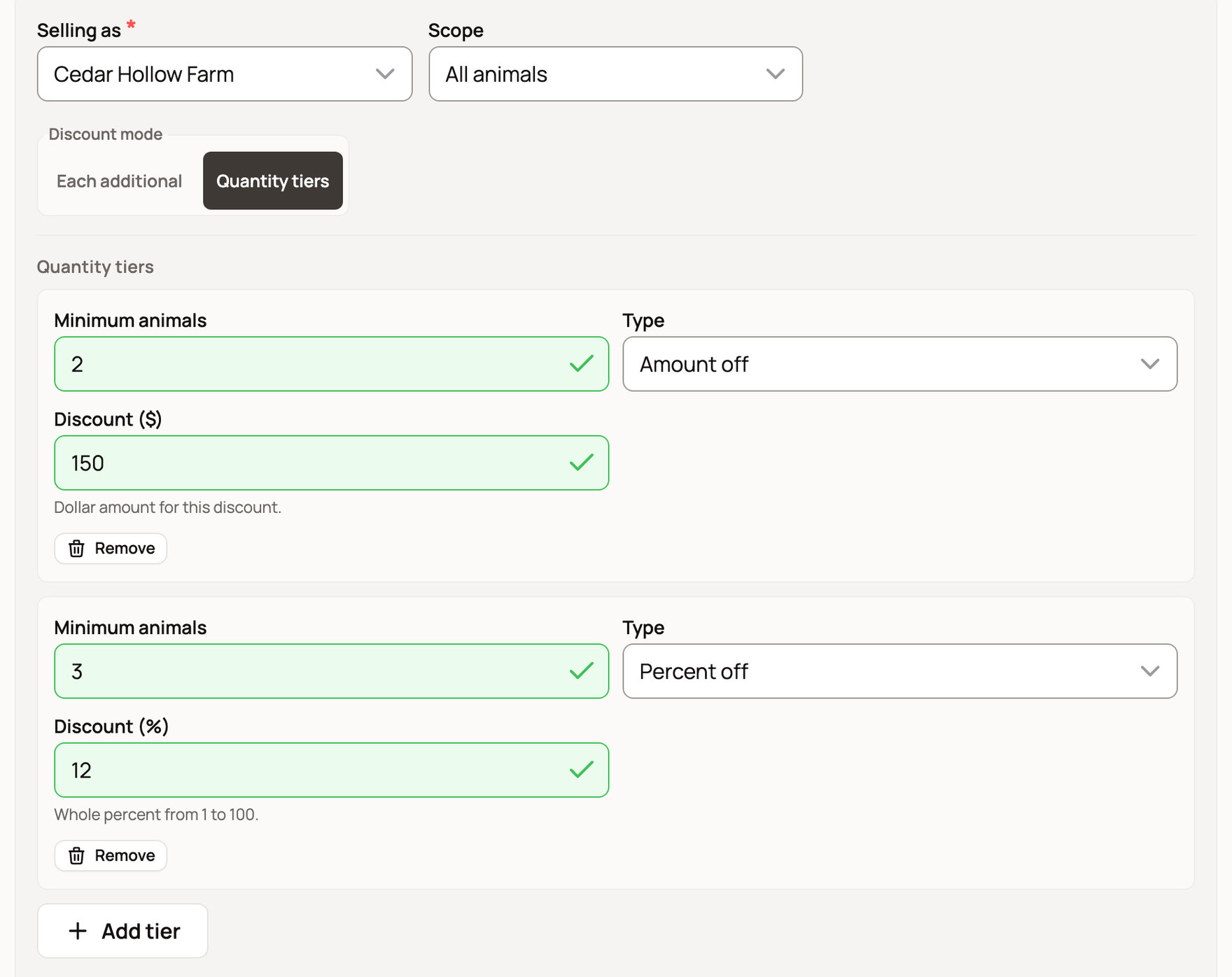
You can have one active rule for each scope. If a scope already has one, the form tells you under Scope.
Each additional or Quantity tiers
Each additional takes the discount off every animal after the first. With $100 off each additional animal, a buyer taking three saves $200. With a percent, the highest priced animal stays at full price.
Quantity tiers gives a discount on the whole order once the buyer reaches a Minimum animals count. Select Add tier to add another level. The highest level the buyer reaches is the one that applies. In the example above, two animals get $150 off the order, and three or more get 12% off the whole order.
What buyers see
Your eligible listing cards show a flag, such as Volume discount or Save 10%. The listing page explains the offer and says it is applied automatically at checkout.
The saving shows in the buyer's cart once it holds two or more eligible animals from the same seller. Animals from other sellers follow those sellers' rules. Buyers can learn more in Buying several animals with your cart.
Good to know
- You fund the discount from your sale money. Your 5% seller fee is worked out on the price after the discount.
- The discount never pushes your proceeds below zero, and your Maximum discount caps it for each checkout.
- Volume discounts don't apply to genetics or hatching eggs.
- Promo codes are separate. If a buyer also uses one of your codes, it comes off the price after the volume saving. See Creating promo codes for your listings.
Stop or change a rule
Saved rules can't be edited. To stop one, select Deactivate on the rule, then Deactivate discount to confirm. It stops applying to new checkouts and shows Inactive. To change a rule, deactivate it and create a new one.

Related information
- Covering buyer fees and adding promoter rewards
- Seller fees and the Creatures Pro subscription
- Promo codes and Sale Incentives at checkout
Updated on: 29/10/2026
Thank you!