
Print an animal's records or download a PDF
To print an animal's records, open its Records tab and choose Download packet. Pick what goes in, then choose Print to open a printable PDF, or Download PDF to save the file for a vet, registry, buyer or insurer.
Open Download packet
- Open the animal's profile and choose Records.
- Choose Download packet, in the row with Add record and Import records.
Download packet shows for signed-in owners and co-owners (including members of an owning organization), people who manage the animal's records, and current stewards with verified email addresses when the plan has Show private records to stewards turned on. Visitors don't see it.
Choose what goes in
Quick pick fills in the sections for you:
- Vet visit ticks the available Identifiers, Health records and Care records sections and turns on Include private records. Check About this packet for any entries omitted by packet limits.
- Everything ticks every section that has entries. Private records stay out until you turn them on.
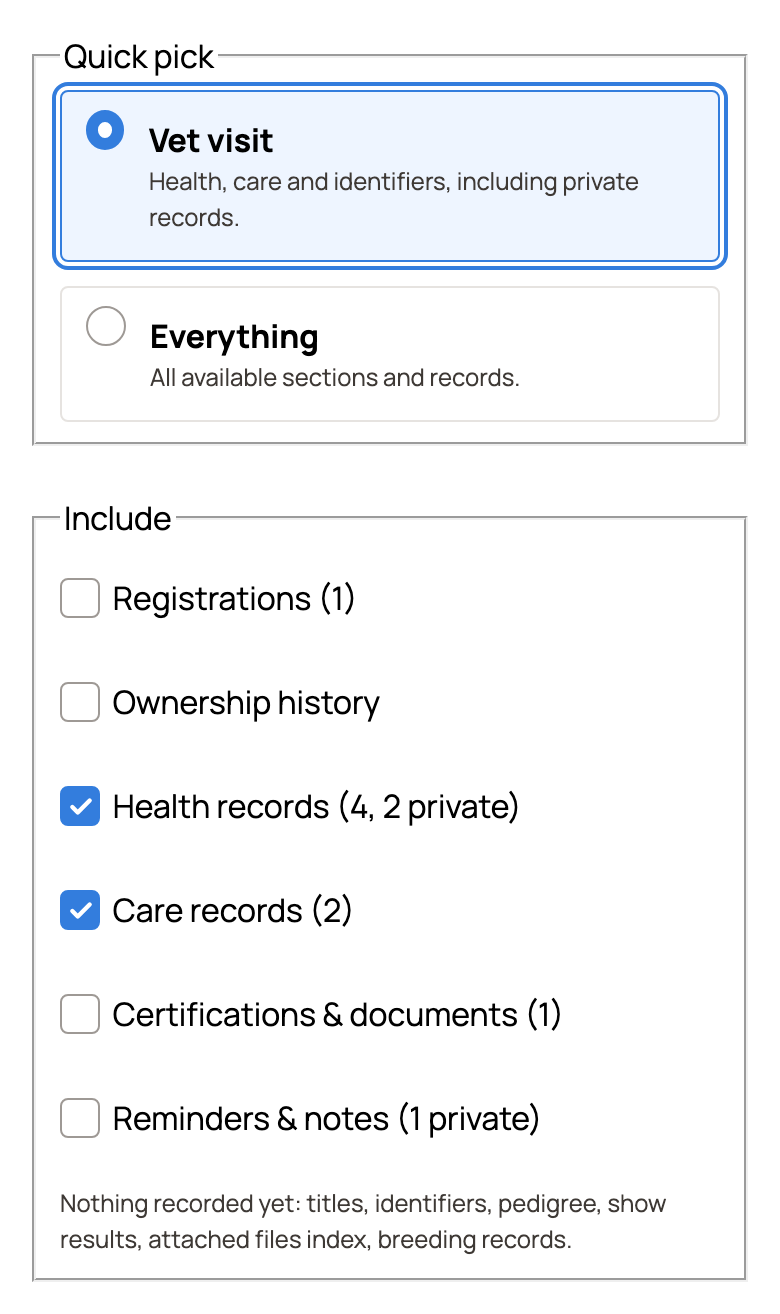
Then adjust Include. Tick a section to include its entries; untick it to leave them out. Most sections show entry counts, including private entries, such as Health records (4, 2 private):
- Registrations: registry names, registration numbers and details.
- Titles: official titles awarded by associations on Creatures.
- Identifiers: identifying numbers, such as ear tags and microchips.
- Show results: shows, classes, results and judges.
- Pedigree: three generations of public ancestors. It is left out for a private profile.
- Health records: vaccinations, medications, exams, procedures, test results and health checks.
- Care records: weights and measurements, routine care and sheds. Feedings and milkings are not in the packet.
- Breeding records: breeding, pregnancy, birth and reptile sale-readiness records.
- Certifications & documents: saved pedigree records, certifications, insurance and genetic evaluations.
- Reminders & notes: recorded reminders and other notes.
- Attached files index: file names from the records you include. The files themselves are not in the PDF.
- Ownership history: current owners and ownership changes.
Sections with nothing in them are listed under Nothing recorded yet instead. Turning on Include private records also ticks sections containing only private entries. Review Include and untick anything you don't want to share.
Private records
Include private records shows when the animal has private entries, with their count. It includes private records, identifiers and show results you can access in the sections you select. Anyone who holds the PDF or a printout can read them, so share it with care. When it is off, the packet says how many private records were left out.
Record detail and paper size
- Record detail: Summary keeps health and care in short tables and lists other records by date. Evaluation reports always print in full. Full prints every field and note, so the packet runs longer.
- Paper size: the PDF's page size. Choose Letter or A4 to match your printer's paper. It starts on Letter for time zones in the Americas or an unknown time zone, and A4 elsewhere.
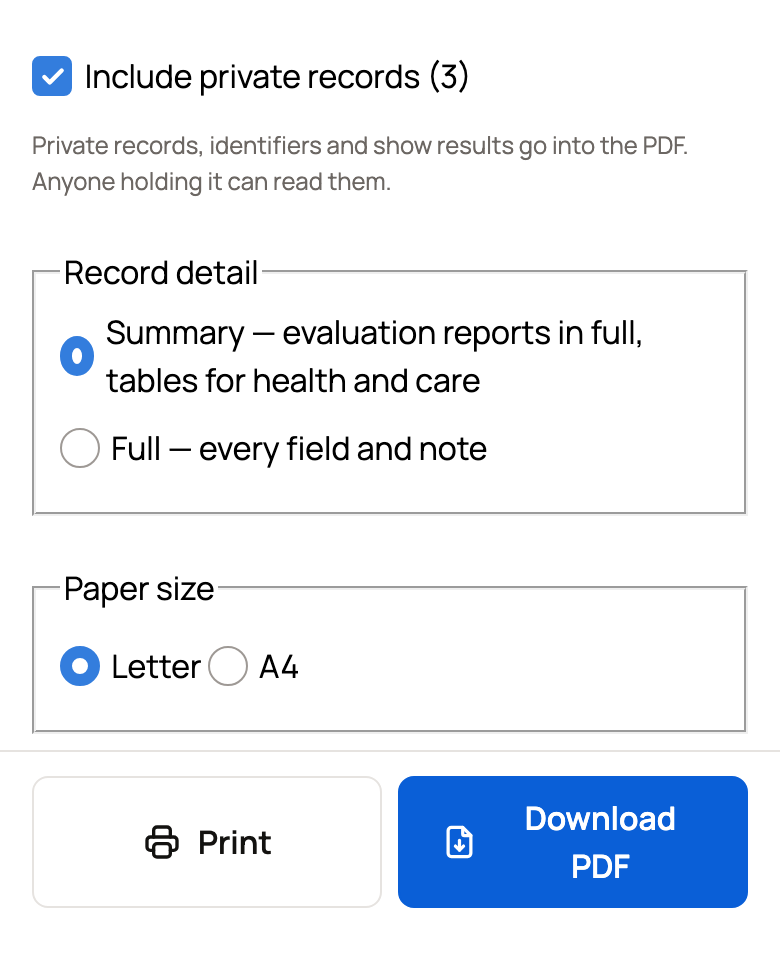
Your browser remembers your choices for next time, including the sections you untick. Include private records starts off again unless your last choice was Vet visit.
Print or download
- Print opens the PDF in a new tab. Print from there with your browser's print button. In Safari on an iPhone or iPad, open Share from the toolbar or page menu, then choose Print (scroll if needed) and select your printer. If your browser blocks the new tab, the panel asks you to allow pop-ups. Allow them for Creatures and try again, or use Download PDF.
- Download PDF saves the PDF to your device and closes the panel.
If nothing is ticked, both buttons stay off and the panel shows Choose at least one section.
What the PDF looks like
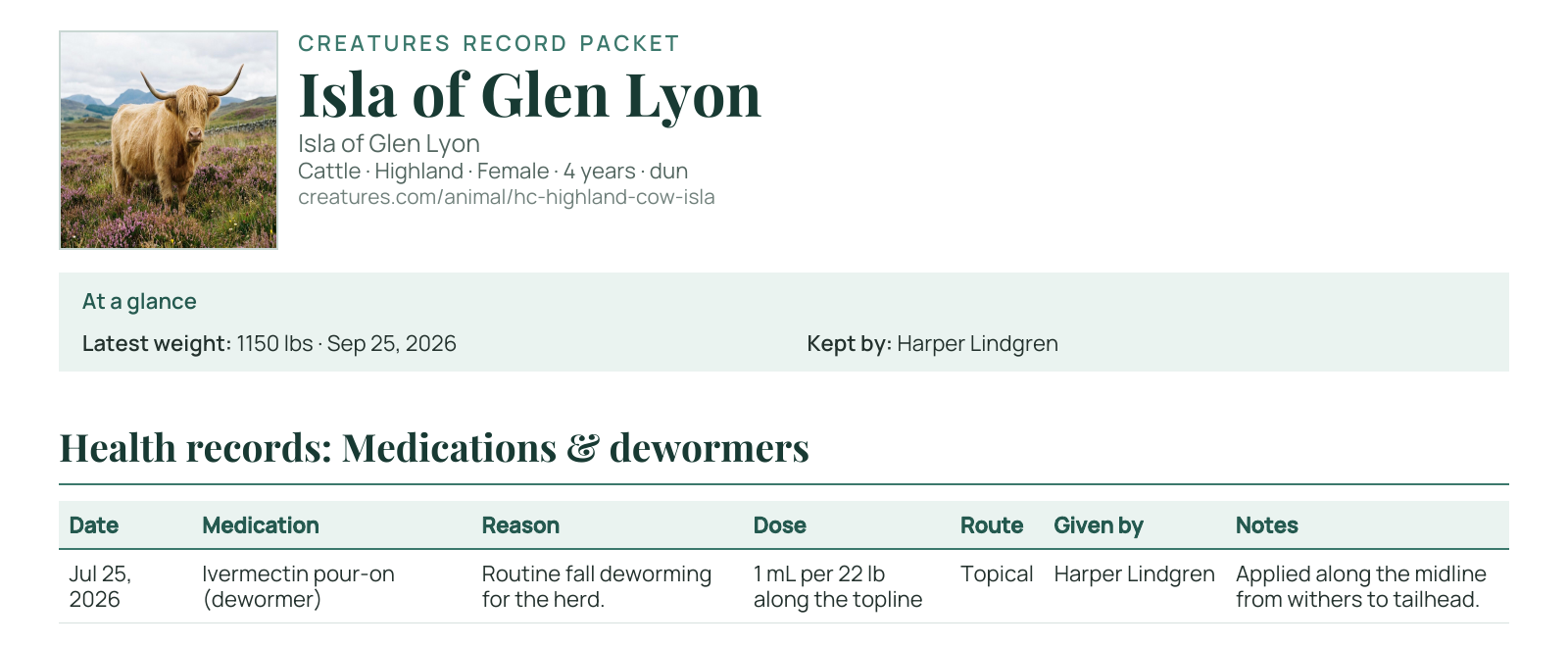
The PDF starts with the animal's details, then the sections you chose. About this packet records who made it and when, private-record counts, omissions (including packet limits), and a code for the live record.
Looking for something else?
- Print a tracking sheet, in the Records menu, prints a blank log page to fill in by hand, with columns such as date, food, weight and notes. Bring the filled-in pages back with From photos of your notes.
- Reports puts many animals, such as your whole herd or a group, in one PDF or spreadsheet. On your Dashboard, choose Care under Animals & Groups, then Reports. A group's page has a Reports button too.
- To print a family tree, use Printable pedigree when you share the pedigree. See Pedigree, family, and lineage.
- A Creature Card is a shareable card with the animal's photo and a few details. It doesn't hold records.
Related information
Updated on: 31/10/2026
Thank you!