
Quick capture: turn a note into records
Describe what happened in plain words, and Creatures drafts the record for you. Nothing is saved until you check the draft and choose save.
Quick capture is handy at the barn, when typing a full form is a chore. It works for health checks, vaccines, medicines, weights, routine care, feedings, moves and more.
Where to find it
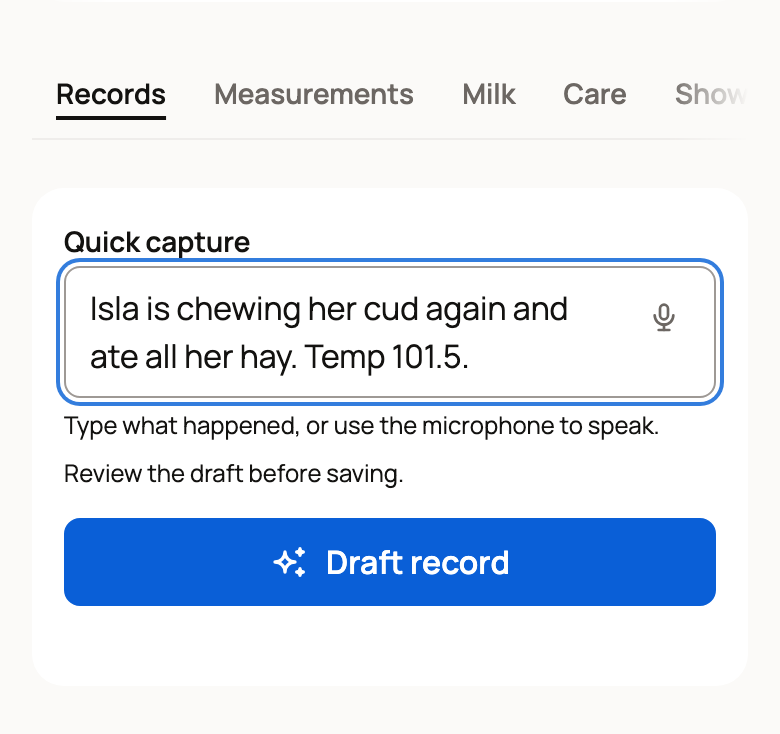
- An animal's Records: type in the Quick capture box, then choose Draft record.
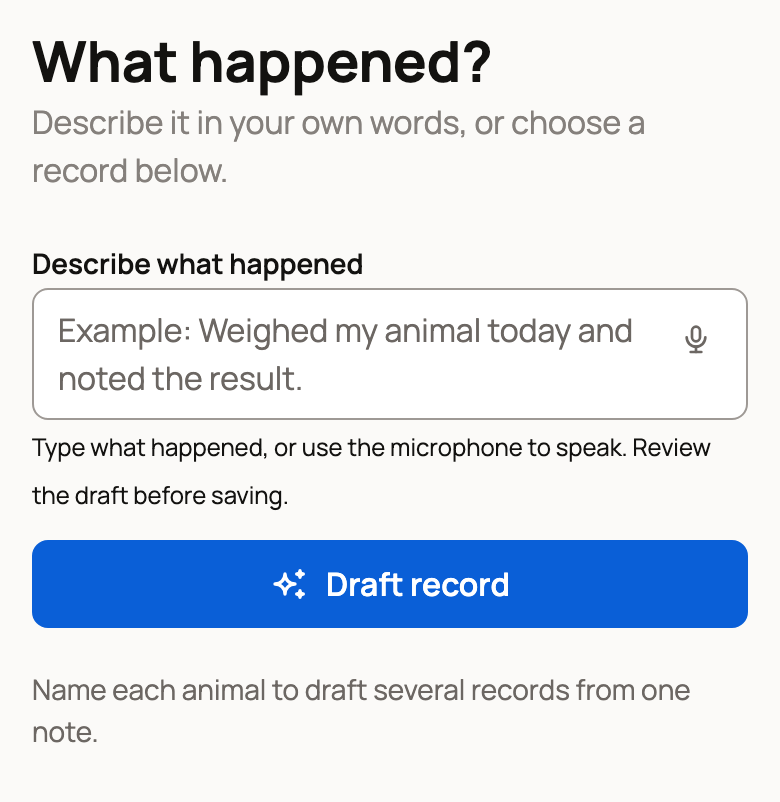
- The record picker: choose the last row of the Add Record menu (such as Browse all 17 record types), or tap Create, then Add record. Type in Describe what happened, then choose Draft record.
- Today: open Record animal care, type your note, then choose Create record draft.
Where your browser supports it, tap the microphone to speak instead of typing.
Write a note that drafts well
Say which animal, what you did and any amounts, products or readings. For example: "Isla is chewing her cud again and ate all her hay. Temp 101.5."
Each event in your note becomes its own draft, so two medicines make two records. Creatures only uses what your note says. If you don't say when, the date starts as today and is marked so you can check it.
Draft one record
Start from an animal's Records, or its record picker, and describe one event. Creatures opens the matching record form with the details filled in and shows Draft filled into the record form. Review it, then save.
Check every field and the Make public choice, then choose Save Record. On an animal's Records, a note that names no animal is for that animal. If your note names other animals of yours, Creatures drafts a record for each one.
Draft several records from one note
To log the same job for several animals, name each animal in your note. This works from Today, the record picker and an animal's Records.
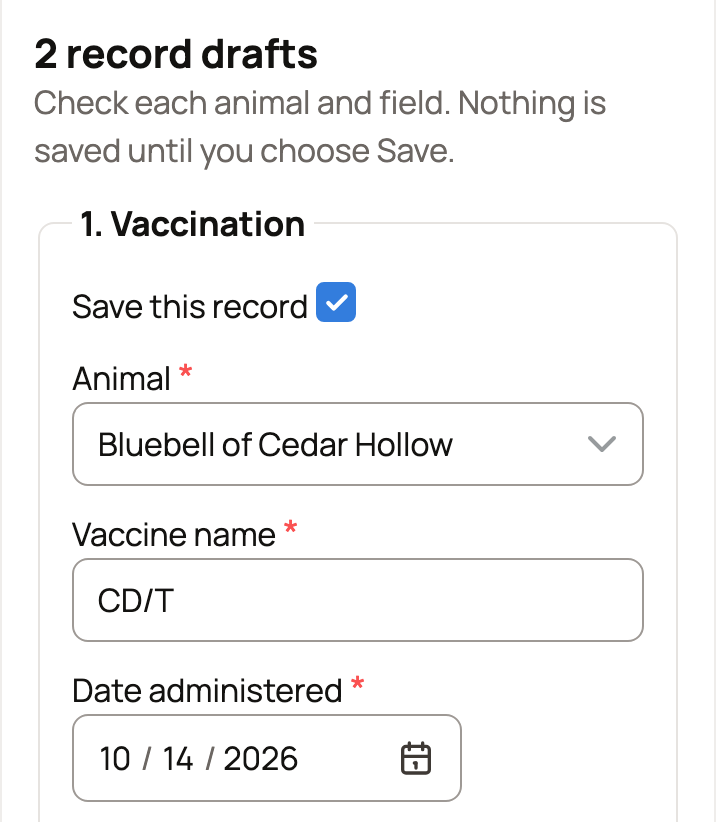
Creatures shows a card for each record, under a heading such as 2 record drafts. Each card has Save this record, an Animal choice and the record's fields.
- Check that each card has the right animal and details.
- Untick Save this record on any card you don't want.
- Choose Save selected records.
Some events need their full form, such as registrations, pedigrees and show results. Their card says the draft is not saved and gives you a button to the right form, such as Open record form. A breeding, birth or pregnancy check gets a button such as Review breeding, which opens the breeding form already filled in. Breedings to the same sire on the same day share one card, with a button such as Record 3 breedings. A note about moving animals to another place gets Review move, which opens the move filled in. Nothing moves until you save it there. A note about a job for later offers Plan this in Today.
If something looks wrong
- Describe what happened first. The box was empty. Type your note and try again.
- No supported record draft was found. Add more detail, or pick a record type yourself from Add Record.
- Draft not saved. Your note is still here. Try again, or use the form.
- Quick capture is unavailable right now. Choose a record type to add it manually. Use Add Record for now.
Saving twice never makes copies. If a save already went through, you will see Already saved; no duplicate records were created.
Related information
Updated on: 29/10/2026
Thank you!