
Track weight and growth
Add a Physical Measurement record each time you weigh or measure an animal. Then open Measurements on the animal's Records tab to see the trend, set a goal and keep progress photos.
Add a weight or other measurement
- On the animal's Records tab, choose Add Record, then Physical Measurement.
- Check the Metric, such as Measured weight or Hip Height. It starts on the one you last entered for this animal, and fills in Measurement Category and Measurement Subcategory for you. To set those yourself, use Choose manually… at the top.
- Enter the Value and check the unit, which starts on the one you used last. If the number looks like the wrong unit next to earlier readings, such as cm instead of inches, Creatures asks before saving. Choose Use inches or Keep cm.
- Check How was it captured? and the Date, then choose Save Record.
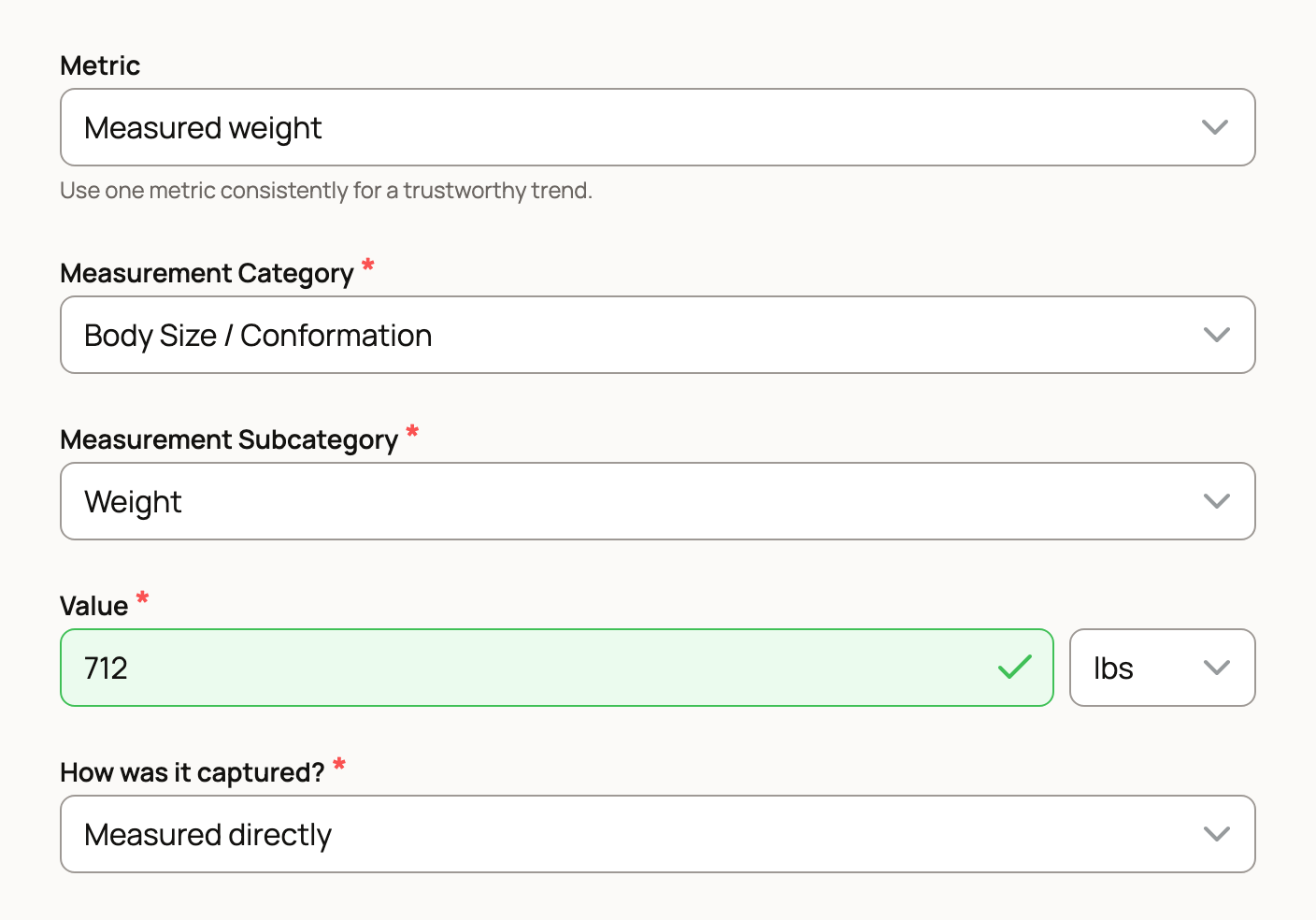
Weighed on a scale? Choose Measured weight. Used a weight tape, the weight calculator or a guess by eye? Choose Estimated weight instead. Creatures keeps the two apart, so each trend compares like with like.
Measuring several things the same day? After Save & Add Another, the buttons under Next for and the animal's name switch the metric and keep the date. For a reading over 30 days old, the form offers Import a photo or spreadsheet to bring in a whole log.
Expand extra fields adds Measurement Context, such as Weaning or Yearling, and Method / Instrument. Add a photo under Files if you want it in Progress photos later.
Read the trend
On the Records tab, choose Measurements. Pick the Measurement type, then a range: 30 days, 90 days, 1 year or All time. When Units shows, Imperial and Metric change only the display, not your saved readings.
The summary covers the range you picked:
- Latest is the newest reading, with a link to its record.
- Period change is the change from the first to the last reading.
- Average daily gain (ADG) shows the gain per day for weights. Other metrics show an average daily change or rate.
- Readings counts the readings in the range.
Small badges mark milestones, like Highest so far or Goal reached. Below the chart, a table lists every exact reading with View Record.
An older reading with an unclear unit stays in the table but not on the chart, so nothing is guessed.
Keep weighing on schedule
- Add next opens a new reading with the same setup. Enter the new value yourself. If there is no earlier reading to copy, the button reads Add measurement.
- Track regularly sets up a care plan for weigh-ins. Once one exists, it reads Manage routine.
- Create metric makes your own measure when the built-in list doesn't fit.
Only owners see Track regularly and goals. People who help with records can still add readings.
Set a goal
- On Measurements, choose Set a goal. Once a goal exists, the button reads Edit goal.
- Pick a Target: Exact, Range, At least or At most.
- Enter the Target value (for Range, a Lowest and Highest), the Unit and the Target date. Add a Label if you like.
- Choose Save goal.
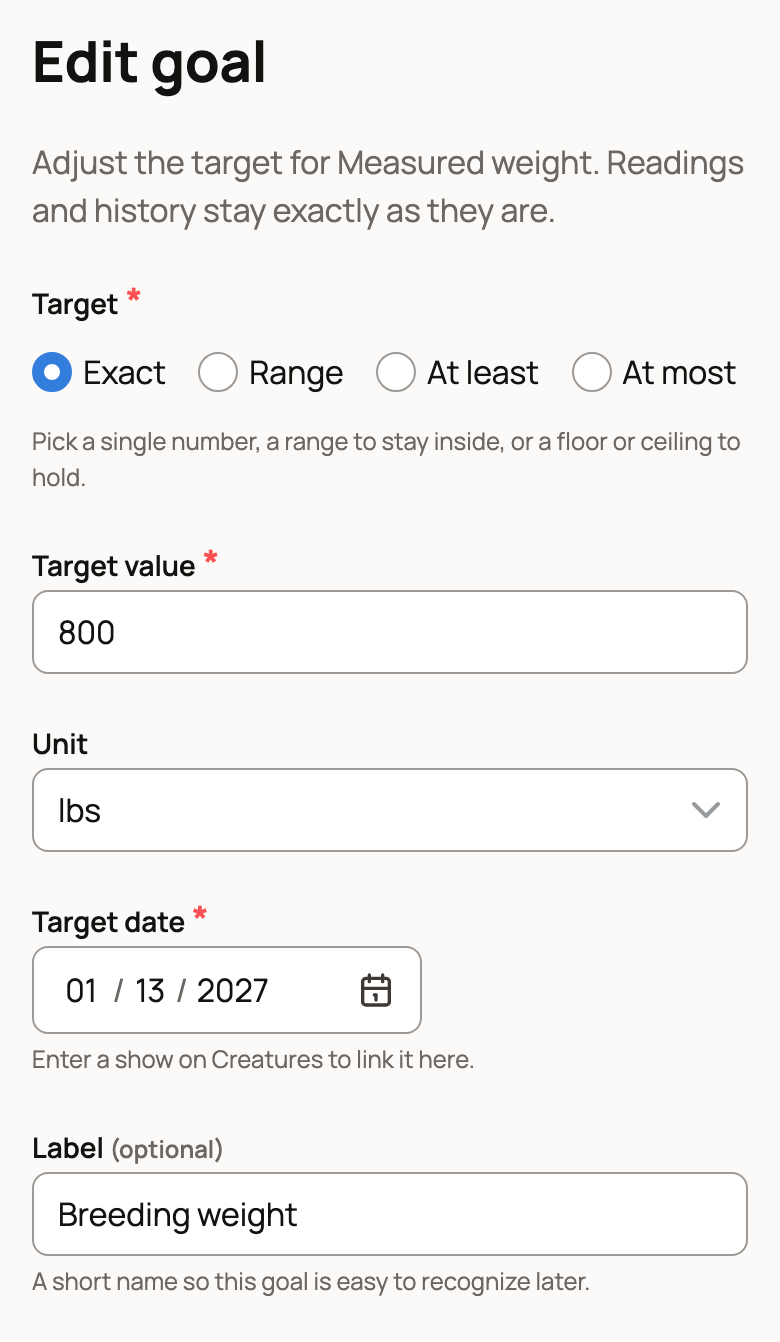
For an animal entered in an upcoming show on Creatures, Aim for offers For a show, and the goal follows the show's date.
The goal card counts down to the date and, once there are enough readings, says whether the animal is on pace. How this is calculated shows which readings it used. To close a goal, choose End, pick Reached or No longer needed, then choose End goal. It moves to Goal history, and your readings never change.
Progress photos
Photos on measurement records line up under Progress photos, each with the reading's date. Select a photo to open its record.
Related information
- Estimating animal weight with the weight calculator
- Care plans
- Adding a record
- Identification and registration papers
Updated on: 29/10/2026
Thank you!