
When a breeding doesn't take: end it, rebreed, or fix a duplicate
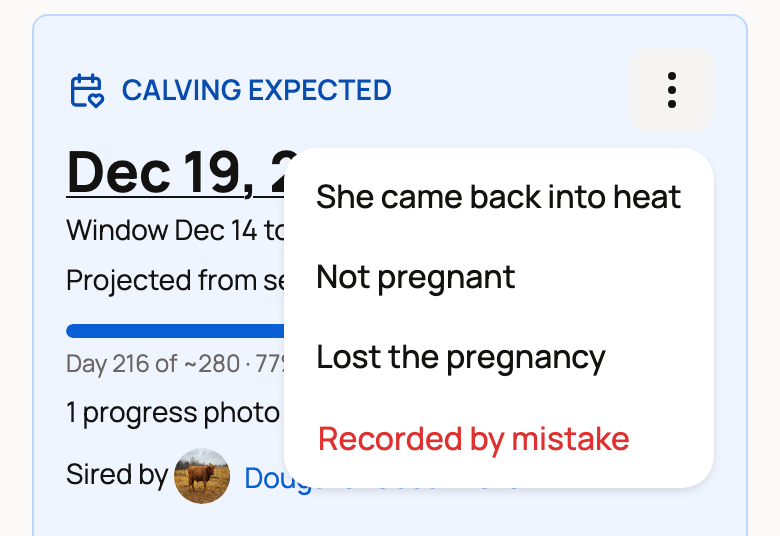
End the breeding and pick what happened: She came back into heat, Not pregnant or Lost the pregnancy. Creatures keeps the mating in her history, clears its upcoming reminders and takes the pregnancy card off her Breeding tab.
End a breeding
- Open the mother's profile and choose Breeding.
- On her pregnancy card, tap the dots button (More breeding actions). On the Breeding dashboard, use the dots on her row instead.
- Pick what happened.
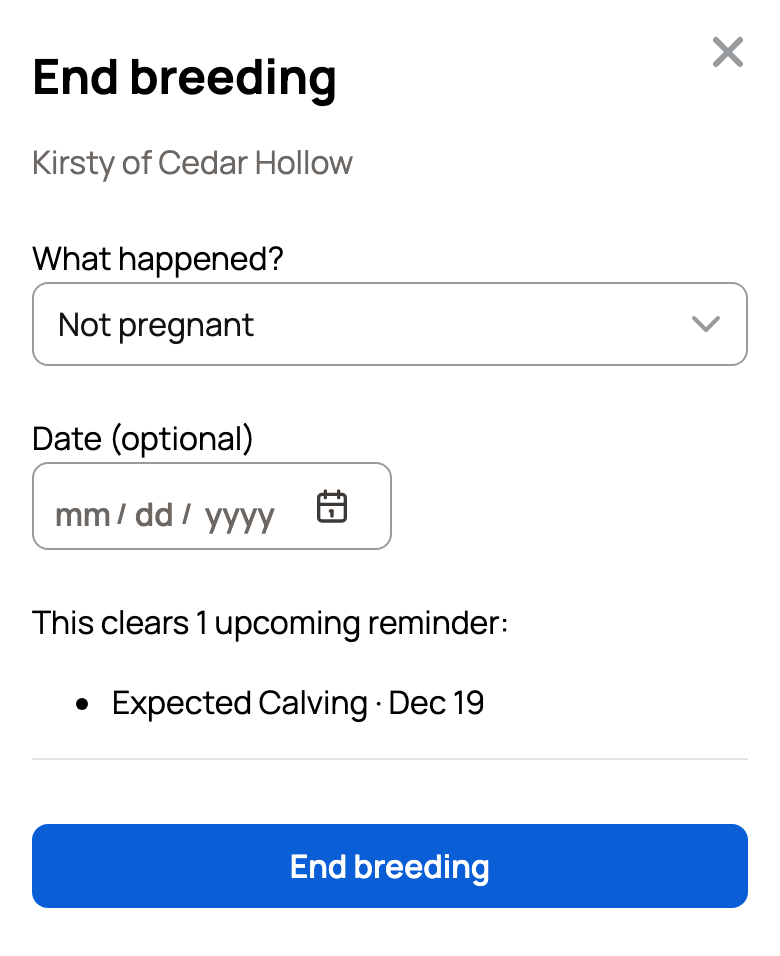
The End breeding panel opens:
- What happened? shows the reason you picked. You can change it here.
- Date (optional): the day you found out. It can't be later than today.
- The panel lists the reminders it will clear, such as her expected calving.
Choose End breeding. You'll see "Breeding ended. Its upcoming reminders are cleared."
If Creatures started a public page for this pregnancy, ending the breeding takes it down. A page you chose to show, or published to yourself, stays up until you turn off Visible to the public on the group's Settings tab.
If you picked She came back into heat, a Record her new breeding button appears next. Use it when she has been bred again.
You can also get here from Change dates or due date. Choose Breeding didn't take? End it at the bottom.
After an open pregnancy check
When the vet finds her open (not pregnant), save her Pregnancy Check and choose Open under Pregnancy result. Some species say Not pregnant instead. You can save it from Complete on your Today page, from Record results when Today groups several checks, or from Add record.
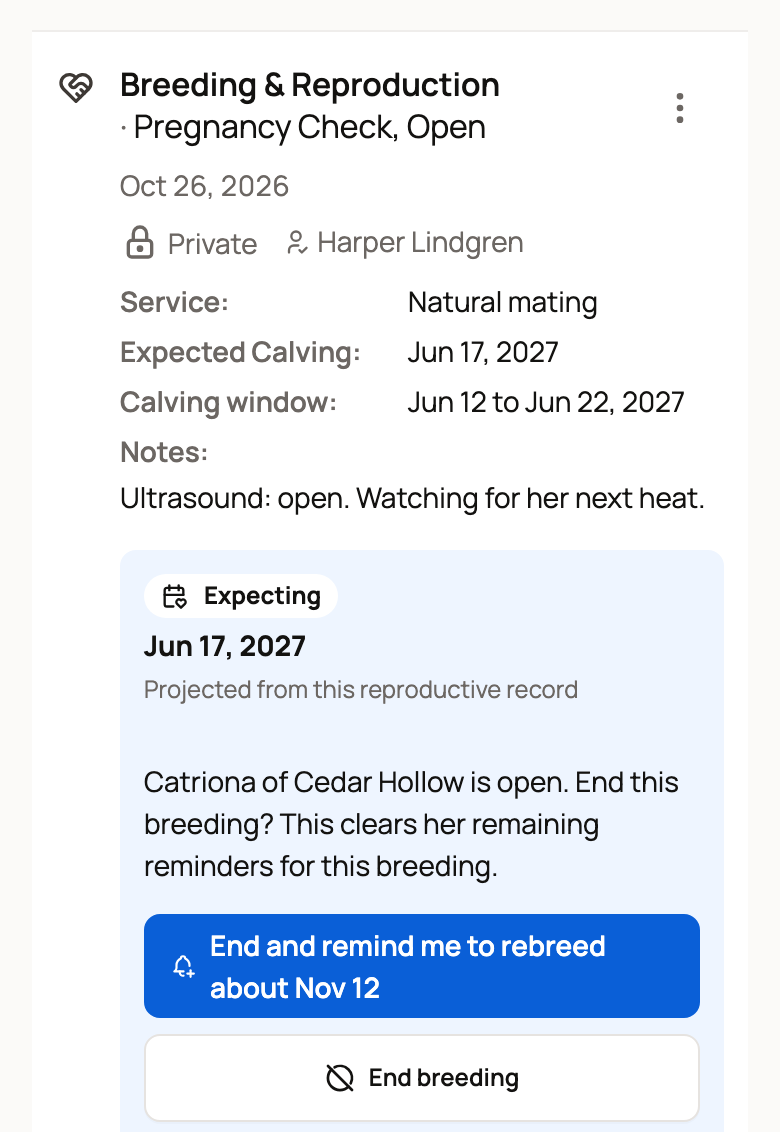
The saved check asks if you want to end this breeding. After Record results, the receipt asks for each open female. Choose End breeding to clear her remaining reminders for it. If Creatures knows when she should come back into heat, it also offers End and remind me to rebreed, with that date. That ends the breeding and adds a reminder, such as Rebreed Catriona of Cedar Hollow, for that day. The same offer stays on the check in her Records tab, and in Needs a look on her Breeding tab and the Breeding dashboard, until you act on it. If a later check says she's pregnant, the offer goes away.
Record a new breeding while one is still open
Say she was bred again before you ended the first breeding. When you record the new one with Track due date and reminders chosen, her row asks What happened?:
- Replace it: she came back into heat. Creatures ends the earlier breeding and tracks the new one.
- Same heat: this service belongs with the earlier one. Creatures adds it to that breeding and widens her due window.
- Keep both: keep both breedings and their reminders.
Nothing is picked for you, so choose the one that fits. Services a few days apart usually mean Same heat. A gap as long as her heat cycle usually means Replace it. Record breedings for several animals at once asks the same question for each animal.
Fix two open breedings
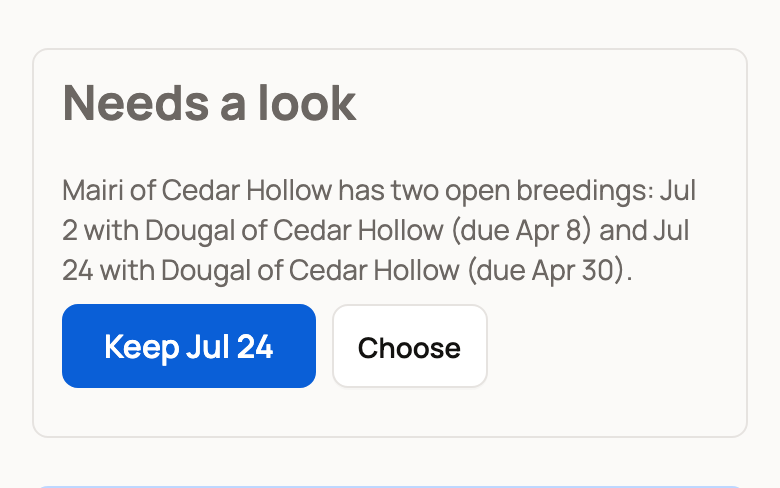
If a mother has two open breedings, Needs a look shows on her Breeding tab and on the Breeding dashboard. It names both dates.
- Keep with the later date, such as Keep Jul 24, keeps that breeding and ends the earlier one.
- Choose opens Choose a breeding. Pick the one to keep and choose Keep selected breeding. Or choose Keep both to leave them as they are.
If a check already confirmed one of them pregnant, you can't end that one from here. Use End breeding and pick a reason.
Needs a look also asks when a mother is a week past her due date with no birth recorded. Choose Record calving (or the word for your species) if she gave birth, or Not pregnant to end the breeding.
Recorded by mistake
Recorded by mistake deletes the breeding record after you confirm with Delete record. Use it only for a breeding that never happened. A public page Creatures started for that breeding comes down too. If she was bred and it didn't take, end the breeding instead, so her history stays true.
Related information
- Tracking pregnancy and progress
- Breeding reminders: what Creatures schedules for you
- Recording a breeding
- The breeding dashboard
Updated on: 02/11/2026
Thank you!