Articles on: Breeding & Genetics

Subscribing to genetic storage

Subscribing to genetic storage


Don't have a cryo tank of your own? You can store your straws, embryos, and eggs with a verified storage provider on Creatures and manage the subscription from your dashboard.


Step 1: Find a storage provider


Open the Genetics Storage marketplace (from the top menu, Marketplace, Storage) to compare providers, then open one to see the details.


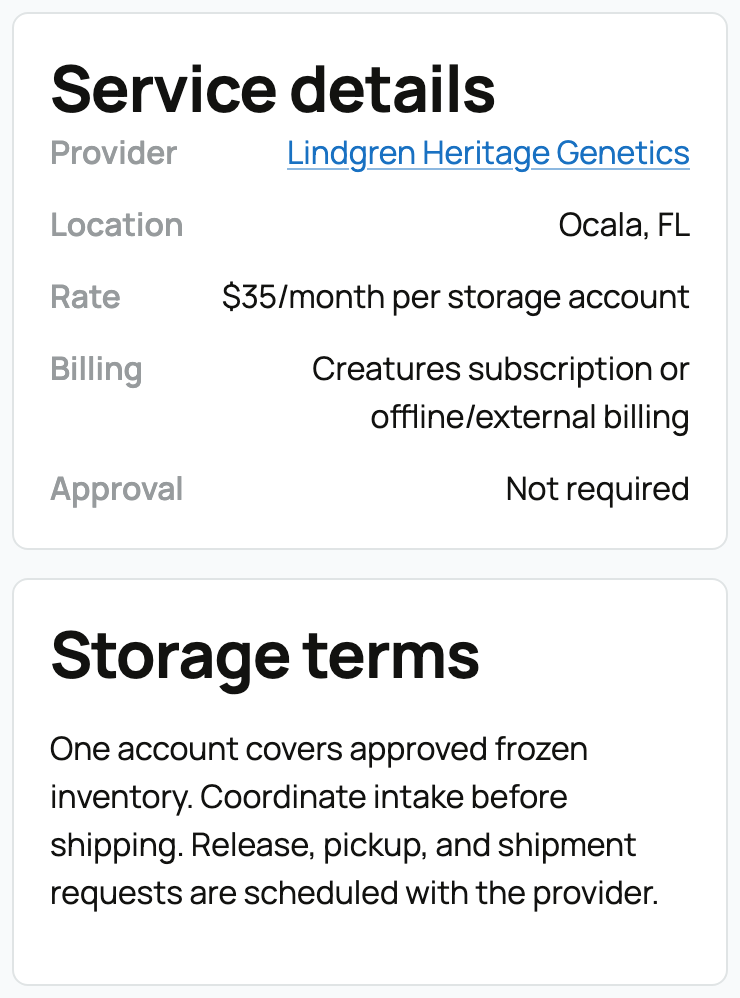
A storage provider's service page


The service page shows what you are committing to:


  • Provider and location: who holds the material and where.
  • Monthly rate: what storage costs per month. The rate is quoted per a billing unit, which is usually a flat storage account (one price no matter how much you store), but some providers price per inventory item or per stored unit, in which case the monthly cost scales with how much you keep there.
  • Material accepted: the types the provider will take (semen, embryos, oocytes, and so on), so you only pick a provider that handles your material.
  • Approval required: whether the provider vets you first. If approval is required, you fill out a short application and wait for the provider to approve before storage and billing begin. If it is not, you can start right away.
  • Billing options: whether the provider bills through Creatures (by card) or handles invoices themselves outside Creatures.
  • Storage terms: the provider's own conditions for holding your material.


Step 2: Subscribe


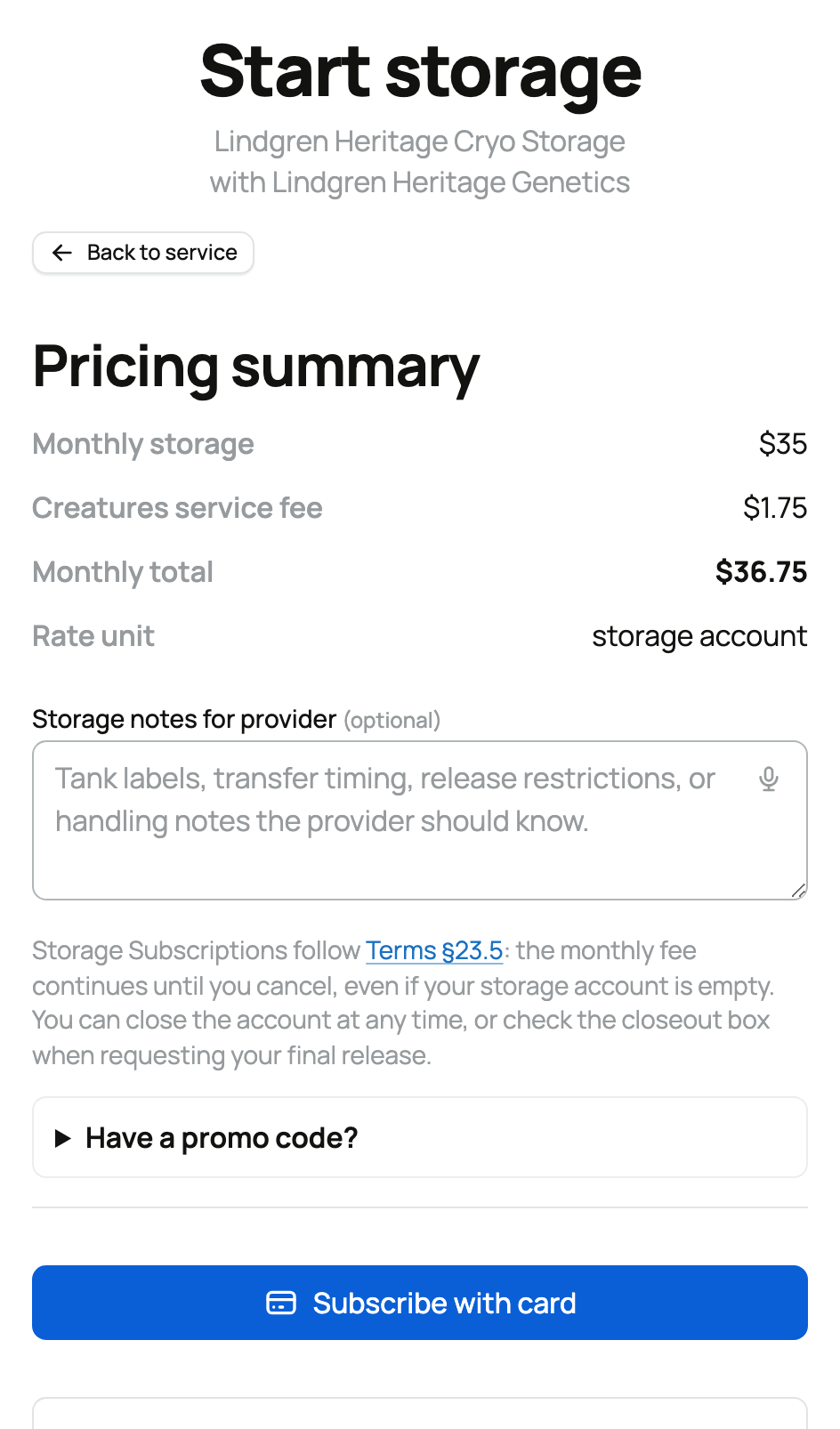
Choose Start storage to open the subscribe form, which shows a clear pricing summary before you commit. For example, a $35.00 monthly storage rate plus a $1.75 Creatures service fee (5% of the rate) makes a $36.75 monthly total.


The subscribe form and pricing


  • Notes for the provider (optional): handling, tank-labeling, transfer-timing, or release instructions the provider should have.
  • Promo code and Creatures Credit (optional): apply either if you have it. Both come off your first invoice only; every renewal bills the full monthly total. If you use both, the promo applies first and credit covers what is left, and a live "due today" figure shows what the first charge will be.
  • Subscribe with card: completes payment securely through Stripe and saves your card so the subscription renews automatically each month. The first charge includes the storage rate plus the Creatures service fee, less any promo or credit on that first invoice. Any Creatures Credit you spend here comes from the same balance covered in Your Creatures Wallet: balance, holds, and getting paid.


If the provider bills offline instead, you start with offline billing: Creatures still tracks the storage relationship and where your inventory sits, but the provider invoices you directly outside Creatures rather than charging a card.


If the provider requires approval, your subscription begins only after they approve your application, and the price is locked to the rate shown at that point.


Step 3: Manage your subscription


Your active storage appears under My storage accounts (in the dashboard, Services, Storage, My storage accounts).


Your active storage subscription


For each account you can see and do the following:


  • Monthly rate, stored-unit count, and next payment date: what you pay, how much is in storage, and when the next charge lands.
  • Pending intake: material you have sent but the provider has not yet confirmed receiving. It moves into your stored count once they confirm.
  • Request a release, shipment, pickup, or use: tell the provider to send out or release some of your stored material, with a quantity and instructions. You can also choose to close the account once that release completes.
  • Close the account anytime: this stops the monthly fee at the end of the current billing period. The fee runs until you close, even if the account is empty, so close it when you are truly done. If material is still stored when you close, the provider keeps custody until you arrange its release directly.


Providers manage their side from their own storage dashboard, where each active subscriber, the stored material, and the monthly amount appear.


Receiving genetic material transferred to you


When you buy genetic material that is being held in storage rather than shipped, the seller sends it as a storage transfer: custody moves into storage on your side without the material leaving a facility. Two things happen in your dashboard. First you choose where to keep it stored and approve any change to your storage bill. Then the storage provider records that they have received it. (The seller's half of this, choosing Storage transfer and naming the source, is covered in Shipping and tracking genetic items; buying in general is in Buying genetics on the marketplace.)


Buyer: choose where to keep it stored


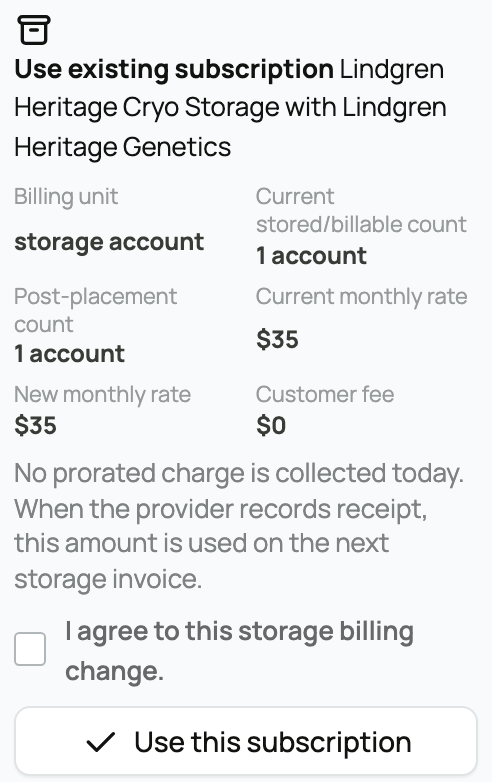
The buyer's destination panel, with the storage billing change shown before you agree


On the listing you bought from, a destination panel asks how you want to hold the material. You have a 14-day window to choose after the seller declares the transfer; making the choice keeps the handoff moving. There are two ways to keep it:


  • Use existing subscription: place the material into a storage subscription you already hold with that provider. Choose this when you are already paying to store with them and want to add to it, so everything sits in one account.
  • Provision new storage account (shown as Take over seller-selected service when the seller pointed at a specific service): start a new storage subscription to hold the material. Choose this when you do not already store with the provider. Picking it sends you through the normal subscribe step, so the transfer waits until you finish setting up the subscription.


Whichever you pick, a billing snapshot shows exactly how your monthly storage bill changes before you agree to anything:


  • Billing unit: what the provider charges per (a flat storage account, each inventory item, or each stored unit). It tells you whether adding this material changes your bill at all, since a flat account does not move with quantity but per-item or per-unit pricing does.
  • Current stored/billable count: how much you are billed for at that provider right now. This is your starting point.
  • Post-placement count: what that count becomes once this material is placed. The difference between this and the current count is what the transfer adds.
  • Current monthly rate: what you pay per month today.
  • New monthly rate: what you will pay per month after placement. Comparing the two is the whole point of the snapshot: it is the real change to your bill.
  • Customer fee: the Creatures service fee on the storage, shown so the rate you see is the rate you pay.


Below the snapshot is a required consent checkbox, "I agree to this storage billing change." You have to tick it to proceed, because accepting the transfer changes what you are billed. One key billing rule: no prorated amount is charged today. When the provider records receipt, the amount is applied on your next storage invoice, so you are never double-billed for a partial month and the change lands on your normal billing date.


Storage provider: receive the transfer


The provider receipt queue: receive a transfer into a facility location, or reject it back to the buyer


If you are the storage provider receiving the material, a Provider receipt queue appears on your storage-customers dashboard. Each queued transfer waiting for you to confirm gives you two actions:


  • Receive transfer: record that the material has arrived and place it in your storage. You can set an optional destination facility location (the tank, canister, or cane it goes into); if you leave it unset, choose Receive unplaced to accept it without assigning a spot yet. Recording receipt is what finalizes the transfer and puts the material in the buyer's account with you. (If the system flags the placement as failed, the queue shows Retry receipt so you can try again.)
  • Reject: decline the transfer back to the buyer when something is wrong (the wrong destination, a detail that needs fixing). A Reason for buyer is required, so the buyer knows what to change before receipt is retried. Rejecting sends the transfer back to the buyer to pick another destination rather than canceling the sale.


Updated on: 23/06/2026

Was this article helpful?

Share your feedback

Cancel

Thank you!