
Tracking pregnancy and progress
Use the dam's Breeding tab to follow a pregnancy or incubation cycle and add progress without starting a new record of the breeding. This view is available when you can manage the animal's records.
Read the active cycle
- Open the dam and choose Breeding.
- Read the expected date or window and the line explaining what it is based on. The saved cycle below uses the reproductive record date, unlike the service-window preview in the recording guide, so its dates differ.
- When a progress bar is shown, use it as a planning guide, not a guarantee.
- Check the sire or source before adding new updates.
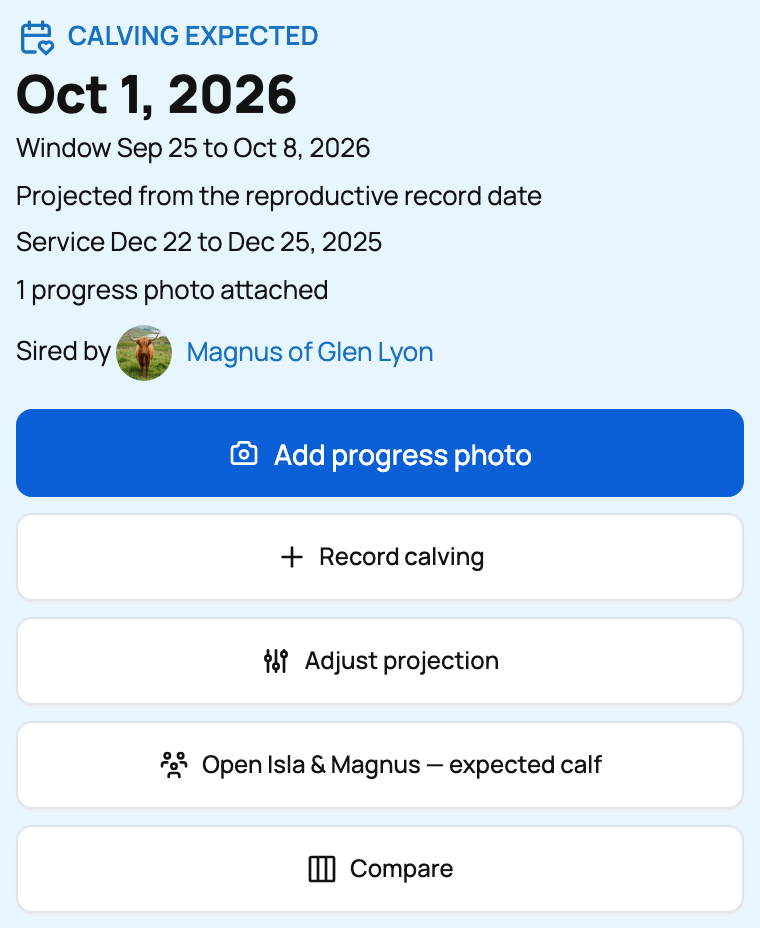
When the breeding used an exposure period, the card keeps the service span and shows a wider likely window. If a pregnancy check gives you better information, choose Adjust projection. That updates the expected date, likely window, milestones, and open projected reminders together.
Add progress and act on milestones
- Choose Add progress photo for an observation tied to this cycle.
- Add the observation date, a short description, and photos when they help.
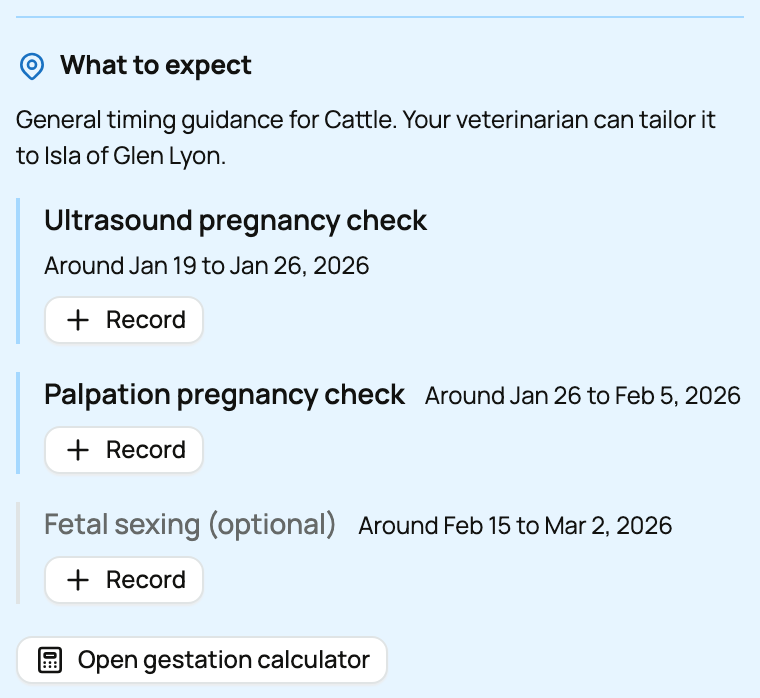
- Use Record beside a milestone when you complete that check.
- Choose Record calving, Record whelping, or the species-appropriate action when the offspring arrive.
Pre-birth progress saves privately. Share with reserved buyers gives eligible buyers access to that update without making it public or changing your other records' visibility.
If you see Photos to attach, those progress entries were saved without a cycle. Attach each one to the correct cycle so it appears in the right timeline. When a comparison is available, choose Compare to line up this cycle and an earlier cycle by stage rather than calendar date.
Do not create a second active cycle to correct a date. Use Adjust projection on the existing cycle so the history stays connected.
If the pregnancy has ended, record the real outcome. Leaving it active keeps it in your planning view. The progress bar and What to expect milestones are general timing guidance, not an assessment of the animal's health.
Next: Share selected updates with reserved buyers or record the birth and continue with the born group.
Updated on: 03/09/2026
Thank you!