
Add a receipt from your phone or computer
Add a receipt in Receipts by uploading a file or taking a photo, and Creatures drafts the vendor, date, total and line items for you. Nothing goes into your records until you check the draft and save the expense.
Open Receipts
Open Finance, select Accountant tools, open Setup and other tools, then select Receipts. On the Add money card, Receipt inbox opens the same page.
Receipts belong to one set of records, so check the record name first. If needed, choose it under Records and select View records. Owners and bookkeepers can add receipts.
You can also start from Add money on Finance, then Photo or file. Upload the receipt and select Use this document, then Read this document. Check the suggested details, fill in Category and more details, and select Save.
Add the receipt
- Under Have a receipt?, choose how to add it:
- Choose or drop a receipt picks a PDF or photo already on your device. PDF, JPEG, PNG, WebP and HEIC files up to 10 MB work.
- Take a photo opens the camera on a phone. On a computer, it shows a code instead. Scan it with your phone and snap the receipt. The photo comes back to the page and starts drafting. Each code works once and expires after 10 minutes.
- If you chose a file or took the photo on this device, select Upload and draft details. If you used the code from your computer, drafting starts automatically. Drafting usually takes 30 to 90 seconds. Keep the page open, and it refreshes when the draft is ready.
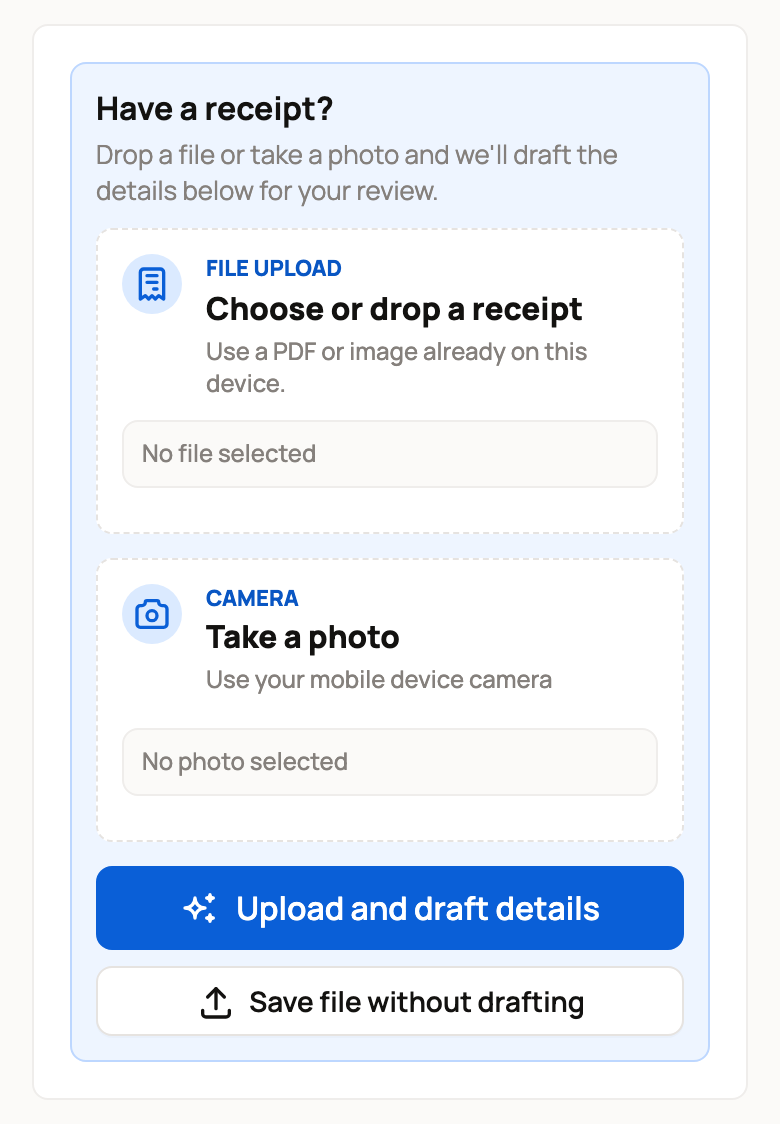
Want to draft it later? Select Save file without drafting. The receipt waits in the list as Ready to draft. Open it and select Draft details later.
Check the draft
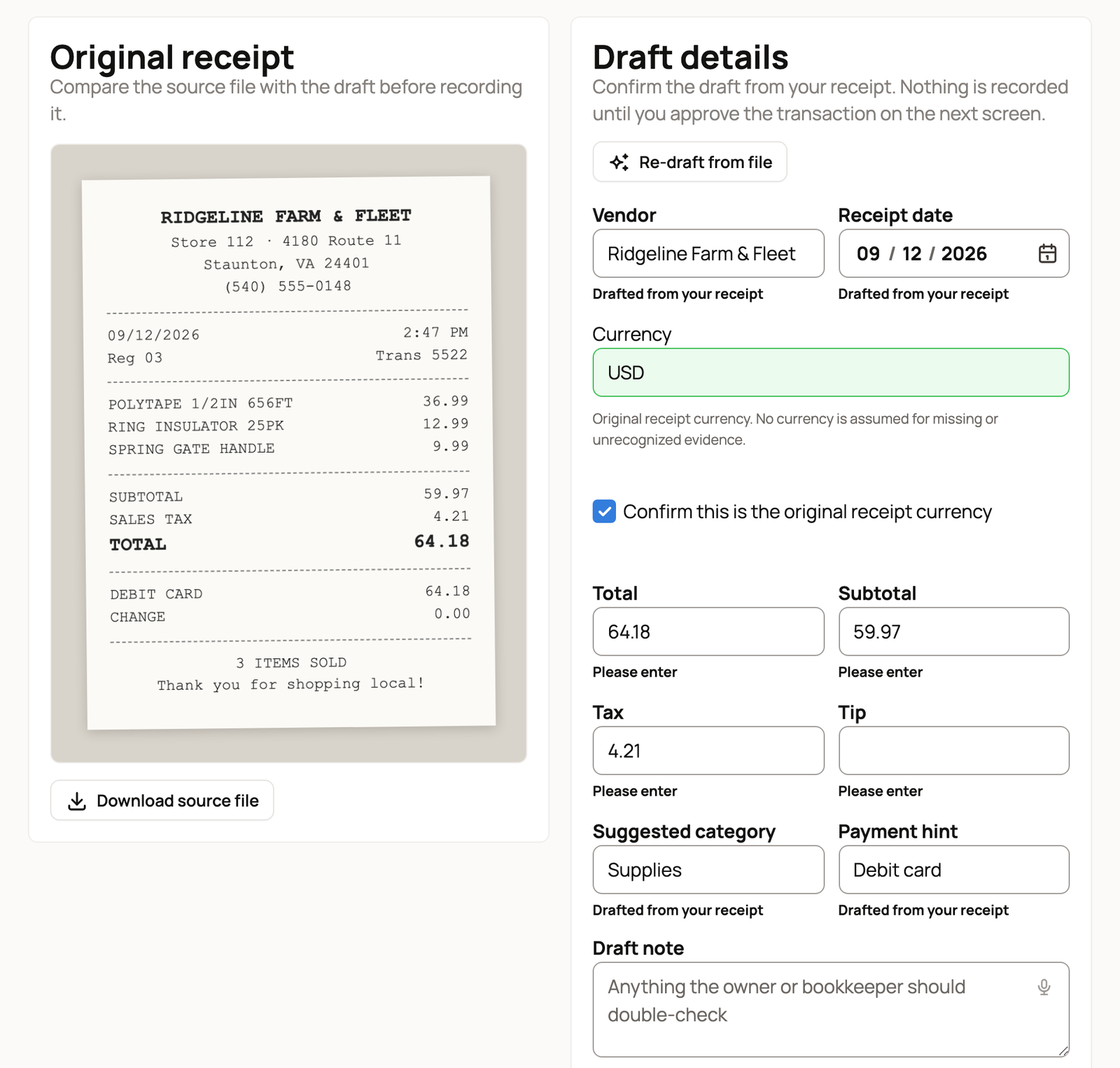
The receipt page shows the Original receipt next to Draft details, so you can compare them. Check the Vendor, Receipt date and Total first.
Next, check the Currency. Creatures fills it in only when it can read it on the receipt, so you may need to type it, such as USD. Tick Confirm this is the original receipt currency. Creatures won't save the draft without it. Then look at Subtotal, Tax, Suggested category and Payment hint.
A note under each field tells you how sure Creatures is. Drafted from your receipt means it read the value clearly. Please confirm means take a closer look. A field you change says Edited by you.
Type over anything that's wrong. You can also choose animals under Which animals is this for? and check the Line items. If the draft is far off, select Re-draft from file.
Record the expense
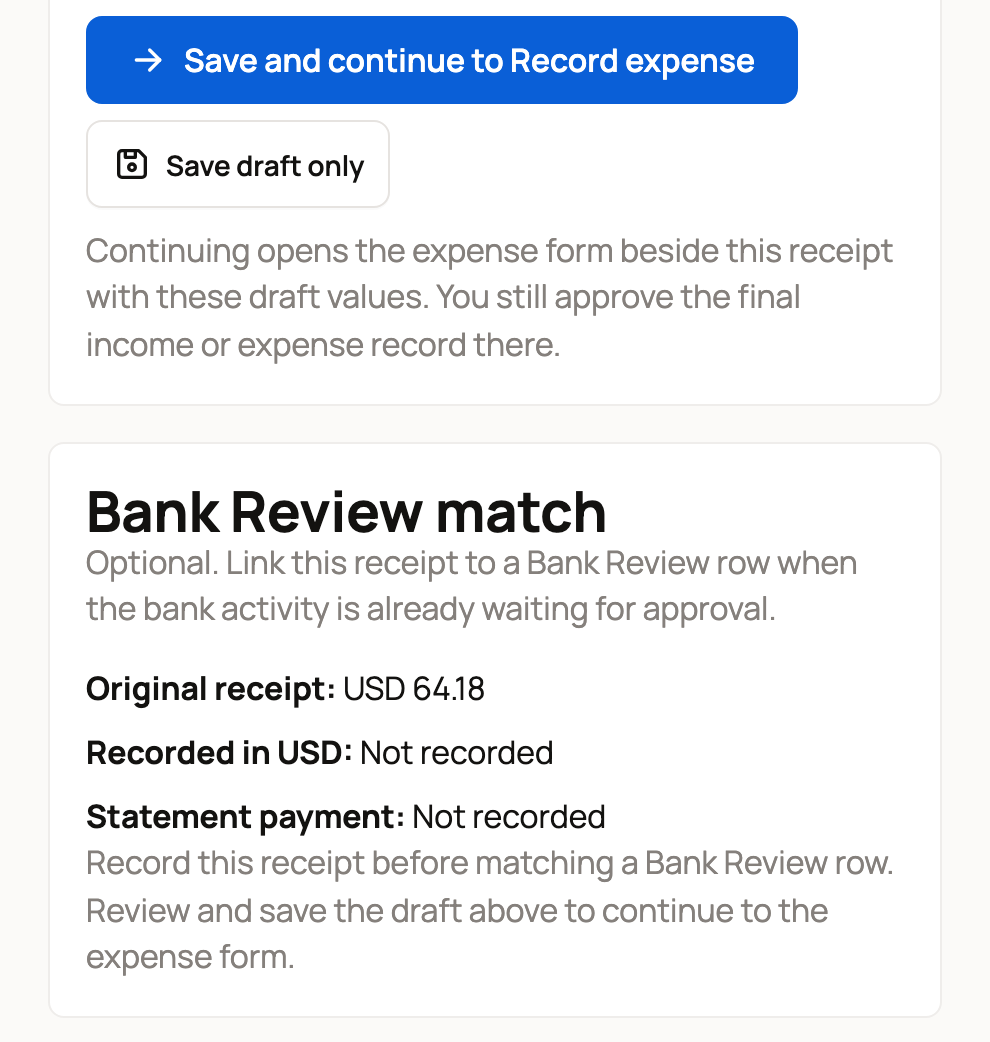
- Select Save and continue to Record expense. To finish another time, select Save draft only.
- The Add income or expense form opens beside the receipt, with the draft filled in and the receipt attached. Check the Category, then select Save transaction.
The receipt now shows Approved by you. It stays attached to the expense as paperwork.
Already imported your bank statement? Save and continue to Record expense brings in the closest waiting bank row with about the same amount and date, if there is one, and the expense form says Saving will match the imported statement row. Until the receipt is recorded, Bank Review match on its page asks you to record it first. Afterward, you can link a waiting row there with Link row. See Import a bank statement and review the rows.
Find receipts later
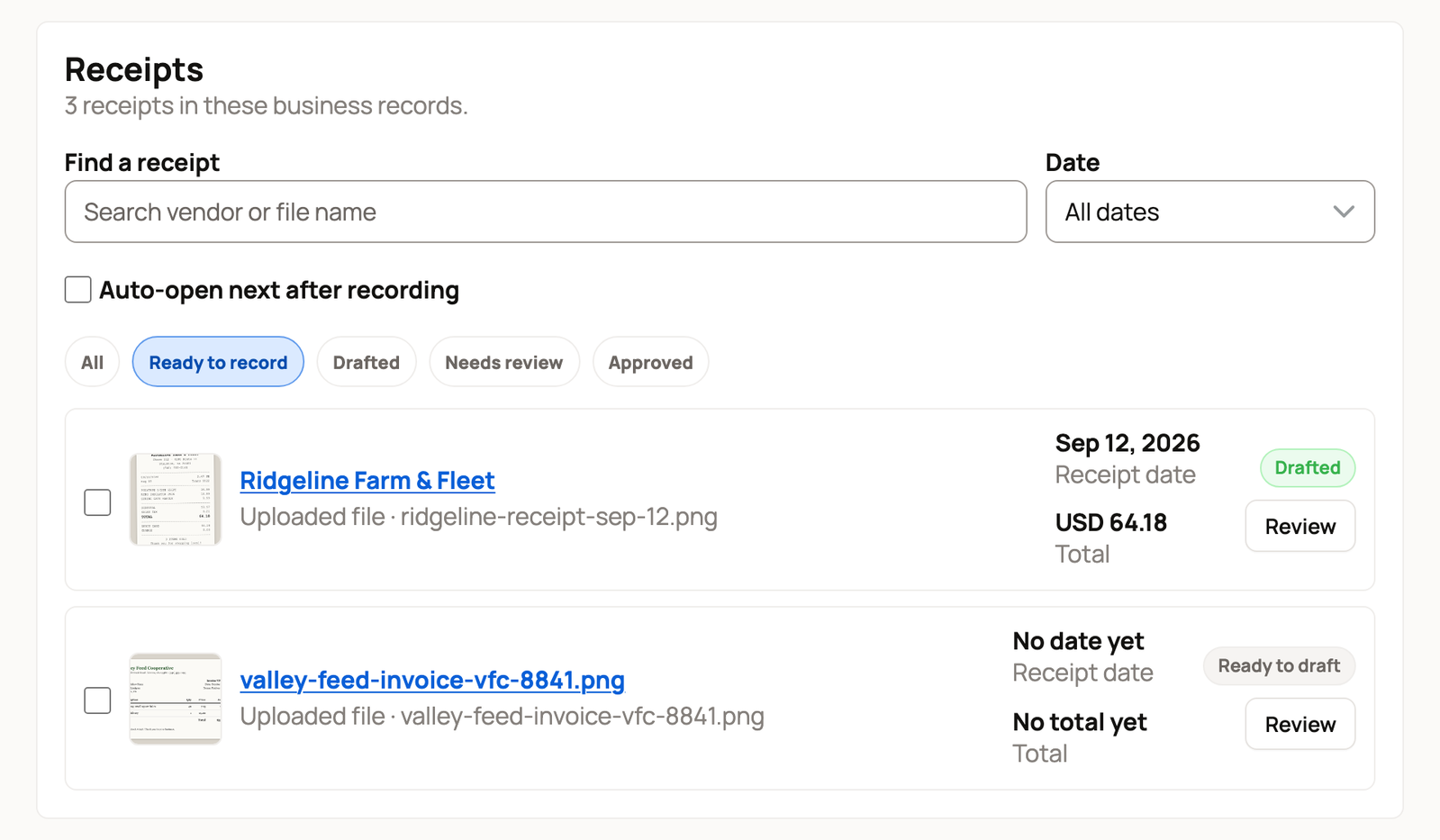
The Receipts list shows each receipt's date, total and status. Use the buttons to narrow it:
- Ready to record: anything you haven't recorded yet.
- Drafted: drafts waiting for your check.
- Needs review: receipts not drafted yet, or ones Creatures couldn't read.
- Approved: receipts you've recorded.
Anything you started in Add money but haven't saved sits at the top under Saved for later. Select Resume to finish one.
Search in Find a receipt, or pick a Date range. Working through a stack? Turn on Auto-open next after recording.
If something looks wrong
- Duplicate: the file matches a receipt already in these records. Open the original, then archive the copy.
- Needs manual entry: Creatures couldn't read the file. Select Try drafting again, or type the details yourself.
- Currency needs review where the total should be: the receipt's currency isn't confirmed yet. If you haven't recorded it, open it, check the Currency and amounts, tick the box, and select Save draft only.
- Don't need a receipt? Select Archive receipt at the bottom of its page before you record it. Recorded receipts stay with their expense.
Related information
- Recording money in and out
- Import a bank statement and review the rows
- Money categories and entries saved for later
- The accountant view and reports
Updated on: 29/10/2026
Thank you!