
Import a bank statement and review the rows
Yes, you can bring in a bank statement instead of typing every transaction. Download a statement file from your bank, bring it in with Import statement, then use Bank review to match, record or exclude each row.
Before you start
In your online banking, download one account's statement as a CSV file. OFX and QFX files work too. Owners and bookkeepers can import statements.
Import the statement
- Open Finance, select Accountant tools, then select Import statement.
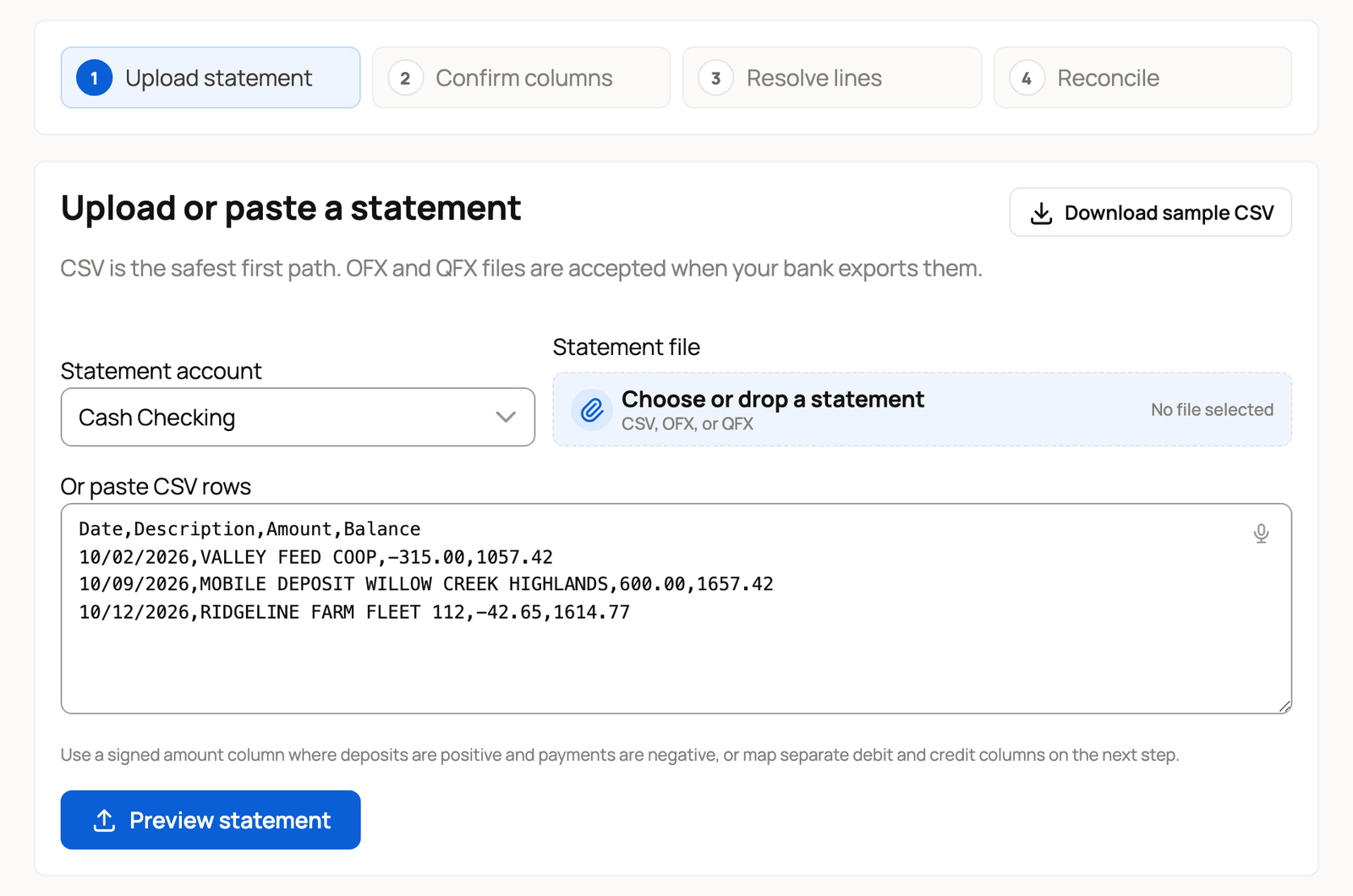
- Choose the Statement account, such as Cash Checking.
- Select Choose or drop a statement and pick the file. Or paste rows into Or paste CSV rows.
- Select Preview statement. Creatures keeps the file with these records but doesn't import any rows yet.
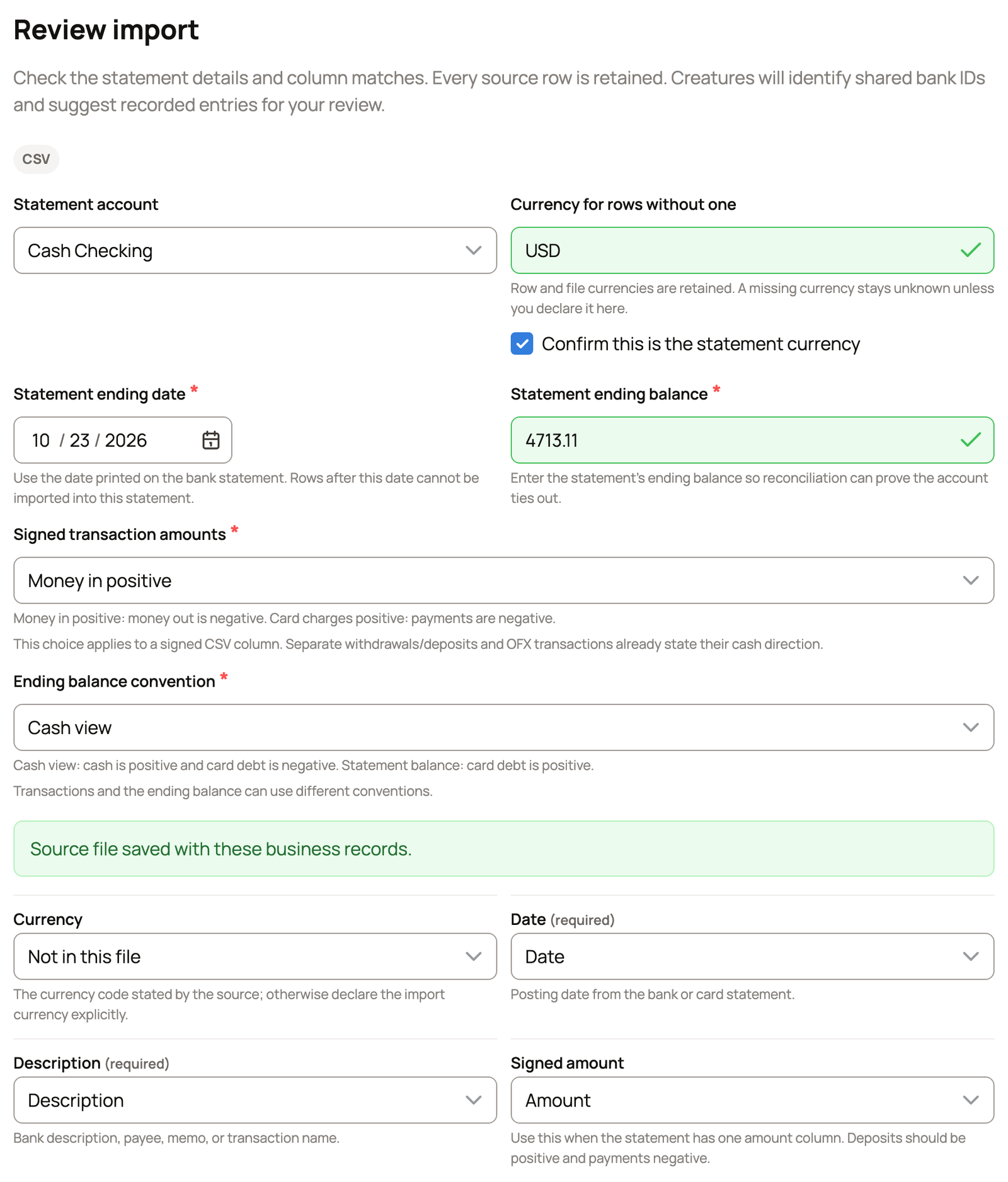
- On Review import, check that each column is matched to the right field, such as Date, Description and Signed amount. Choose Not in this file for any column your bank doesn't have.
- Check the Statement ending date and Statement ending balance against the statement. Type the balance if it's empty.
- If your file has no currency column, type the statement's currency, such as USD, in Currency for rows without one. Tick Confirm this is the statement currency. Without a usable currency, Creatures can't match those rows or record money from them.
- Choose Signed transaction amounts and Ending balance convention. For a checking or savings account, choose Money in positive and Cash view. For a card statement that shows charges and the amount you owe as positive numbers, choose Card charges positive and Statement balance.
- Look over the rows and totals below, then select Import for review.
Importing saves the rows for review but creates no entries yet. OFX and QFX rows that share a bank ID with an earlier import show Duplicate. CSV files have no bank IDs, so if you import the same rows twice, abandon the extra import (see below).
Work through Bank review
Open Bank review from the import page. The counts at the top show what's left: Needs decision, Needs details, Suggested matches and Excluded rows.

Match money you already recorded before you record anything new:
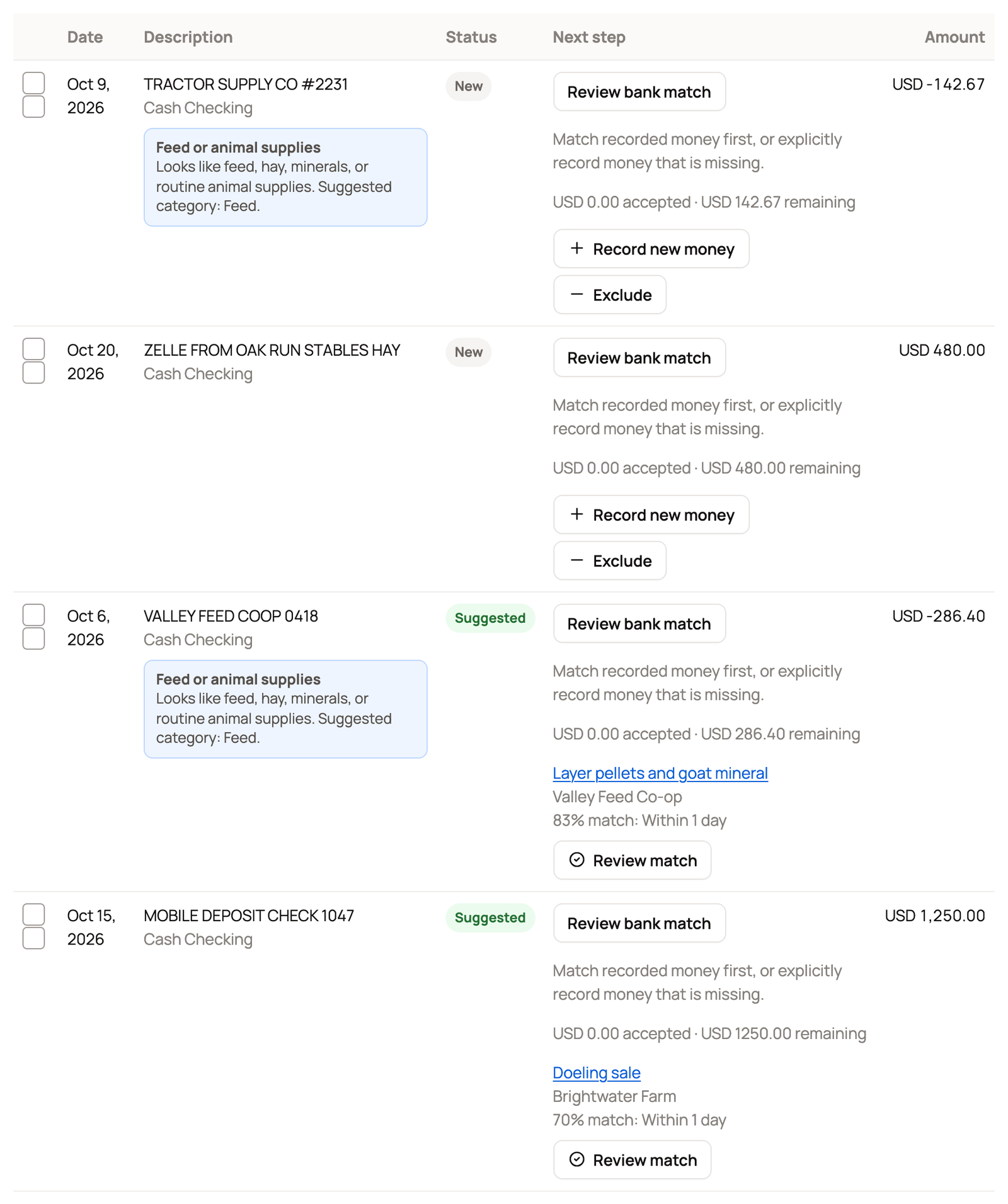
- Review bank match is on every row. Select Find recorded movements, tick the entries the row covers and check each amount. Add a Reason, select Review bank match, then Match bank evidence. Your entries' amounts and categories don't change.
- A Suggested row already has an entry with the same amount, dated within three days. Select Review match to confirm it on the Match statement page.
- If a New row's money is missing from your records, select Record new money. The Add money card opens with the row attached. Fill it in and select Save. Review the money and bank selection, then select Save reviewed selection to record the entry and link it.
Exclude a duplicate row whose money is already handled, or a row that does not belong in these records. A transfer between accounts tracked here still needs a transfer entry: match the existing movement, or record the transfer if it is missing. On a New row, select Exclude. To exclude several rows with a reason, tick them, pick an Exclude reason, then select Exclude selected from records. They stay with the statement but never become entries. To undo, set Status to Excluded and select Apply filters. Open the row's Reason, then select Restore to review.
Let Creatures remember a payee
On the import page, Record new money opens the Add income or expense form with Teach Creatures this rule. Turn it on, and Creatures suggests the same vendor and category when that payee shows up again. Rules never save anything on their own. You can archive them under Bank rules.
Have the receipt too? Record it from Receipts, and Creatures brings the matching bank row into the expense form. See Add a receipt from your phone or computer.
What happens next
When every row is handled, select Finish reconciliation at the top of Bank review. You'll check the statement balance and close the month. See Match a statement and close a month.
If something looks wrong
- A row dated in a closed month shows Source needs review. It can't be matched or recorded until an owner reopens that month.
- Imported the wrong file or account? Open it under Recent statement imports on the import page and select Abandon import. Its rows are hidden, and you can import the right file. Entries you already saved stay.
- The import stops if a row is dated after the Statement ending date. Check the date and try again.
- Left the statement currency blank? New rows can show Not recorded for their amounts. Abandon the import and import it again with the original currency filled in and confirmed. If an older import offers Review statement currency, enter Original statement currency, tick Confirm this currency and retain the older two decimal places, then select Confirm statement currency. This retains the older scale; currencies with a different number of decimal places still need review.
Related information
- Match a statement and close a month
- Add a receipt from your phone or computer
- Recording money in and out
- Setting up your books
Updated on: 29/10/2026
Thank you!