
Match a statement and close a month
Match statement checks the entries in Creatures against your bank statement and marks the ones that cleared. Close month then locks that month, so nothing dated in it changes by accident.
Do this once a month, after your bank rows are sorted out. Owners and bookkeepers can match and close. A reviewer can look but can't change anything.
Before you start
Have your paper or PDF statement in front of you. If you imported the statement, clear its rows in Bank review first. See Import a bank statement and review the rows.
Match a statement
- Open Finance, select Accountant tools, then select Reconciliation. You can also start from Finish reconciliation in Bank review.
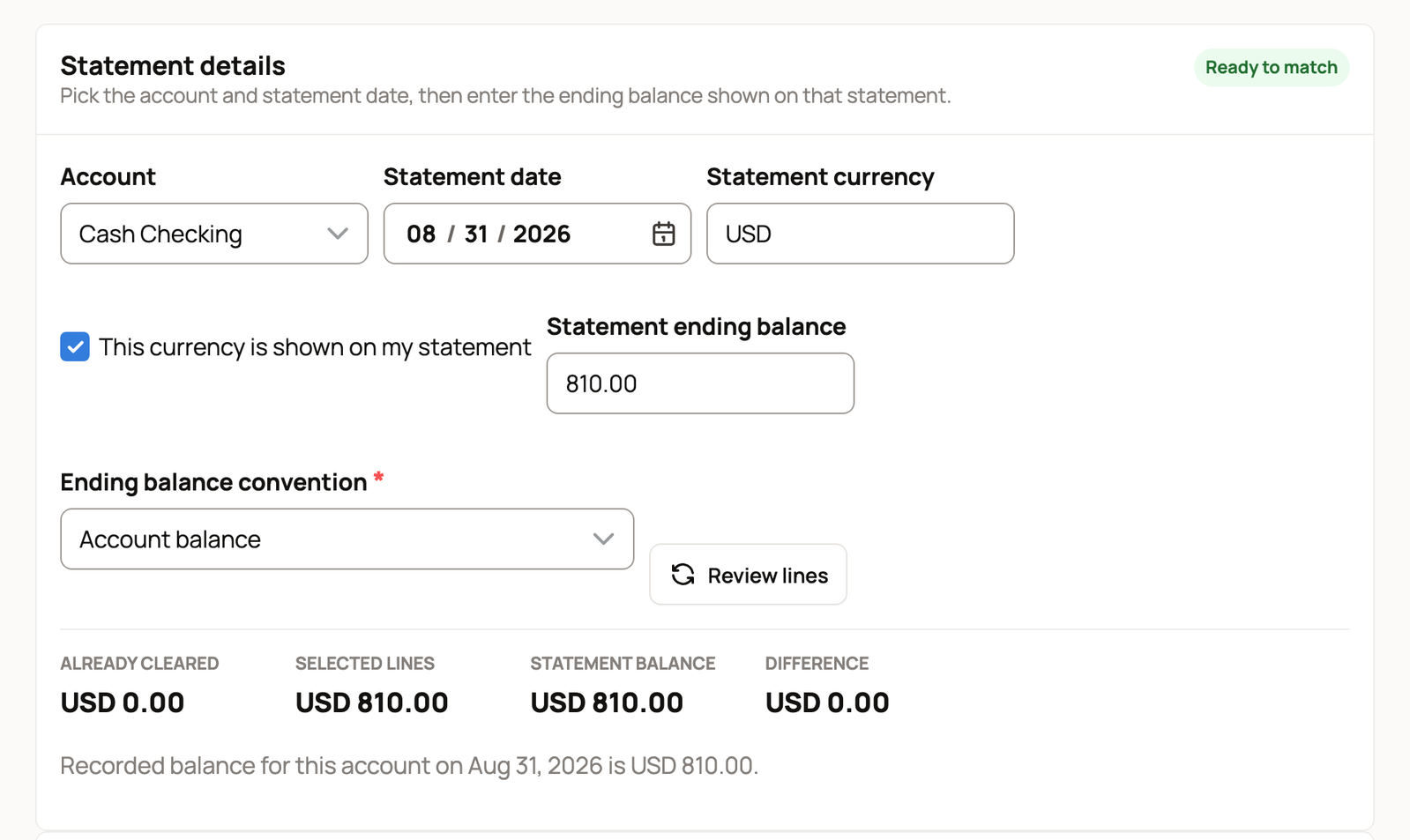
- Under Statement details, pick the Account. Statement date starts on today's date. Change it to the last day your statement covers. Type the Statement currency, such as USD, and tick This currency is shown on my statement. Then type the Statement ending balance printed on the statement. For a bank account, Ending balance convention is already set to Account balance. For a credit card, choose the one that matches how your statement shows what you owe.
- Select Review lines to load the entries up to that date.
If you came from Review match in Bank review, your imported statement's date, balance and currency are already filled in.
- Under Lines on this statement, leave On statement ticked only for the deposits, payments, fees and transfers that appear on your statement. Untick anything that hasn't cleared the bank yet.
- Check the four totals. Already cleared comes from statements you matched before. Selected lines adds up the ticked lines. Statement balance is the number you typed. Difference needs to reach 0.00, and the label at the top changes to Ready to match.
- Select Mark selected lines as matched. It stays grayed out until the currency matches your records and the difference is zero.
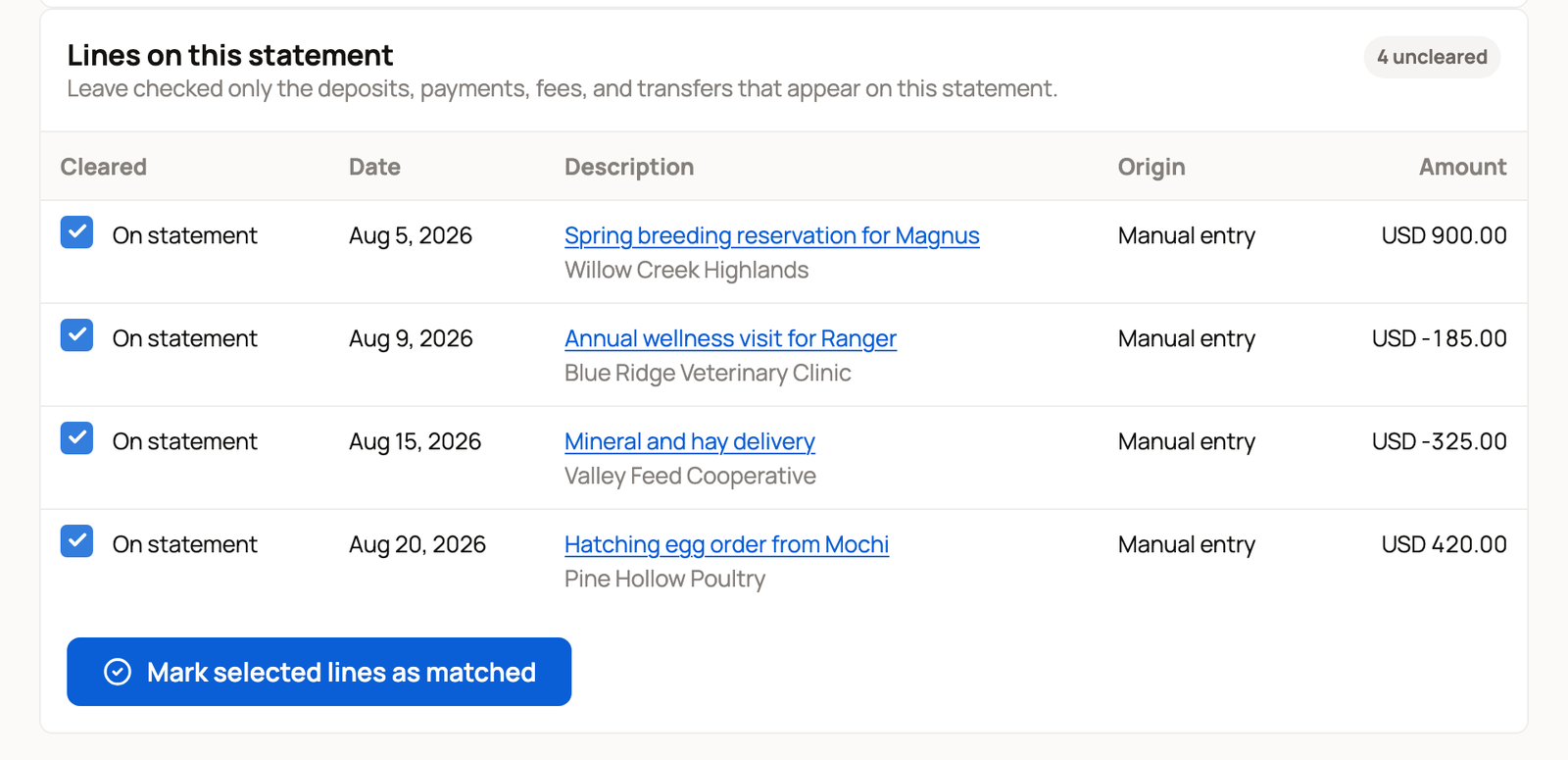
The match then shows under Recent matched statements.
If the difference isn't zero
Creatures won't save a match that's off. It tells you how far apart the two numbers are. The usual causes:
- A bank fee or charge isn't in Creatures yet. Record it from Bank review, then come back.
- A ticked line belongs on next month's statement. Untick it.
- The ending balance was mistyped, the wrong Account is picked, or the Ending balance convention doesn't match the statement.
- Difference says Currency needed. Check that Statement currency matches your records, such as USD, and that its box is ticked.
Close the month
- Select Close month at the top of the Match statement page.
- Check the Close-through date. It starts on the last day of last month. If you change it, select Review checklist.
- Read the Close checklist:
- The uncleared lines count shows entries still waiting for a statement match. They block the close.
- The draft transactions count shows unfinished entries. They block the close too.
- The larger transactions without paperwork count shows entries of 75.00 or more, such as USD 75.00, with no receipt attached. This is only a warning.
- Locked through shows the date your records are already closed to.
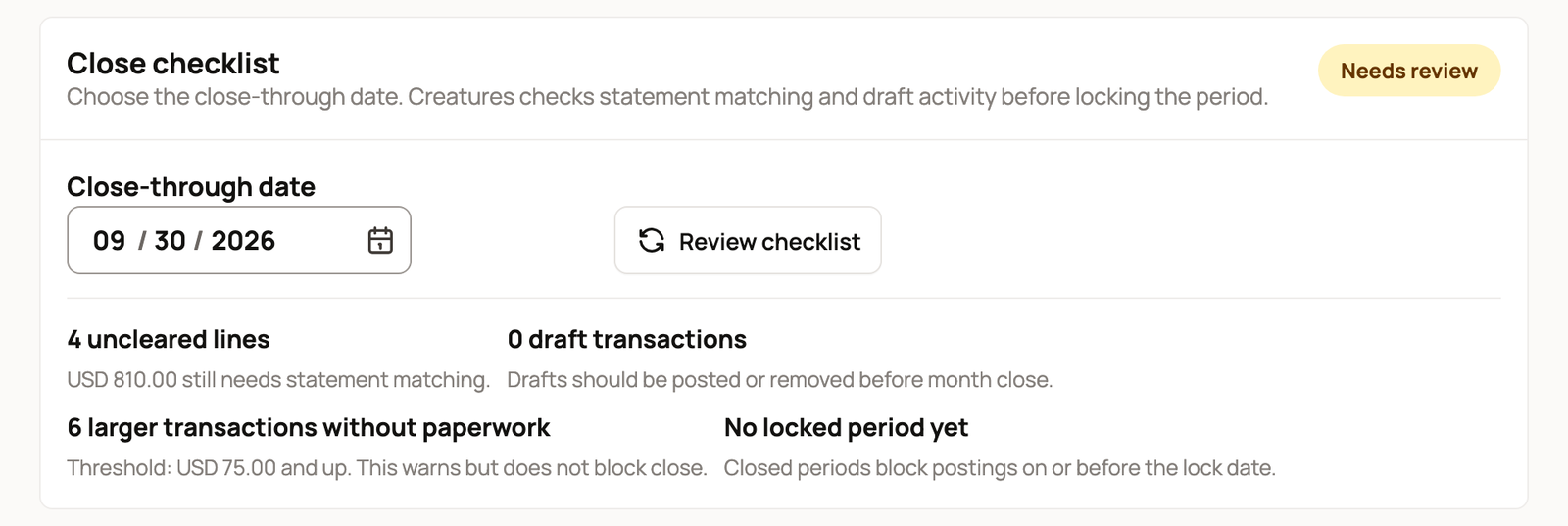
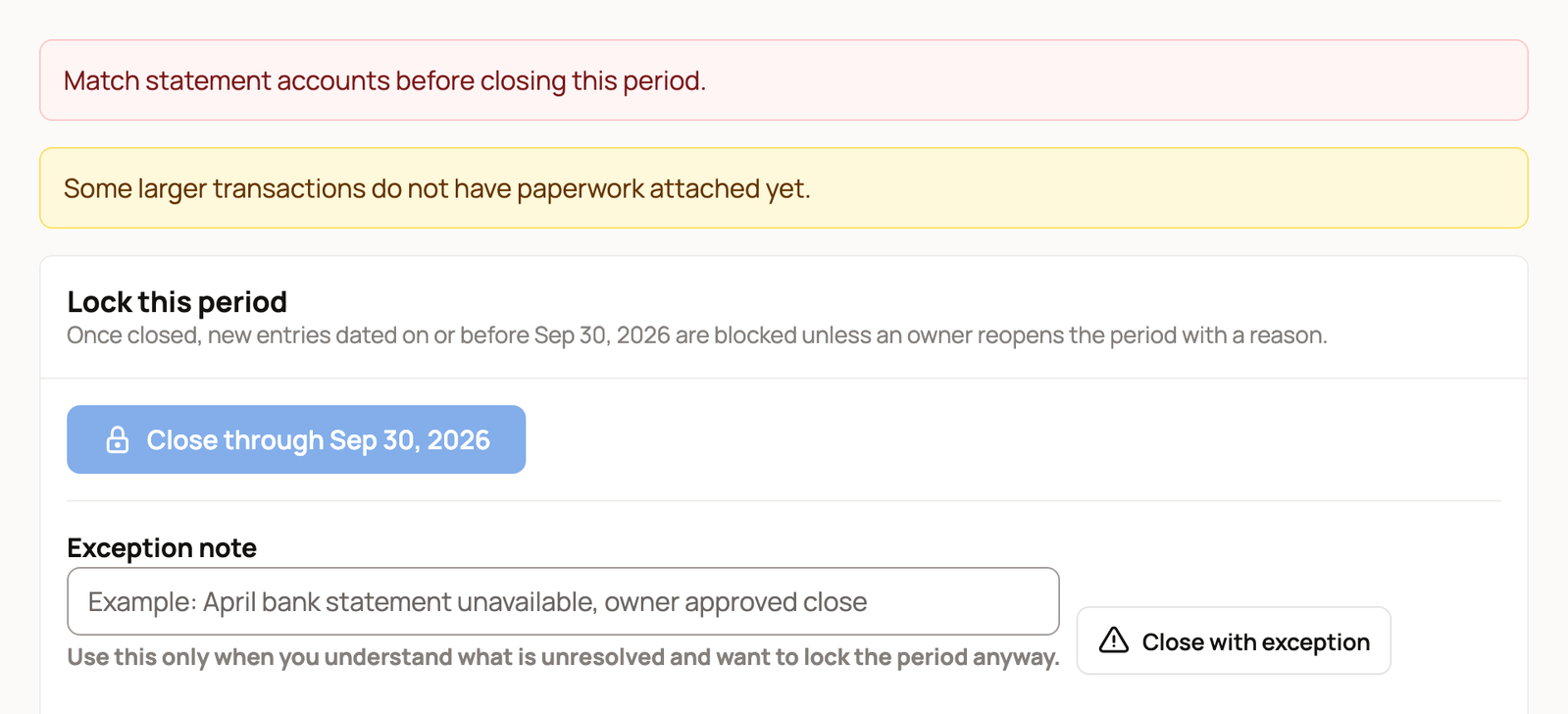
- When the checklist reads Ready to close, select the button that names your date, such as Close through Sep 30, 2026.
Sometimes an item can't be fixed yet, such as a statement that hasn't arrived. Type a short Exception note that says why, then select Close with exception. Your note is saved with the close.
What a closed month means
- Creatures won't save a new entry dated on or before the close-through date.
- A statement that ends in a closed month can't be matched. Imported bank rows dated in it wait until an owner reopens the month.
- Accountant tools and Accounting Review show Locked through with the date.
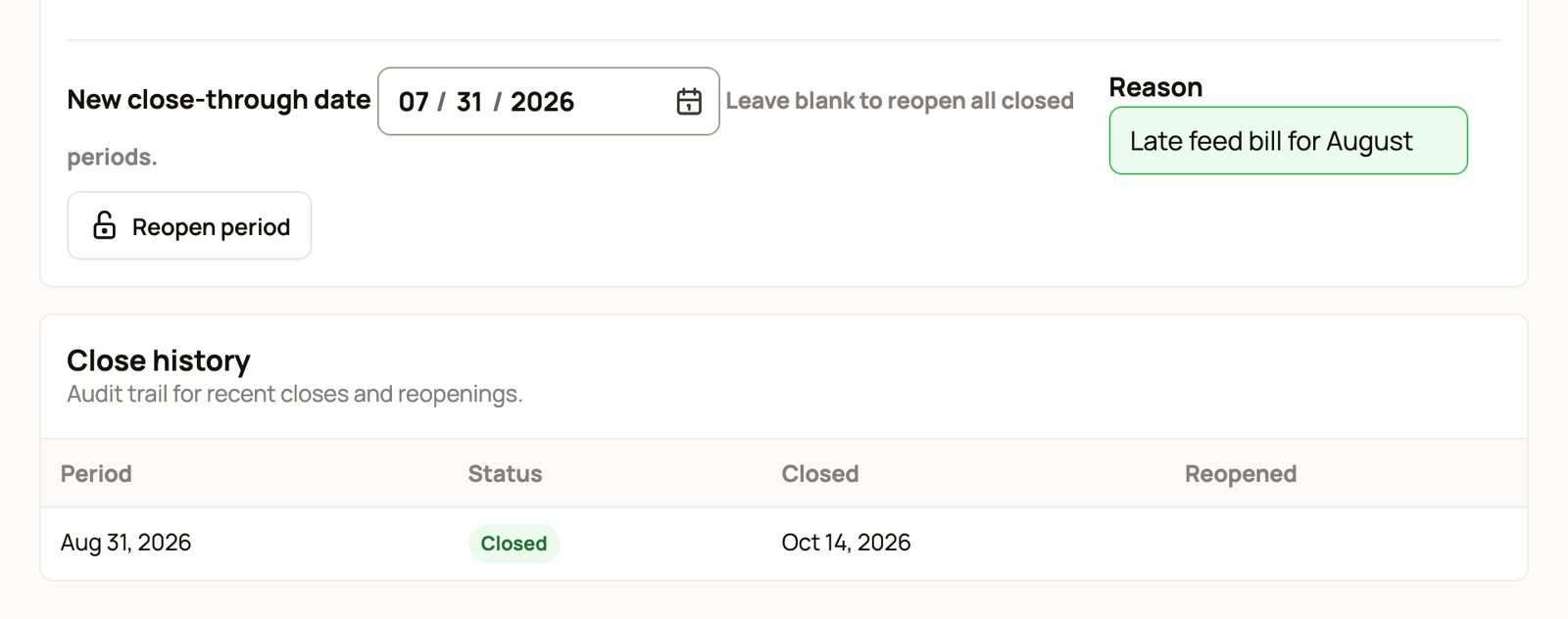
- Close history keeps a record of every close and reopen.
You can't close a date in the future.
Reopen a month
Only owners can reopen. Below the close buttons, enter a New close-through date to keep earlier months closed. Leave it blank to reopen every closed month. Add a Reason, then select Reopen period. The reopen and its reason appear in Close history.
Related information
- Import a bank statement and review the rows
- The accountant view and reports
- Prepare your year-end package for your accountant
- Setting up your books
Updated on: 29/10/2026
Thank you!