
Money categories and entries saved for later
Categories sort your money into groups such as Feed or Animal sale, so your totals and reports make sense. When an entry needs one more detail, Creatures keeps it under Saved for later until you finish it.
Find a category
Open Finance, select Add money, then Enter details, and open Category and more details. The Category list shows eight choices for Money out or Money in. Preferred categories come first. The other choices reflect how these records are set up and the categories you use most.
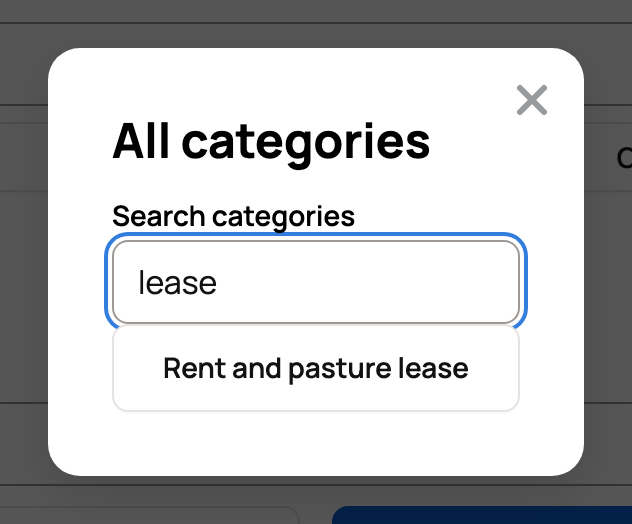
For anything else, select All categories. Type a word in Search categories, or scroll the full list. Money out has choices like Insurance, Rent and pasture lease, Shows and Equipment and assets. Money in includes Grant. Pick one, and it takes the last spot in the list for this entry.
Put your own categories first
If you own the records, you can choose which categories show first.
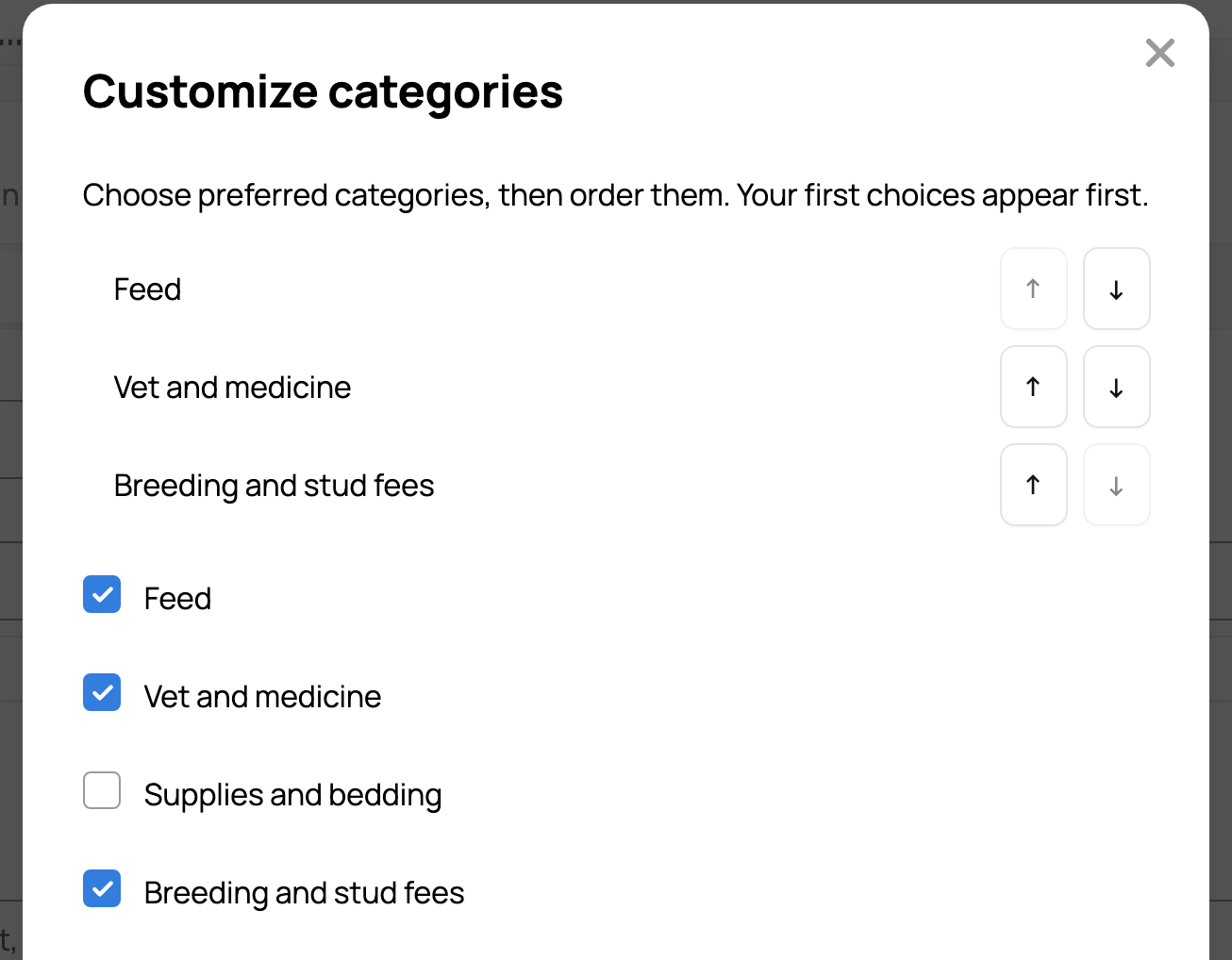
- In Add money, select Enter details, open Category and more details, then select Customize categories.
- Tick the categories you use most.
- Put them in order with the up and down arrows.
- Select Save category preferences.
Your choices now lead the list for everyone adding money to these records. Money out and Money in each have their own order, so set up each one. Only the owner of the records sees this button.
What Category and more details means
- Financial treatment says what happened. It starts empty. Choose Paid purchase for a bill you paid, or Received income for money you got.
- Category detail says what kind of money it is. For Feed, choose Consumed supplies. For an Animal sale, choose Raised or own-produced or Bought for resale. For Vet and medicine, choose Treatment or Health testing.
- Money account is where the money came from or went. It starts empty too.
- This cost belongs in these records starts unticked. Tick it for money out. For money in, This income belongs in these records is optional.
- Confirm this financial treatment and any selected account must be ticked for Other income, Other expense, Gift, Grant, Sponsorship and Equipment and assets.
- A Sponsorship also needs Confirm what the sponsorship provides. A Grant needs a Grant purpose and Confirm the grant restrictions.
Why an entry was saved for later
An entry is saved for later when:
- Direction, Date, Amount, Currency, the I confirm this currency tick or Description is empty
- a field under Category and more details is missing, such as an Animal sale with no Category detail
- one of the categories above is missing a confirm tick, or a Grant is missing its purpose
- the Currency isn't your records' currency and its value hasn't been confirmed yet
- you selected Save for later yourself
The card stays open. If a detail is missing, a note at the top starts with "Saved for later" and says what to confirm. Creatures takes you to it or opens Category and more details. Fill it in and select Save. Or select Done and come back later.

Finish an entry saved for later
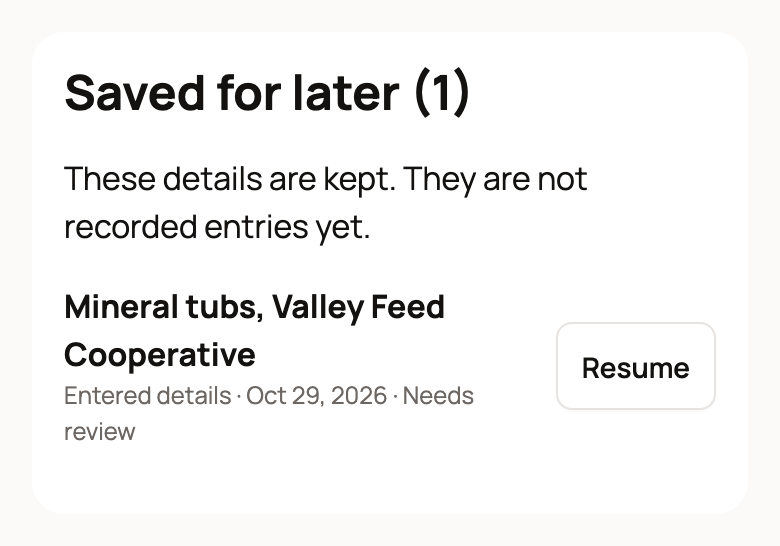
- Open Finance and select Add money. Below the card, the Saved for later list shows each entry and how you added it, such as Entered details or Photo. The same list is in Receipts, and the Money page shows these entries under Needs a tap.
- Select Resume. The card opens with what you typed.
- Add the missing detail and select Save.
Don't need it? On the card, select Discard this capture, type a Reason, then select Discard capture.
Saved it from the Add income or expense form instead, such as from Advanced entry on an animal's Finance tab? Resume opens that form again. Finish it there with Save transaction. To drop it, type a Discard reason and select Discard pending capture.
Not sure which category?
- Choose the closest one and add details in the note.
- Categories organize your records. They don't decide your taxes, so ask your accountant when it matters.
Related information
- Recording money in and out
- Understanding your finance dashboard
- Add a receipt from your phone or computer
- Prepare your year-end package for your accountant
Updated on: 29/10/2026
Thank you!