
Add your Creatures schedule to your phone calendar
Create a private subscription link in Creatures, then add it to Google, Apple or Outlook calendar. Your Creatures events, to-dos and bookings show there and update on their own. If you only want care for your animals, the Care calendar feed is simpler.
Create a subscription link
- At the bottom of Today, choose Calendar connections and sharing.
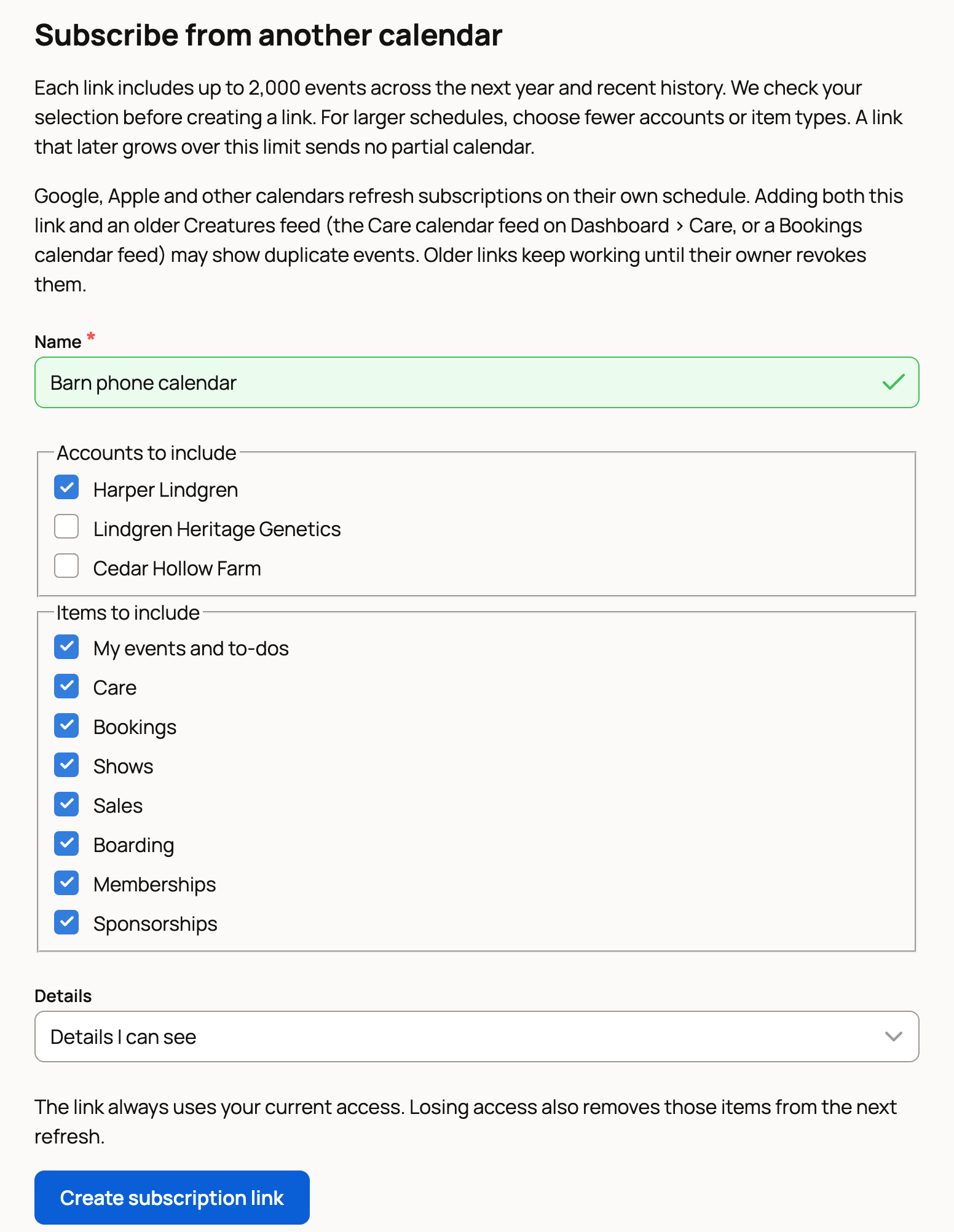
- Under Subscribe from another calendar, give the link a Name, such as "My phone calendar".
- Under Accounts to include, tick your own account and any organizations you want.
- Under Items to include, keep the kinds you want, such as My events and to-dos, Care and Bookings. Daily care for several animals is often too much for one link (see below).
- Under Details, keep Details I can see, or choose Busy times only to hide names and notes.
- Choose Create subscription link.
Copy the Private calendar link right away, because it only appears once. Anyone with this link can see its items, so keep it private.
Add it to your calendar app
- Google Calendar: on a computer, choose + next to Other calendars, then From URL, and paste the link. It then shows in the Google Calendar phone app too.
- iPhone or iPad: in the Settings app, find Calendar, then open Accounts, Add Account, Other and Add Subscribed Calendar.
- Outlook: choose Add calendar, then Subscribe from web.
Each calendar app refreshes on its own schedule, so changes can take several hours, sometimes a day, to show.
If Creatures says the link has too many events
A link holds up to 2,000 events over the next year. Daily care for several animals passes that quickly, so you may see Subscription link not created. This subscription exceeds 2,000 events.
Your choices stay filled in. Untick Care and choose Create subscription link again. Then add your care with the Care calendar feed:
- On your Dashboard, open the Care tab.
- Under Care calendar feed, choose Create link.
- Copy the Calendar URL right away (it also shows only once) and add it to your calendar app the same way.
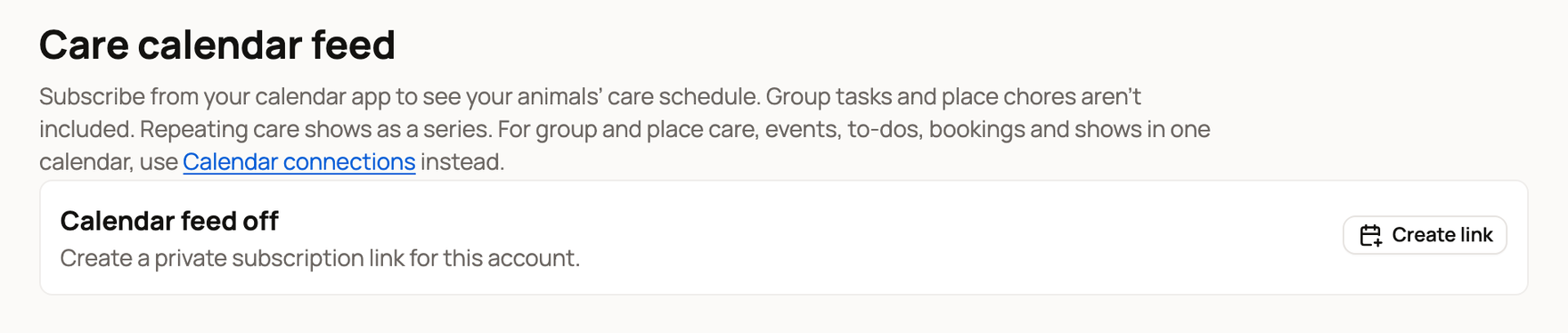
This feed sends repeating care as one series, so it stays under the limit. It covers care for individual animals. Whole-group tasks and place chores, like barn chores, aren't in it. Don't include Care in both links, or your care will show twice.
Stop or replace a link
Each link is listed under Your links, with when your calendar app last fetched it. Choose Stop this link to turn it off right away. For the Care calendar feed, Rotate link gives you a new link and stops the old one, and Revoke turns it off.
Share your calendar with one person
Under Share your personal calendar, choose a Person and their Access: Busy times only, View details or View and edit. Then choose Share calendar.
They get an invitation and can see your calendar once they accept. This shares only your own events and to-dos, never your animals, care records or bookings. Choose Stop sharing to end it, or Cancel invitation if they haven't accepted yet.
Signed in from an email link? Creatures may first ask you to confirm it's you with a code.
Related information
- Connect Google Calendar or another calendar to Today
- Plan your day and week on Today: to-dos and events
- Taking bookings: schedule, check-in, promos, and the calendar feed
Updated on: 29/10/2026
Thank you!