
Connect Google Calendar or another calendar to Today
You can show your Google Calendar, or any calendar with a private iCalendar link, on your Today page. Creatures can also use its busy times to protect your bookings, and it never changes your outside calendar.
Open Calendar connections
At the bottom of Today, choose Calendar connections and sharing. The Calendar connections page opens.
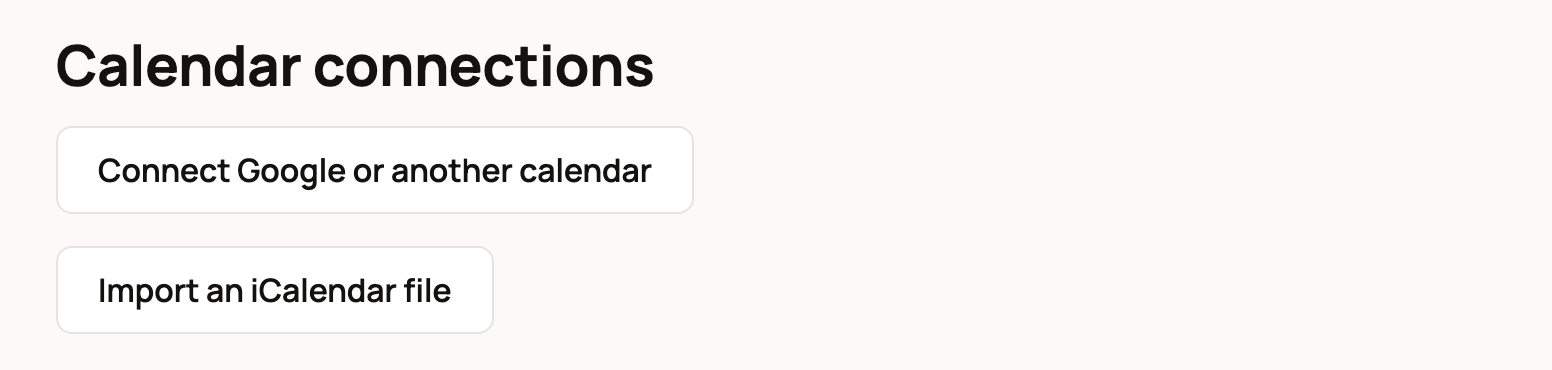
Choose Connect Google or another calendar to open Connected calendars.
Connect Google Calendar
- Choose Connect Google Calendar.
- Sign in to Google and allow Creatures to see your calendars and events. It can only read them, never change them.
- You come back to Connected calendars, with your Google calendars listed.
Connect another calendar with a link
Apple, Outlook and most calendar apps can share a private subscription link. It often ends in .ics.
- Open Connect an iCalendar subscription link.
- Enter a Name, such as "Family calendar".
- Paste the Private HTTPS subscription link. If it starts with webcal://, change that part to https://.
- Check the Calendar time zone, then choose Connect calendar.
Only connect a calendar you have permission to use. Creatures keeps the link private.
Choose how each calendar is used
Each new calendar starts off, so nothing shows until you choose. Under Use this calendar, pick one:
- Show in Today adds its events to your Today page.
- Protect bookings only stops guests from booking when you're busy, without showing the events.
- Show in Today and protect bookings does both.
To protect bookings, also choose the Booking account to protect. You can narrow it with Limit to an offering or Or limit to one person or unit. Choose Save calendar settings.
After the first good refresh, tick Activate booking protection for this scope and save again. Creatures checks the calendar every few minutes when it protects bookings, and about every half hour when it only shows in Today. If that calendar also holds a Creatures subscription link, those events are skipped, so nothing shows twice.
If something looks wrong
- Refresh delayed or Refresh failed means Creatures couldn't read the calendar lately. It keeps the busy times it already knew.
- Reconnect this calendar means Google access has ended. Choose Reconnect Google Calendar and sign in again.
- To remove a calendar, open Disconnect this connection, tick the box and choose Disconnect. Its events leave Today and stop blocking bookings. Bookings you already have stay in place.
Import a calendar file once
To copy events in one time instead of staying connected, choose Import an iCalendar file on the Calendar connections page.
- Choose your iCalendar file (it often ends in .ics). It can be up to 5 MB and 10,000 events.
- Pick the Destination calendar: your own account or an organization.
- Check the Time zone for floating times. Creatures uses it for any times in the file that have no time zone. Then choose Preview import.
- Under Review your import, pick what to bring in, then choose Import selected events.
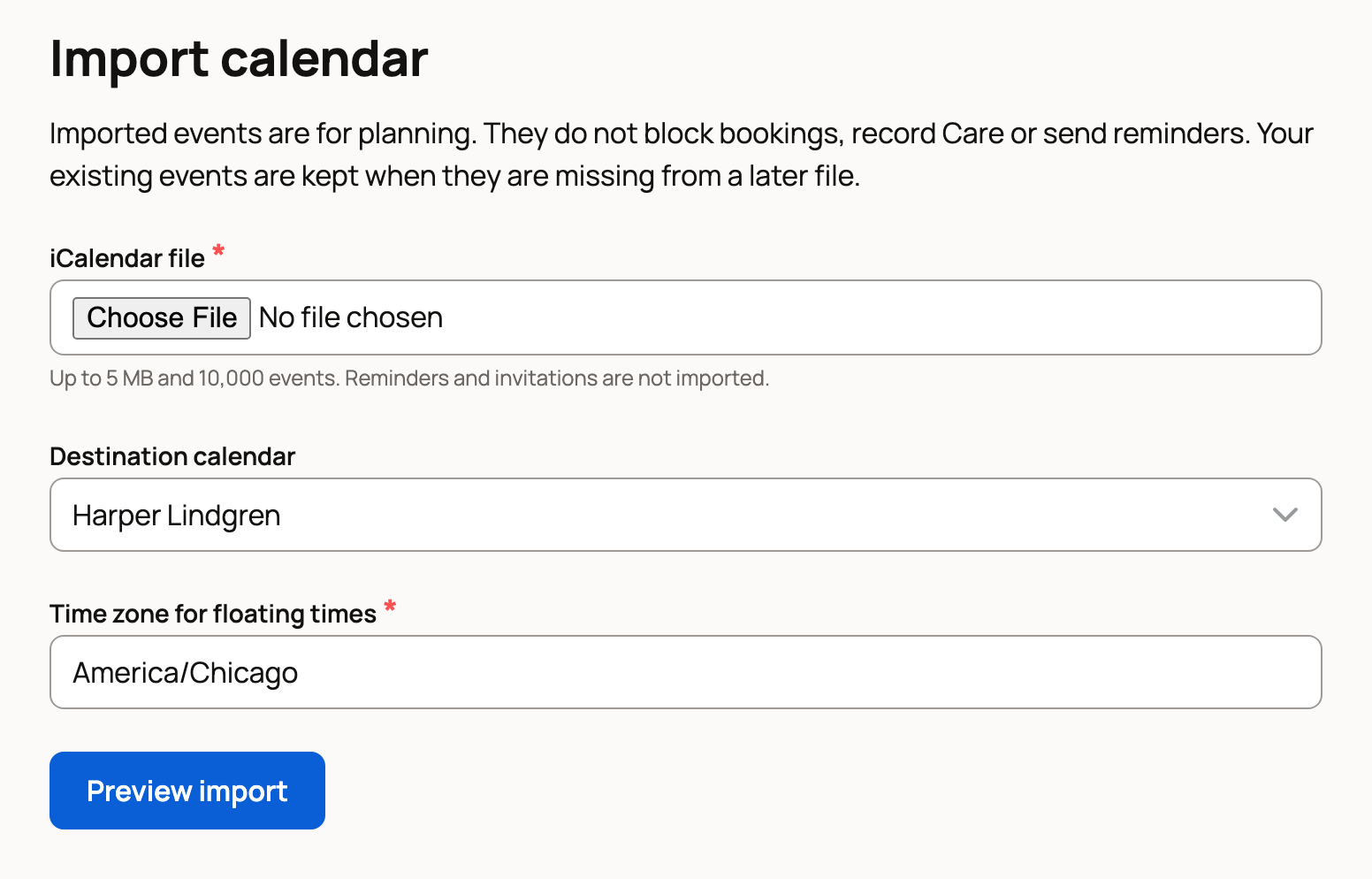
Imported events are for planning. They don't block bookings, record care or send reminders.
Related information
- Add your Creatures schedule to your phone calendar
- Plan your day and week on Today: to-dos and events
- Taking bookings: schedule, check-in, promos, and the calendar feed
Updated on: 29/10/2026
Thank you!