
Answering a transport quote request
When a buyer asks you for a price, the request appears under Requests with the status Awaiting Quote, not in Opportunities. Open it, enter Your Price and select Send Quote. The trip becomes your job once the buyer accepts and pays.
Find the request
Creatures sends you a notification when a buyer requests a quote from your public profile. To find it later, open Dashboard > Services > Transport > Requests and choose As Provider. The request is named for the species and head count, such as "Cattle · 4 animals".
Read what the buyer needs
The request page shows From and To, the Distance, the Species, the number of Animals and any Buyer Notes. "Town only. Confirm the exact address before transport." means the buyer gave a town but no street address.
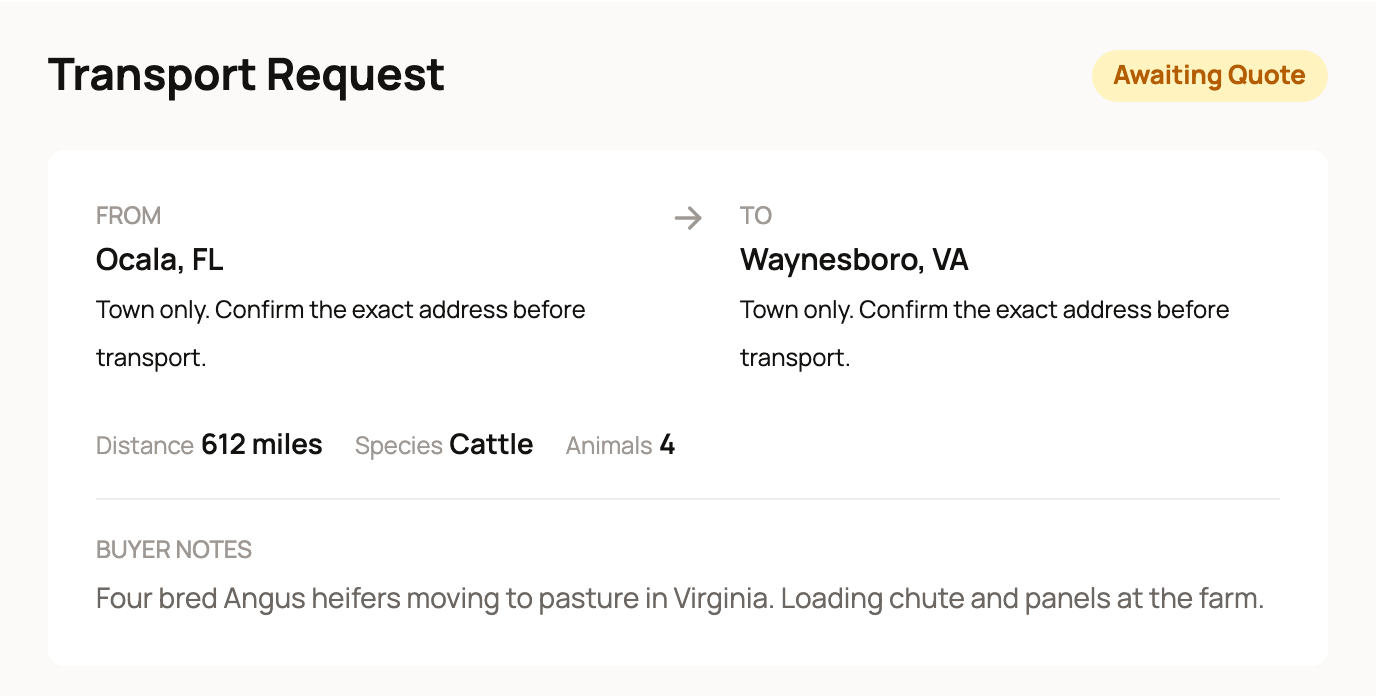
Use Message Buyer to ask for the exact address, the best day or how the animals load.
Send your price
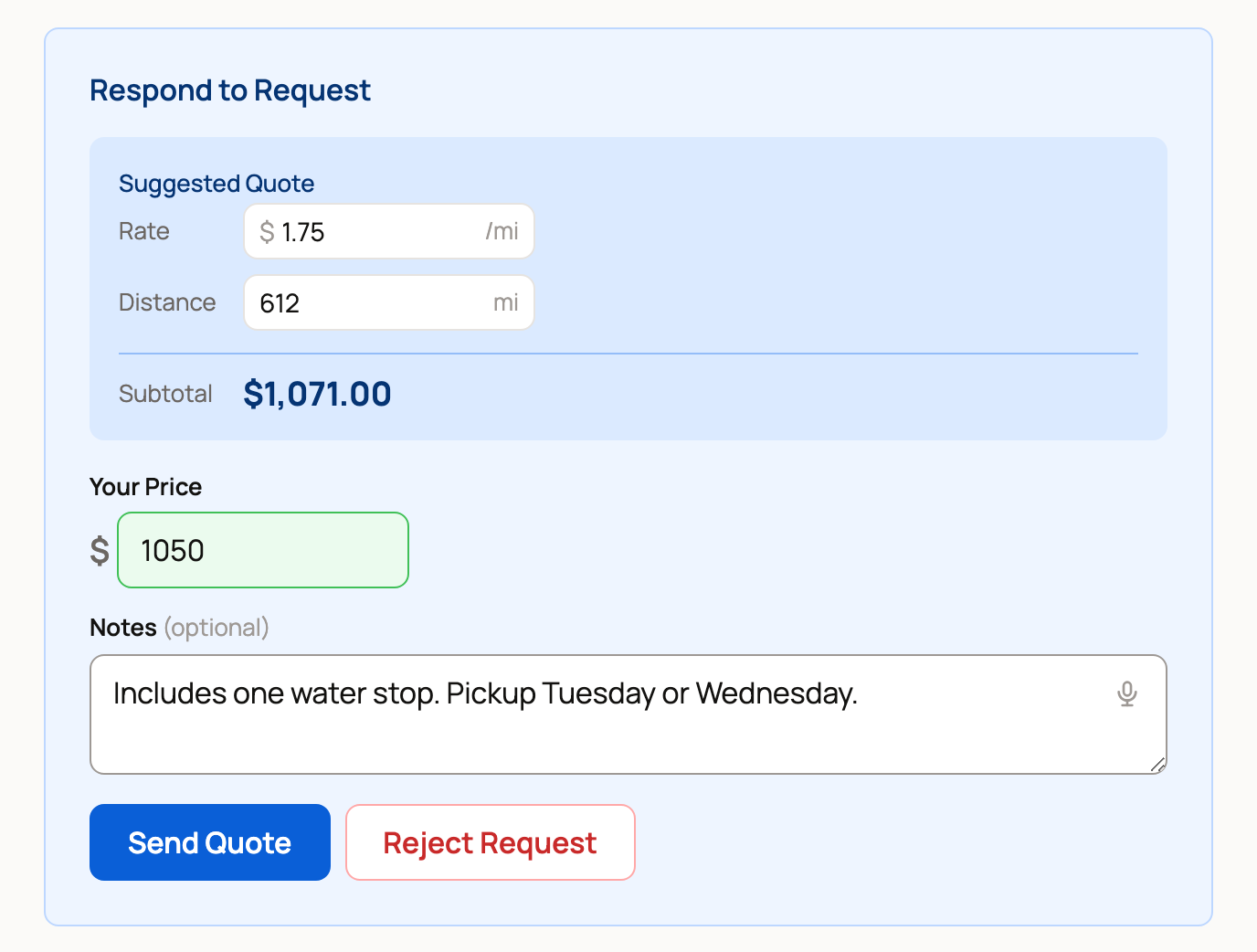
The Respond to Request card starts with a Suggested Quote. It multiplies your per-mile Rate by the Distance and shows the Subtotal. On a short trip, your minimum charge applies instead, and the card says so. Changing Rate or Distance only changes the suggestion.
- Enter Your Price. This is the transport price the buyer sees.
- Add Notes (optional), such as what the price includes or when you can pick up. The buyer sees them with your price.
- Select Send Quote.
Turn it down
If you cannot take the trip, select Reject Request. Enter a Reason for Rejection, then select Reject. The buyer sees your reason, and the request closes as Cancelled.
What happens next
The buyer sees Quote Ready and can accept and pay, or decline. Before you send a price, the buyer can also withdraw the request. Either way, it then shows Cancelled.
Once the buyer pays, the request reads Transporter Assigned and appears in My Jobs. Move it along with Mark picked up and Mark delivered, as described in Your transporter dashboard.
Your payout
Your payout is your price minus a 5% provider fee. If you have an active Creatures Pro plan when you send the quote, there is no provider fee. The buyer pays a separate 5% service fee on top, so it never comes out of your price.
You can create discount codes under Promo codes. When a buyer uses one of your codes, you fund the discount. It comes off your price before the provider fee.
Creatures adds your payout to your Creatures Wallet when the buyer confirms delivery. If you cannot do a trip after the buyer has paid, there is no cancel button for you. Contact Creatures support right away. See How do I contact Creatures support?
Related information
- Your transporter dashboard: opportunities, bids, and jobs
- Requesting transport for an animal
- Your Creatures Wallet: balance, holds, and getting paid
- Seller fees and the Creatures Pro subscription
Updated on: 29/10/2026
Thank you!