
Continue or remove an unfinished import
Every import you start waits under Recent imports on the Import page. Select Continue review to pick it up, or Remove to delete it. Nothing in it is added to your animals until you confirm the review.
Find your import
- Go to Dashboard > Tools > Import and look under Recent imports. Your five newest imports show here.
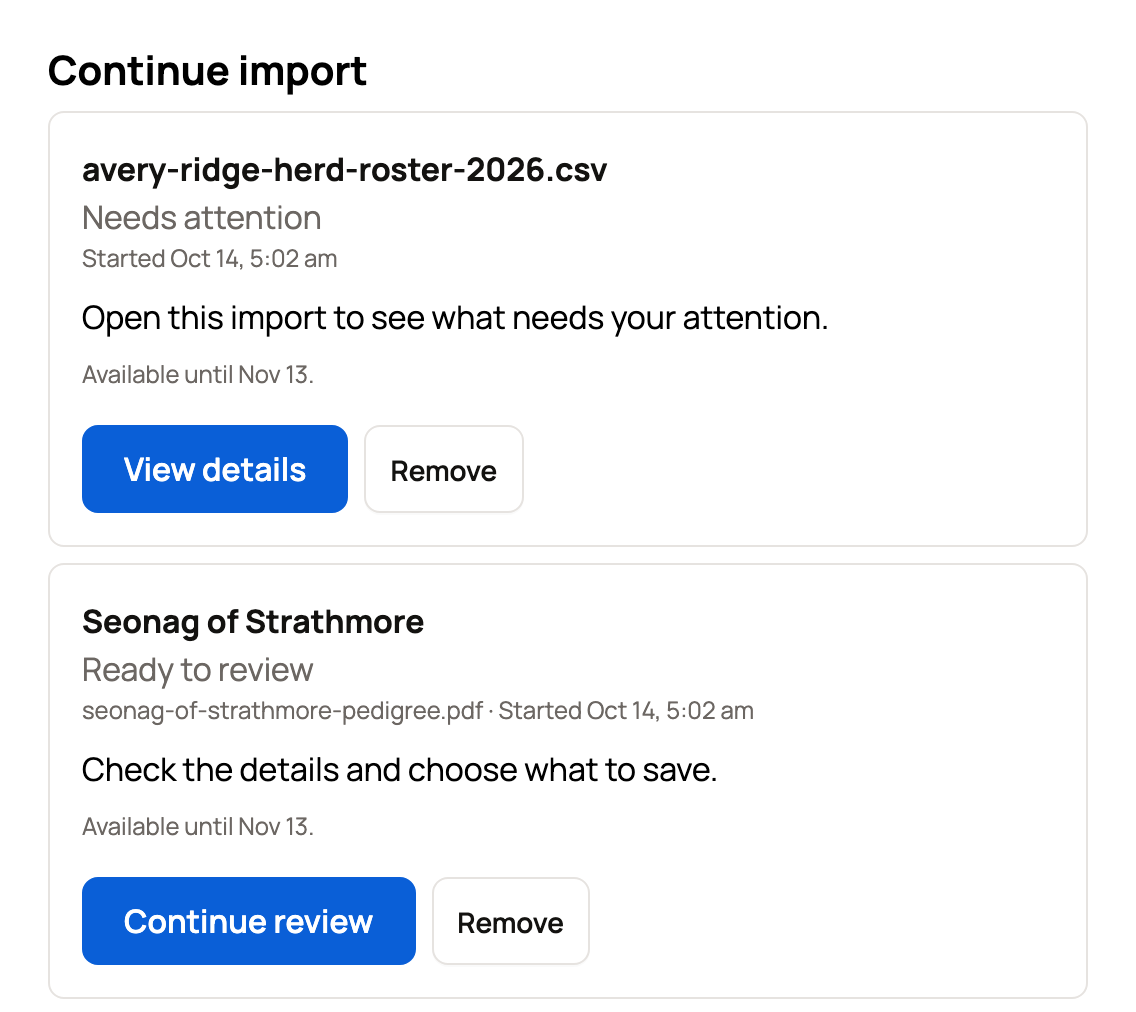
- Add animal also shows Continue import cards for imports that still need you.
- Your home page may show a reminder that links back to it.
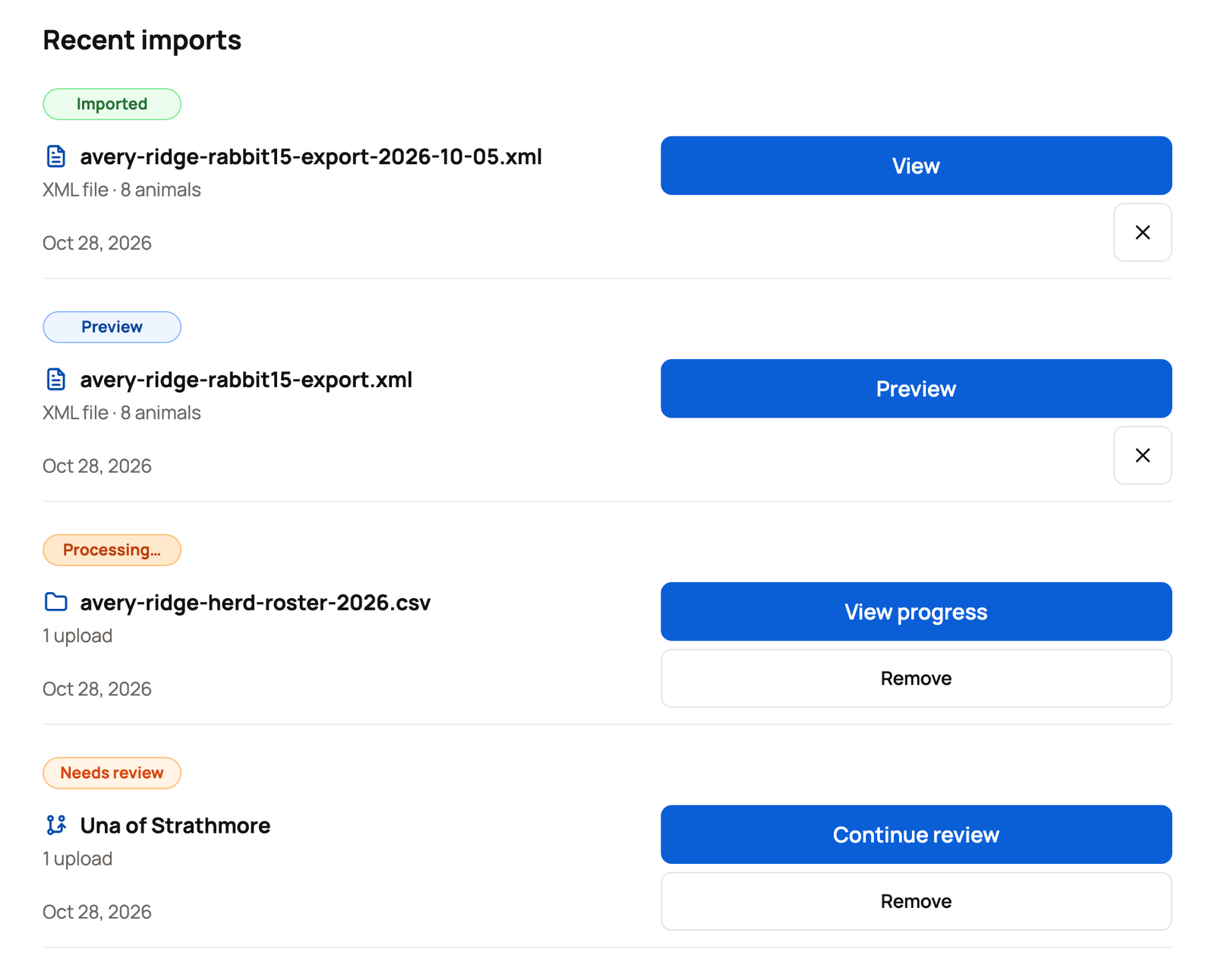
Until Creatures finds animal names, the row shows the file name or website, or Animal import / Pedigree import when there is none. On a computer, point at the row to see every file name.
What each status means
- Uploading… means files are still being added. Select Resume upload on the device where you started.
- Processing… means Creatures is reading your sources, and you can leave. View progress shows how far it has got. Retrying automatically… means a short delay, so you don't need to start again.
- Needs review means it's ready for you. Select Continue review.
- Already added means its animals and family trees are already on Creatures. Review anyway opens it.
- Imported means it's saved. View shows what was added.
- Couldn’t import means nothing was added. The line under the name says why, such as "Creatures couldn't finish reading this spreadsheet." Select Try again with saved sources to read the same files again without uploading them. Or select View details, or another button offered, such as Upload the file again.
- Needs attention means Creatures needs something from you before the review can go on. The line under the name says what to do.
- Needs a new import means Creatures can't continue this saved review. Start a new import with your files. Animals you already saved don't change.
- Expired means the sources are gone. Select Start a new import.
- Undone means you undid this import.
The cards on Add animal use shorter labels, such as Being read, Ready to review, or Upload unfinished. Each card also shows the date it is available until.
Remove an import you don't need
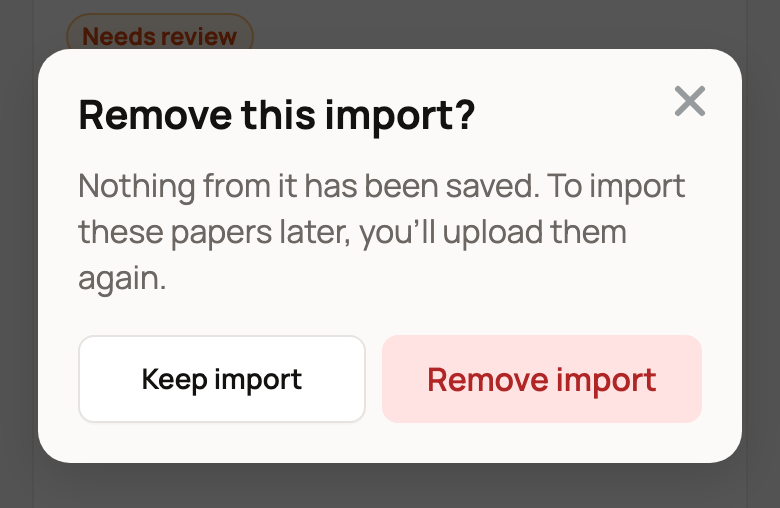
Select Remove on the row or card. Creatures asks you to confirm first:
- Stop and remove this import? shows while it is being read. Select Stop and remove, or Keep reading to cancel.
- Remove this import? shows when it is ready to review or couldn't be read. Select Remove import, or Keep import to cancel. Nothing from it has been saved.
- Remove this unfinished upload? shows for an upload you never finished. Select Remove upload or Keep upload.
Removing an Already added import does not change the animals already on Creatures. A saved import has no Remove. Use Undo import within 72 hours instead, as described in Reviewing, editing, and confirming an import. WinRbro and ESS imports have a small × button that only takes the row off the list. Their animals and records stay.
Limits worth knowing
- You can have three unfinished uploads at once. If you try a fourth, select Manage unfinished uploads and remove one.
- An unfinished upload has 7 days to finish.
- Your sources stay available for 30 days.
- If you started while signed out, the import is saved in that browser for up to 7 days. Create an account to keep it for 30 days on any device.
If something looks wrong
- Your connection dropped as you started. Check Recent imports before you try again, so you don't upload the same files twice.
- It says Expired. Start a new import with your original files.
Related information
- Import your animals from files, photos, or a website
- Add an animal by importing its pedigree
- Reviewing, editing, and confirming an import
Updated on: 29/10/2026
Thank you!