
Creating promo codes for your bookings
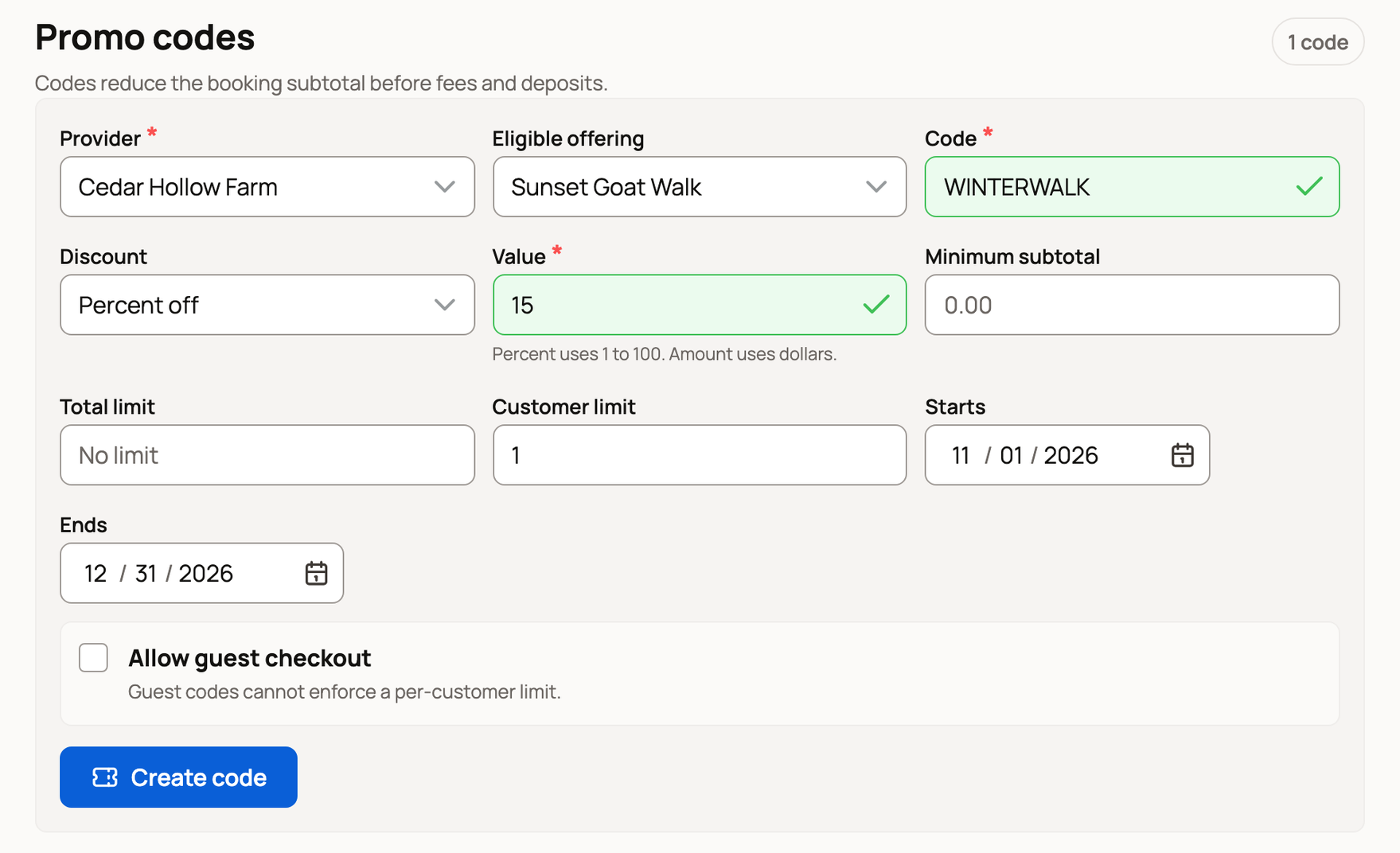
Create booking promo codes under Promo codes at the bottom of Dashboard > Services > Bookings. A code takes a percent or a dollar amount off the booking subtotal, before the booking fee and any deposit.
Create a code
- Choose the Provider: yourself, or the farm or business the code is for.
- Under Eligible offering, keep All offerings or pick one offering.
- Enter the Code guests will type, such as FALLVISIT. Use 3 to 32 letters, numbers, dashes or underscores.
- Under Discount, choose Percent off or Amount off. Then enter the Value: 1 to 100 for a percent, or a dollar amount.
- Add any limits you want. Minimum subtotal sets the smallest booking it works on. Total limit caps how many times it can be used in all; leave it blank for no limit. Customer limit is how many times one signed-in guest can use it, and it starts at 1.
- Use Starts and Ends if the code should only work between two dates.
- Select Create code.
If you signed in from a link in an email or text, Creatures may show Confirm it's you when you create, deactivate or reactivate a code. Select Email me a code, enter the 6-digit code from the email, and select Confirm. Creatures brings you back to Bookings, where you fill in the form again and select Create code (or select Deactivate or Reactivate again).
Let guests without an account use it
Some guests book without signing in. Turn on Allow guest checkout so they can use the code too. A code for guests can't count uses per person, so turning this on clears Customer limit. Use Total limit if you want a cap.
Track or turn off a code
Each code appears below the form. It shows Active, the discount, the business, the offering and how many times it's been used, such as "0 of 50 used".
To stop a code, select Deactivate, then Deactivate code to confirm. Guests can't use it on new bookings. A checkout that already has the code can still finish.
A stopped code shows Inactive with Reactivate, which turns it back on. A code that has expired or is used up can't come back, so create a new one.

What guests see
Once a code is active for an offering, guests see Have a promo code? in the booking panel. They type the code and select Apply, and the discount shows in their total.
Promo codes don't appear on offerings where you approve each request first. If guests can't find the box, check the offering doesn't ask for approval. Then check the code is Active, inside its dates and not used up.
Related information
- Taking bookings: requests, guest lists, and payments at the visit
- Using a promo code at checkout
- Creating promo codes for your listings
Updated on: 29/10/2026
Thank you!