
Creating promo codes for your listings
Open your Dashboard, select Selling, then Promo codes. Fill in the code and the discount, add any limits, and select Create code. You pay for the discount, and buyers type the code in their cart or at checkout.
Create a code
- Selling as: pick yourself, or a farm or organization you own or co-own. The code only works on that seller's listings.
- Eligible listing: keep All my listings, or pick one animal. If you have no listings yet, the code will work on any listing you add later.
- Code: the word buyers type, such as SPRINGKIDS. Use 3 to 32 letters or numbers (dashes and underscores work too). Short codes are easier to share and type.
- Discount type: choose Percent off or Amount off. Then enter the amount in Discount (%), from 1 to 100, or in Discount ($).
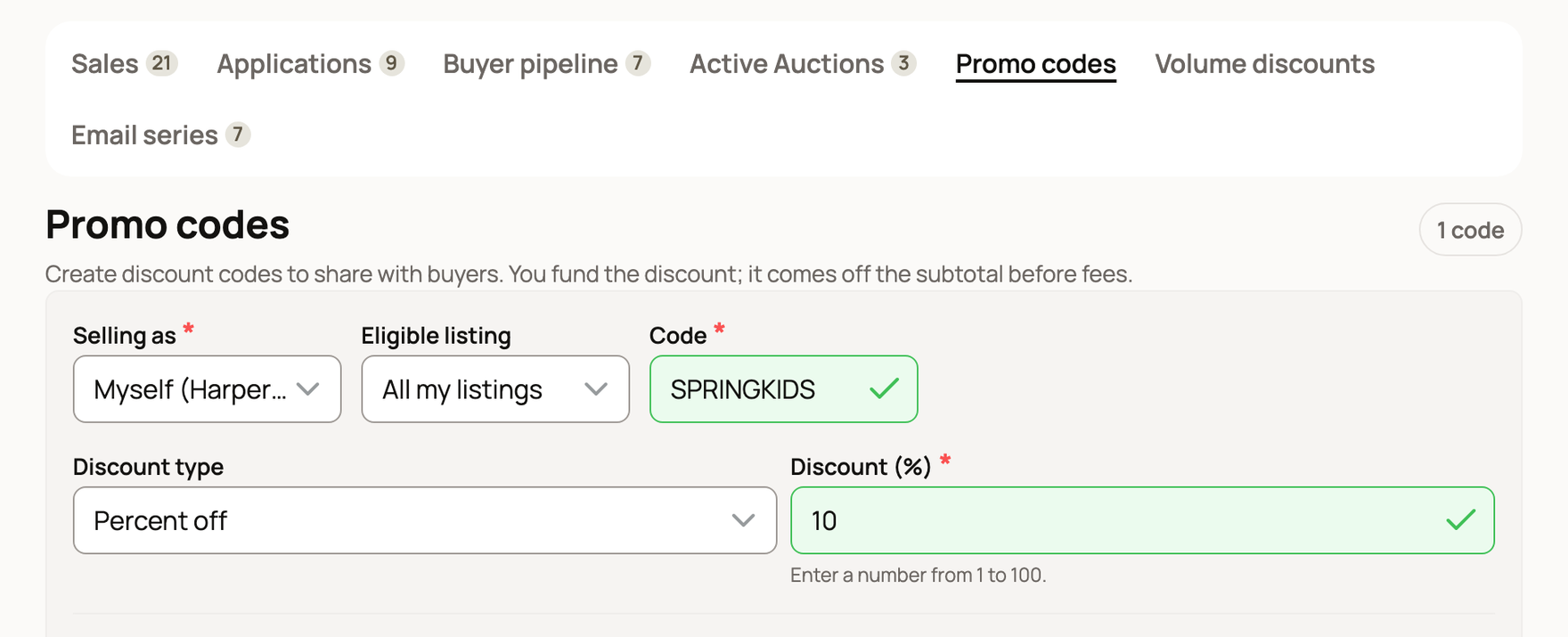
Each code must be new for you. You can't reuse a code you made before, even one you turned off. If you see "That code already exists", pick another.
Add limits (optional)
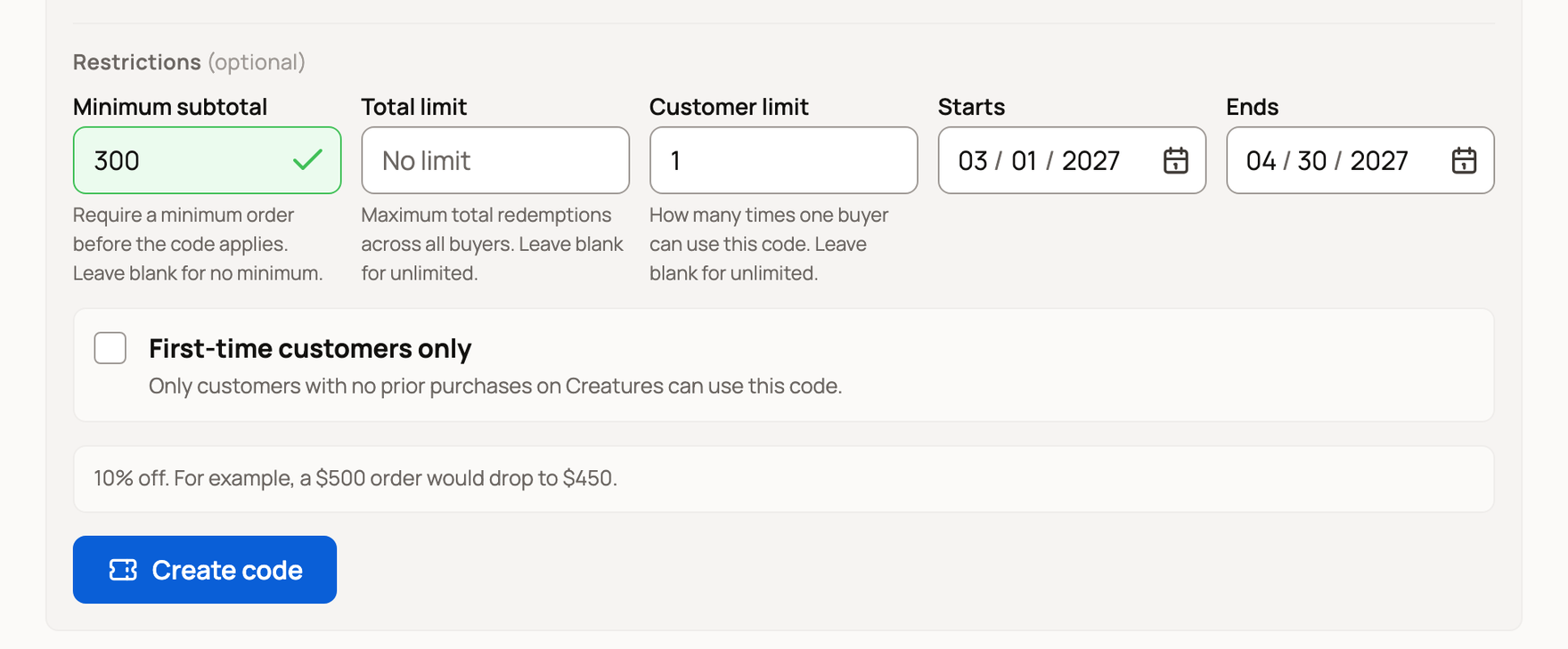
Under Restrictions (optional):
- Minimum subtotal: the buyer's order from you must reach this amount before the code works.
- Total limit: how many times all buyers together can use it. Leave it blank for no limit.
- Customer limit: how many times one buyer can use it. It starts at 1. Clear it for no limit.
- Starts and Ends: the dates the code works.
- First-time customers only: only people who have never bought on Creatures can use it.
The line under the limits shows an example, such as "10% off. For example, a $500 order would drop to $450." When it looks right, select Create code.
If you signed in from a link in an email or text, Creatures may ask you to confirm it's you with a code first. Here is why we ask.
Creatures doesn't send the code for you. Share it yourself, for example in a post or a message to a buyer.
Manage your codes
Your codes are listed under the form. Each one shows:
- a copy button, to copy the code
- Active or Inactive
- the discount, such as "10% off"
- how often buyers used it: "0 used", or "3 of 10 used" when you set a total limit
- any minimum, end date or first-time rule

To end an offer early, select Deactivate, then Deactivate code. Buyers can't add it to new checkouts, but a checkout that already has it can still finish. Choose Keep active to leave it on. You can't turn a code back on, so make a new one for your next offer.
How the discount is paid
- You pay for it. It comes off the price before fees and out of your sale money.
- If you also offer a volume discount, that comes off first. The code, and its minimum, use what's left.
- A code only changes your items in a buyer's cart, never another seller's.
- If you sell genetics as yourself, a code for All my listings works on them too.
Other discount tools
- Transport: approved transporters make their own codes from the Promo codes tab on the transporter dashboard.
- Bookings: bookable experiences have their own codes. See Taking bookings.
- Promoter boost: this pays people who share your listing. It doesn't change the buyer's price.
Related information
- Using a promo code at checkout
- Offering a volume discount on multiple animals
- Covering buyer fees and adding promoter rewards
Updated on: 29/10/2026
Thank you!