
Importing your animals (bring your whole herd in)
Importing your animals (bring your whole herd in)
If you already keep your herd in a spreadsheet, in another program, or on paper, you do not have to type each animal into Creatures one at a time. The Import tool takes the records you already have and drafts animal profiles for you to review and approve. It is the same destination as adding an animal by hand, just done in bulk. If you are new to animal profiles, Why add animals? and How to add animals to your profile cover the single-animal version first.
You reach it from the Import tab in the left dashboard sidebar, from the "Import your herd" tile on your home screen, or directly at /dashboard/import. Any signed in account can use it. There is no identity check, phone verification, or paid plan to unlock first.
This article covers the first half of the flow: what you can bring in, how you upload it, and what happens while Creatures reads it. The review and confirm half is Reviewing, editing, and confirming an import.
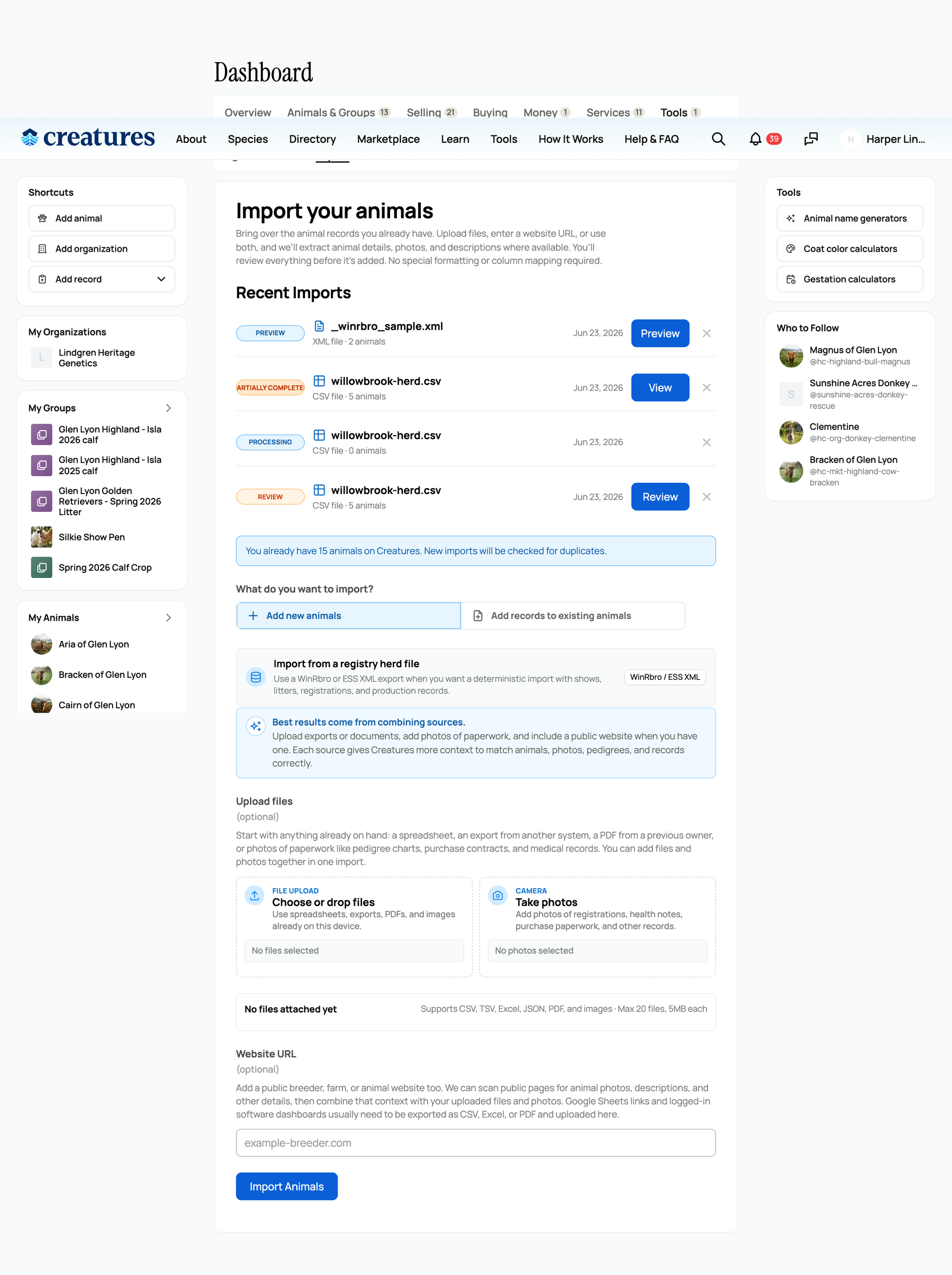
First choice: are you adding animals, or adding records?
The top of the upload screen has a toggle with two intents. Pick the one that matches what your file holds, because they do very different things:
- Add new animals (the default): creates brand new animal profiles from your file. Choose this to bring in a herd you have not entered on Creatures yet. What it means: every row in your file becomes a new animal that you own.
- Add records to existing animals: does NOT create any animals. It attaches records (health, registration, and so on) to animals you ALREADY have on Creatures, matching each record to the right animal for you. Choose this when the animals are already here and you are filling in their history. What it means: nothing new shows up in your animal list, the records simply land on animals you already own. The full behavior of this mode lives in the review article; here you only need to pick the right side of the toggle.
When you choose "Add records to existing animals"
A second question appears: "Where should we match these records?" It narrows which of your animals a record is allowed to attach to:
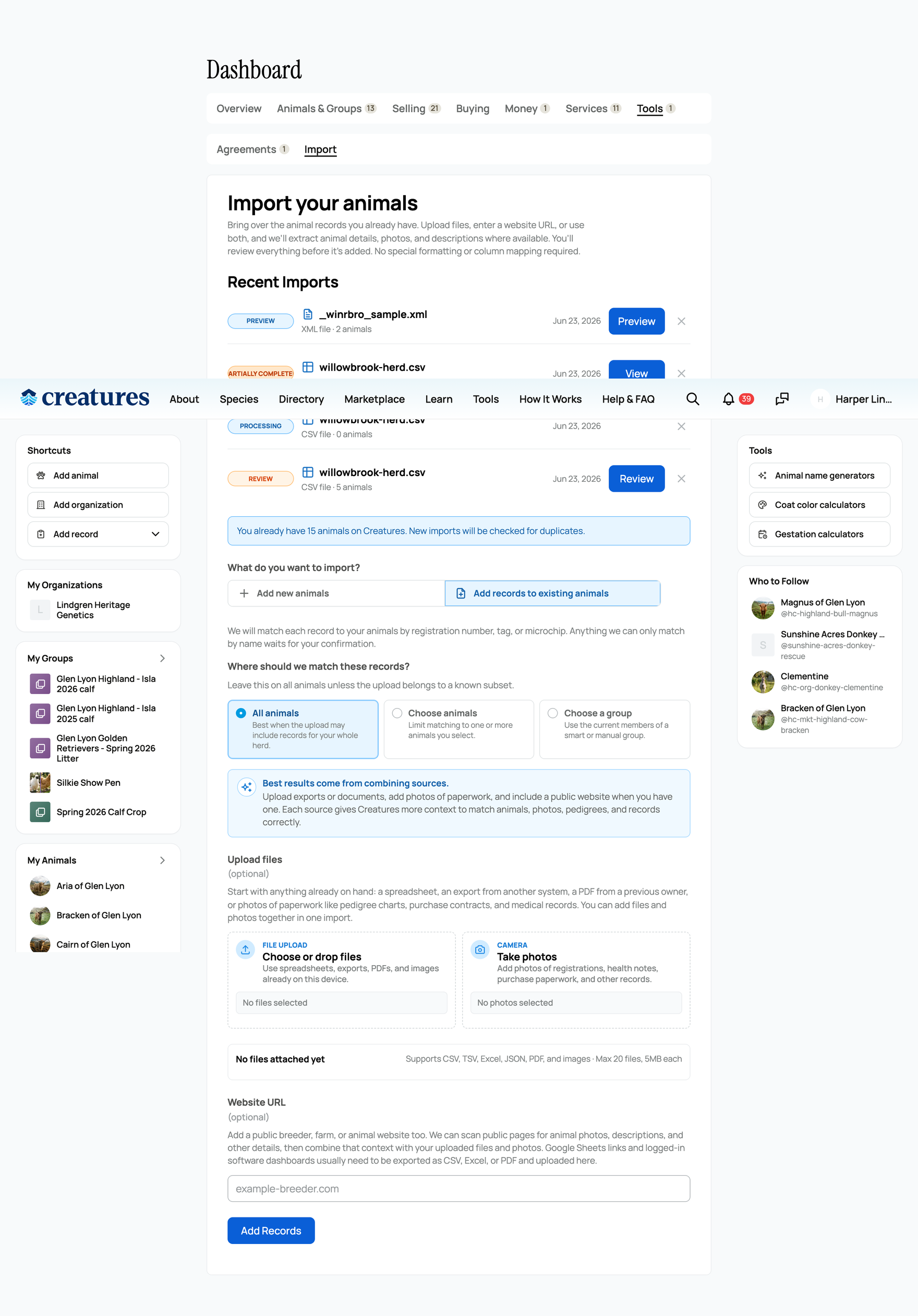
- All animals (the default): Creatures may match a record to any animal you own. The broadest option, and the right one when your file spans your whole herd.
- Choose animals: limit matching to a specific set of animals you pick. Use it when the file only concerns a handful of animals.
- Choose a group: limit matching to the members of one animal group, captured at the moment you start. Use it when a file belongs to one flock, pen, or litter.
- What narrowing means: a tighter scope stops a record from landing on the wrong animal that happens to share a name, but a record for an animal outside your chosen scope is flagged for you to handle instead of attached. If you opened Import from a group's Members tab or an animal's Records section, the scope often arrives already set for you.
What you can upload
You can mix files, photos, and a website link in a single import. Here is each source and what it is for:
- Spreadsheets (.csv, .tsv, .xlsx): your herd list from a spreadsheet, or an export from another program. This is the most common source by far. You do not need to arrange the columns a certain way (see the note below). One caveat: if you have an old .xls file (the legacy Excel format) and it does not read, re-save it as .xlsx and upload that instead.
- Data files (.json): structured exports from other tools.
- PDFs: pedigree charts, purchase contracts, vet paperwork, or registry certificates, including documents a previous owner handed you.
- Photos (.jpg, .png, .heic, and more): snapshots of paperwork or of the animals themselves. iPhone HEIC photos are accepted and converted for you automatically.
- A website address (a separate, optional field): paste a public breeder, farm, or animal page and Creatures scans its public pages for photos, descriptions, and details to combine with your files. One honest limit to know: Google Sheets links and logged in software dashboards are NOT crawled, because they are not public pages. Export those to CSV, Excel, or PDF and upload the file instead.
Do I need to format my file first? No.
The upload screen says it plainly: no special formatting or column mapping required. You do not rename headers, reorder columns, or fit a template. There is no template to download, and none is needed. Creatures reads whatever layout your file already has, and you correct anything it misreads on the review screen. This is the single most common worry before an import, and the answer is that you upload your file as it is.
The limits
State these up front so an upload does not quietly fail:
- Up to 20 files per import.
- Up to 5 MB per file. An image is converted to JPEG first, and if it is still over 5 MB after that conversion it is rejected.
- Up to 100 MB total per import.
- The screen's own footnote reads: "Supports CSV, TSV, Excel, JSON, PDF, and images. Max 20 files, 5MB each."
- Up to 10 imports per hour on your account. If you are importing many files in one sitting and hit this, wait an hour and continue. There is no limit on how many animals or rows a single import can contain, so a long spreadsheet is fine in one go.
Sending photos or paperwork from your phone
The upload screen has a "scan this code with your phone" handoff. Photos and PDFs you capture on your phone show up in the same import before you start processing. It is a convenience for paperwork you only have on paper.
What happens after you start
When you start, Creatures creates one import session. Think of it as your saved, resumable workspace for this import. Creatures then reads your sources in the background, so you can leave the page and come back. The status badge tells you where it is:
- Pending: your upload was received and is lined up to process.
- Processing: Creatures is actively reading your files and pulling out animal details. The bar steps through preparing, parsing, extracting, and matching.
- Review: Creatures has finished reading. Your drafts are ready for you to check and approve. This is your cue to open the review screen.
- Failed: something went wrong reading the files. You would re-upload and try again.
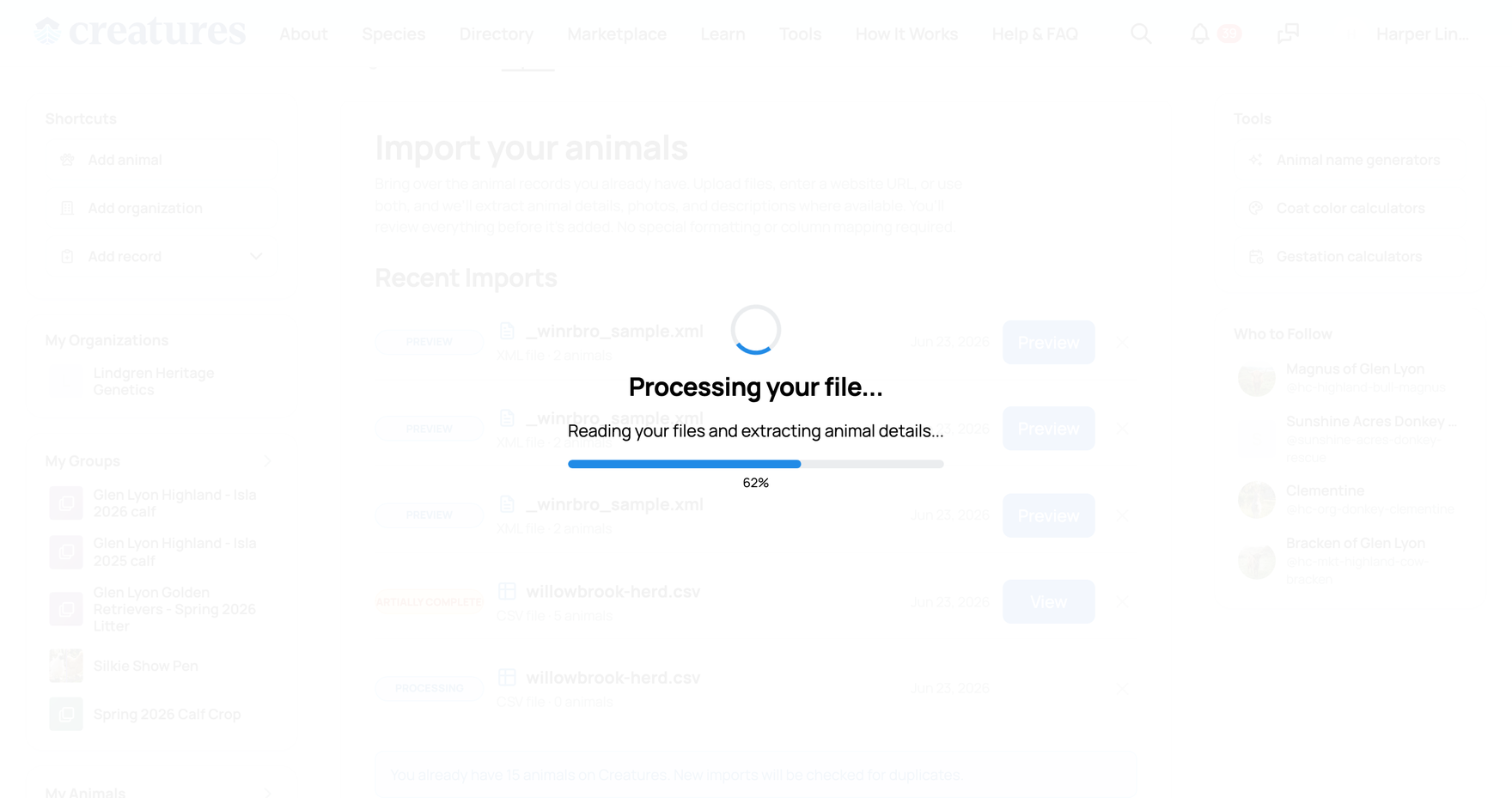
The important point: the import is asynchronous, and nothing is added to your animals until you confirm it yourself on the review screen. Reading your files only prepares drafts.
When your import reaches review, continue with Reviewing, editing, and confirming an import. If your animals live in Rabbit15, Cavy15, Goat15, or Poultry15, use the dedicated path in Importing from Rabbit15, Cavy15, Goat15, and Poultry15 instead of this general flow.
Related information
- Reviewing, editing, and confirming an import
- Importing from Rabbit15, Cavy15, Goat15, and Poultry15 (the winrbro import)
Updated on: 23/06/2026
Thank you!