
Setting up membership types and dues
On the Association Hub's Membership tab, choose how new members join, then create a membership type for each kind of membership you offer. Free types work right away. Paid types take dues by card once an owner or co-owner passes a phone and ID check.
Choose how new members join
Your join page is the page you share so people can join or claim a membership. Copy it with Copy join link on the Overview tab.
Under How new members join, select Change:
- On our website: enter your Signup page address. Your join page sends new members there. After someone signs up on your website, add them in Members. They get an email to claim their membership on Creatures.
- On Creatures, with our membership types: people choose one of your public types on your join page. This choice appears once you have a live public type. Until then it reads No signup page for now.
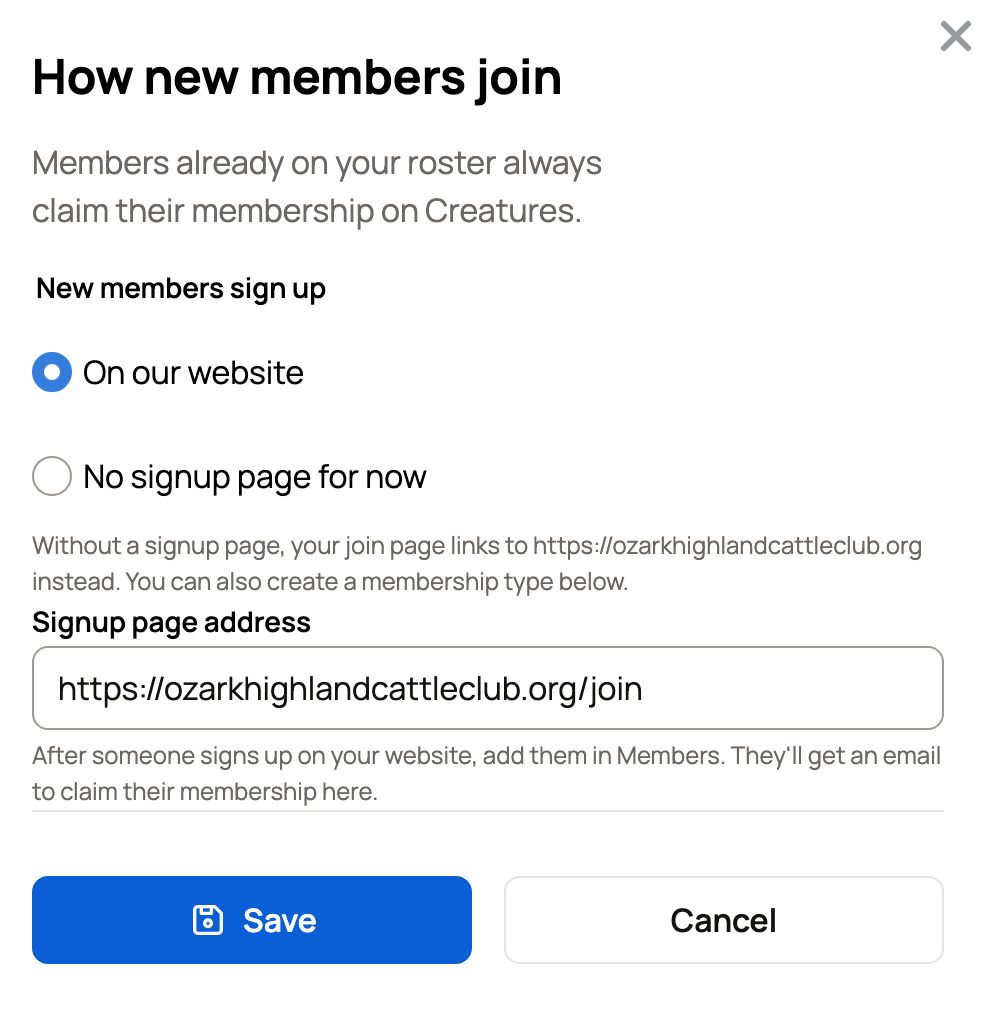
Select Save. Members already on your roster always claim on Creatures, whichever you choose. While On our website is on, your types are not offered on your join page.
Create a membership type
- Select New type.
- Enter a Name and a Description. People see both on your join page.
- Enter the Price (USD). Use 0 for a free type. A paid type costs at least $0.50.
- Choose a Term. Yearly renews each year. Lifetime is paid once.
- Set the Household size. Above 1, one membership covers up to that many people (at most 12) with one renewal.
- Choose the Enrollment. Open lets people join right away, paying first if there is a price. Review first sends each request to Applications, where you Approve or Decline it. For a paid type, the person pays after you approve.
- Choose the Visibility. Public offers the type on your join page. Association only keeps it off, so only you can give it to members.
- If you like, pick Custom questions to ask for more details, and set a Display order.
- Select Create type.
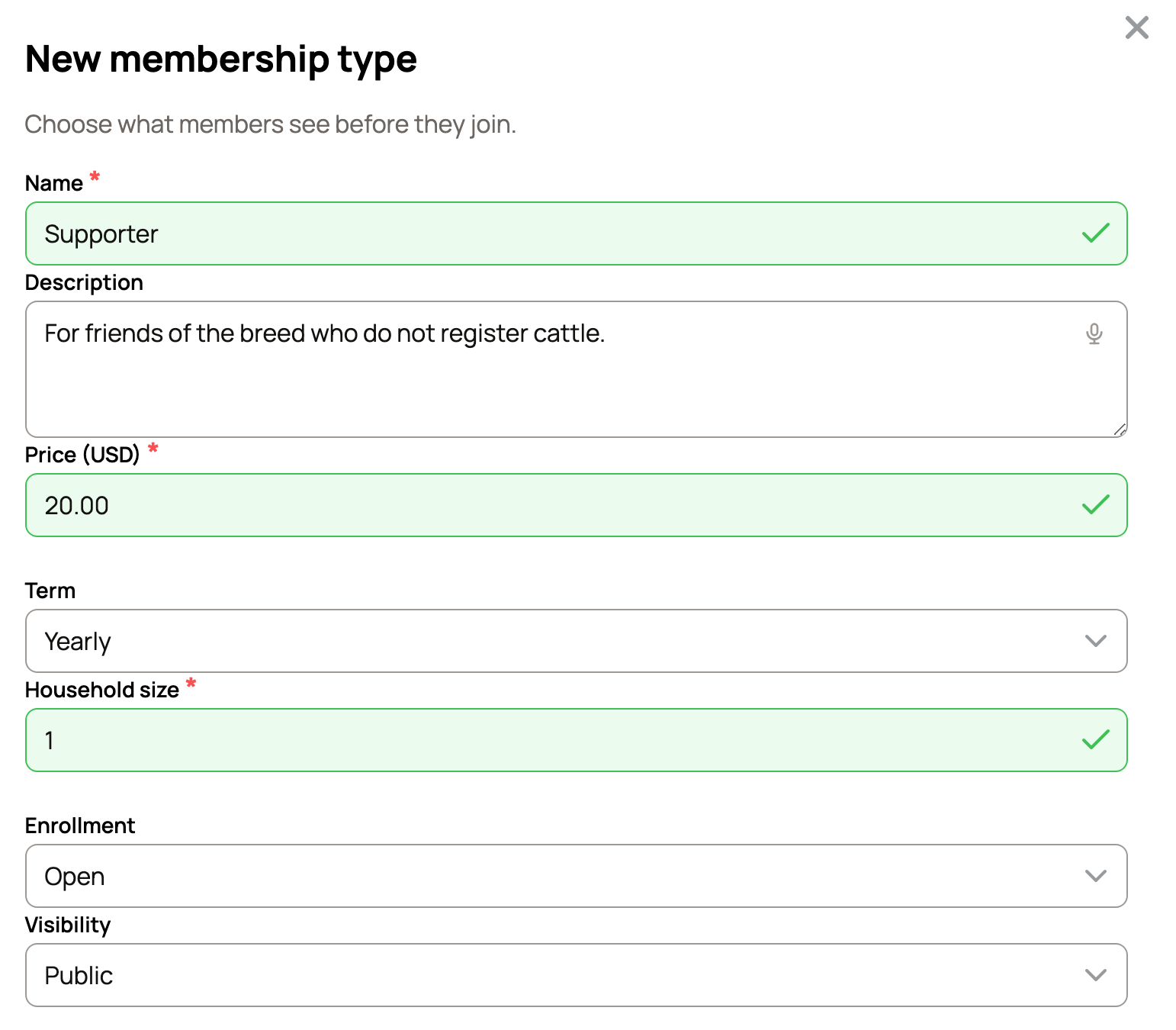
Your join page lists each public type with Join or Apply.
Take dues by card
Each type under Membership types shows a Status. A paid type shows Needs verification until an owner or co-owner passes a phone check and an ID check. Select Continue verification to start. Then it shows Live. See Verifying your phone number and Verifying your identity.
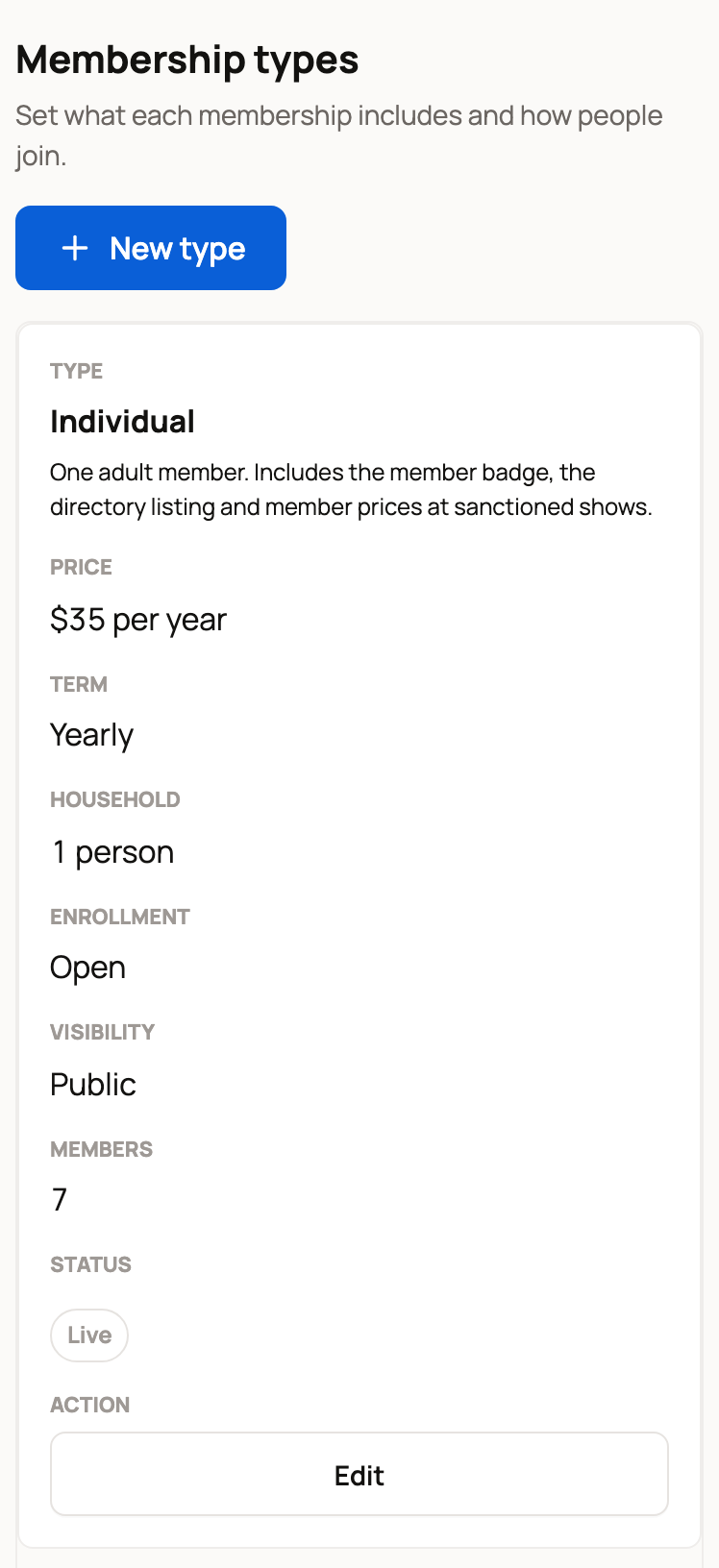
Members pay by card. They can pay once or renew automatically each year. Dues go to your association's Creatures balance, and Creatures takes no cut.
Card processing is the only extra cost. Under Who pays card processing, the owner chooses Members pay card processing (added on top, so $35 dues cost the member $36.36) or Association covers it (taken out of the dues). Only the owner can change this.
To withdraw your balance, select Set up payouts under Payouts. You can skip this until you want to withdraw. See Connecting your payout account.
Change or archive a type
Select Edit on a type. If you change the price, Creatures asks you to confirm and tells you how many auto-renewing members will get an email about it. They pay the new price at their next renewal.
Archive type takes a type off your join page. Auto-renewing members on it stop renewing at the end of their paid period. Changing a paid type to free does the same.
Set renewal dates and grace
Select Edit renewal settings.
- Renewal cycle: Join anniversary renews each member a year after they start. Fixed date renews everyone on the same Fixed month and Fixed day. Those two and Join cutoff (days) appear only when you choose Fixed date.
- Join cutoff (days): someone who joins this many days or fewer before the renewal date is covered through the next one.
- Grace period (days): how long members stay in good standing after their paid-through date, up to 90 days.
- Time zone and Reply-to email: the time zone your dates follow, and where member replies go.
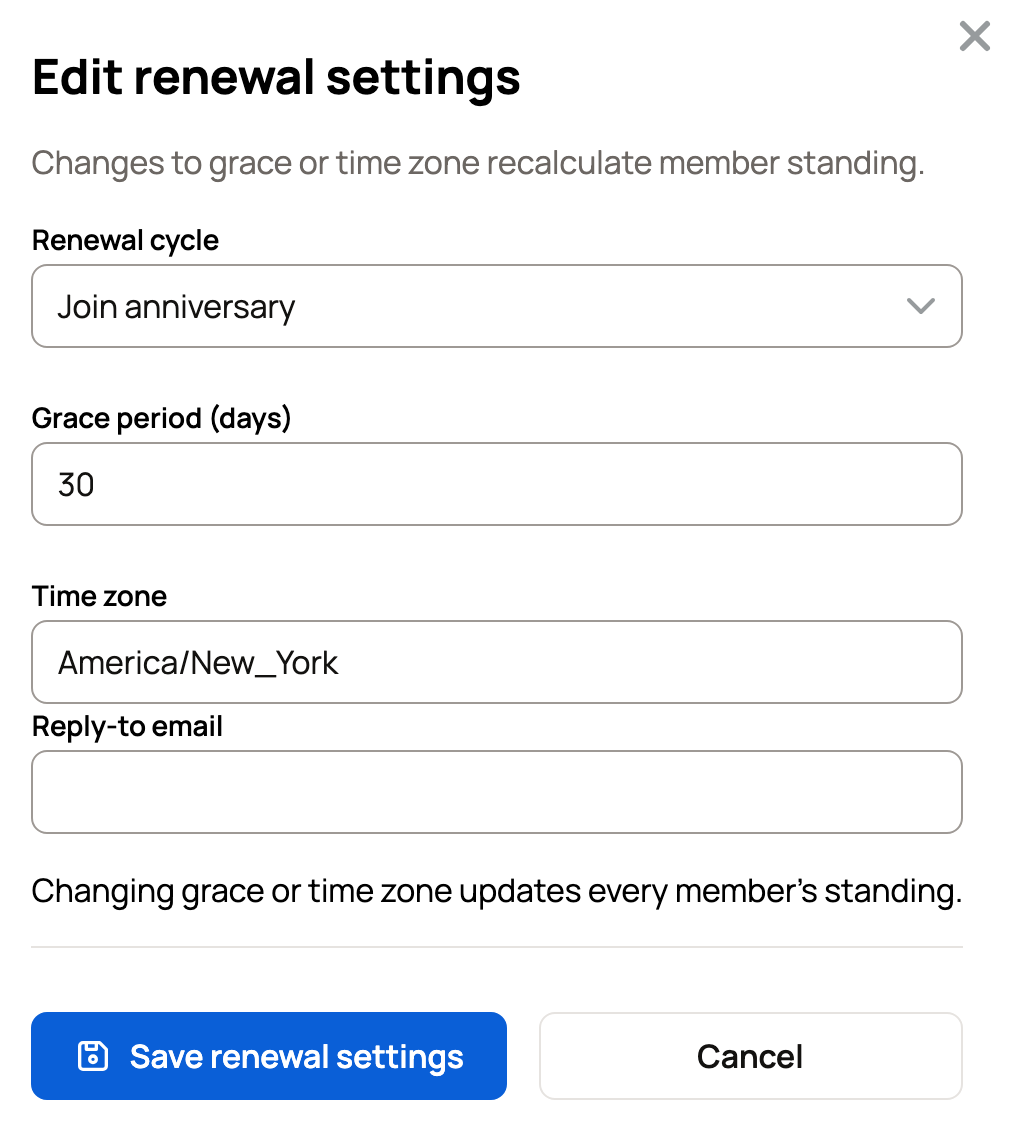
Select Save renewal settings. Changing the grace period or time zone updates every member's standing.
Creatures emails renewal reminders to whoever pays. They go out 30 and 7 days before the date, on the date, halfway through grace, and when a membership lapses. Members on auto-renew get one notice 30 days ahead.
Set member numbers
Select Edit numbering to set a Prefix, Digits and Next number. The preview shows the next number, such as WDCR-2472. Numbers already in use are skipped. When you add a member, the next number is filled in for you.
Related information
- The Association Hub: member directory and badges
- Importing and managing your membership roster
- Joining or claiming your association membership
- Connecting your payout account
Updated on: 29/10/2026
Thank you!