
Share offspring updates on a public page
On her pregnancy card, choose Share upcoming calves publicly, write an update and pick the photos to show. Nothing is public until you review it and choose Publish update, and her breeding records stay private.
The button uses the word for her species, such as kids or lambs. Once her page exists, it reads Share photos and updates publicly.
Start a page
Open the mother's Breeding tab and find her pregnancy card.
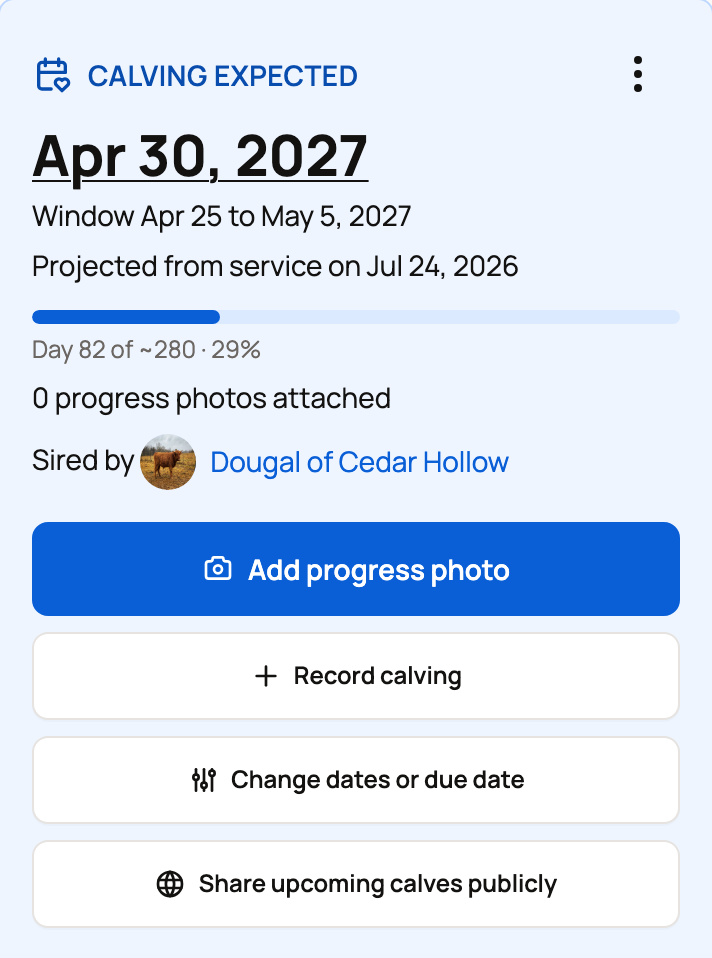
Share upcoming calves publicly sets up a private page for the expected babies and opens the share form. You can also start from Share calf updates at the top of her Breeding tab. It opens Share offspring updates, where you can:
- keep going on a page under Your offspring pages
- start from a saved pregnancy under Recorded pregnancies and pairings
- start from scratch under Start with a mother: pick the Mother, answer What is true right now?, then choose Continue to photos
Planning a pairing you have not made yet? Choose Plan this pairing after a test mating. See Test a mating before you breed.
Write the update
- Check the Page title, or choose Use suggested title.
- Under Choose existing pregnancy photos, tick only the photos you want visitors to see. Your record notes and other files stay private.
- Turn on Also show this page on my website when it is published if you have a Creatures website.
- On a new page, choose what visitors can do under How should visitors use this page?: Photos and updates only, or Photos, updates and applications to let people apply. Pages for horses and donkeys are updates only.
- Write your news under Your update. Add new pictures with Upload photos.
- Choose Preview update.
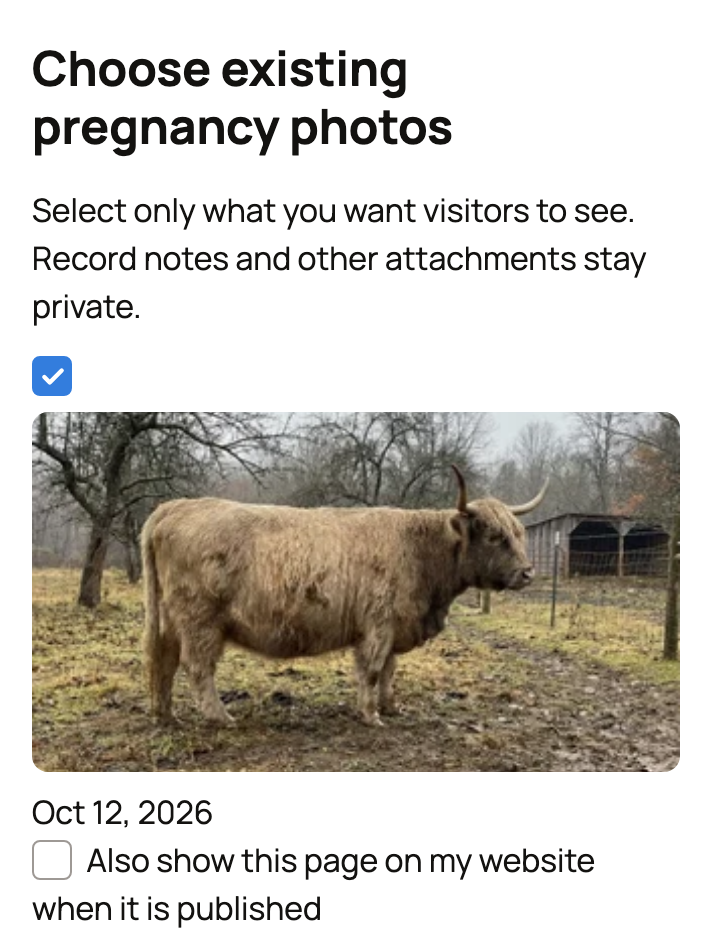
Photos you upload can be opened by anyone with their direct link, even before you publish. Choose them with care.
To take applications, see Offer a litter or group to buyers.
Review and publish
Review before publishing shows your update as visitors will see it. Only you can see this preview.
- Pick a Website cover photo if Creatures offers one.
- Tick Make these photos and text public on Creatures.
- Choose Publish update, or Edit this draft to change it first.
You'll see Your update is public, with View public page and Share another update. The page shows the expected date, the parents with public profiles, and your updates.
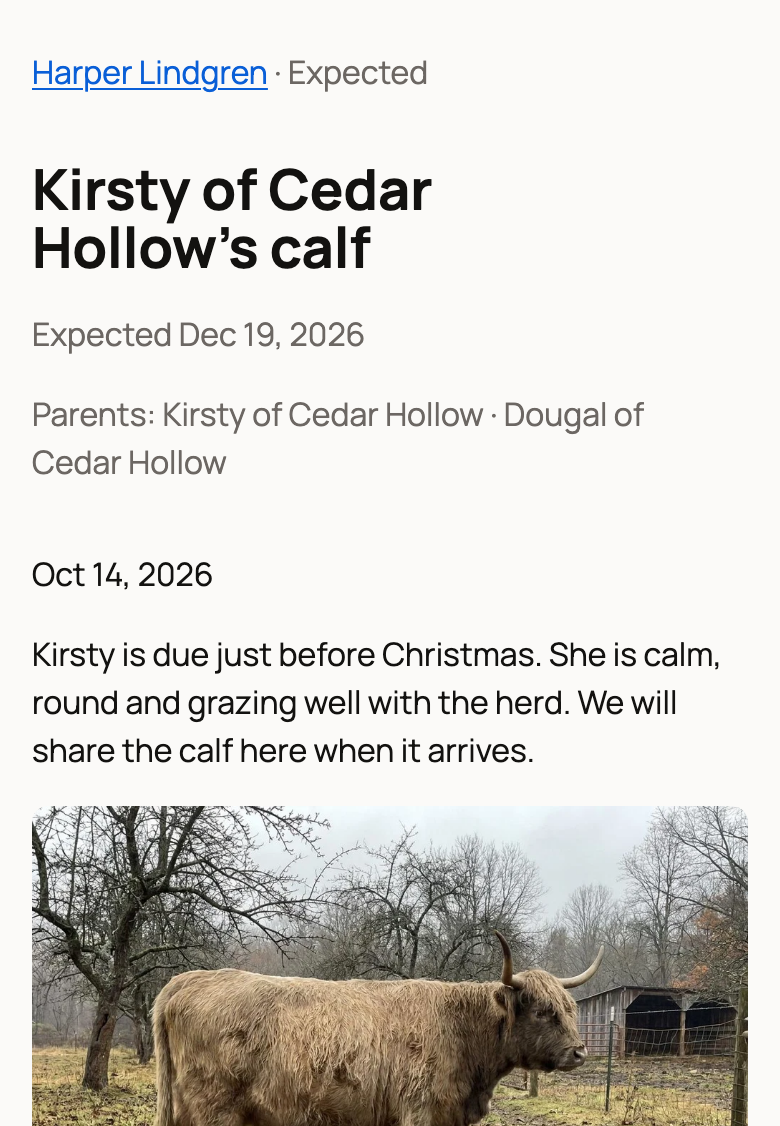
Your website shows the page only when your site is published and includes groups and litters.
Change or take it down
Open the share form again from the card. Under Page settings, choose Change what visitors can do, pick an option, and choose Save page settings. While applications or reservations are open, you can't switch back to Photos and updates only.
Under Recent updates, choose Unpublish this update to take one down. It leaves feeds and public pages. Direct photo links still work, and copies visitors saved can't be recalled. To manage the whole page, choose Manage this group's public page.
Public page or reserved buyers?
A public page is for anyone following along. To send a private note only to buyers who paid a reservation, use Share with reserved buyers instead. See Sharing pregnancy updates with reserved buyers.
Related information
- Sharing pregnancy updates with reserved buyers
- Tracking pregnancy and progress
- Offer a litter or group to buyers
- Test a mating before you breed
Updated on: 29/10/2026
Thank you!