
Taking deposits on babies from a litter
To take deposits on a litter, add a deposit policy on the litter's Settings tab, accept buyers, and set the public step to Reservations open. Accepted buyers then pay from your litter's public page, and Creatures holds each deposit until the point you chose.
On Creatures, a litter is a count group: one record for a set of babies before each one gets its own profile.
Before you start
- The litter has a public page set to Photos, updates and applications. See Offer a litter or group to buyers.
- Your phone number and ID are verified. Buyers can't pay a deposit until you finish both.
- You don't need a payout account to collect deposits, only to withdraw the money later.
Set your deposit policy
Your deposit policy is your refund terms. Buyers see it before they pay.
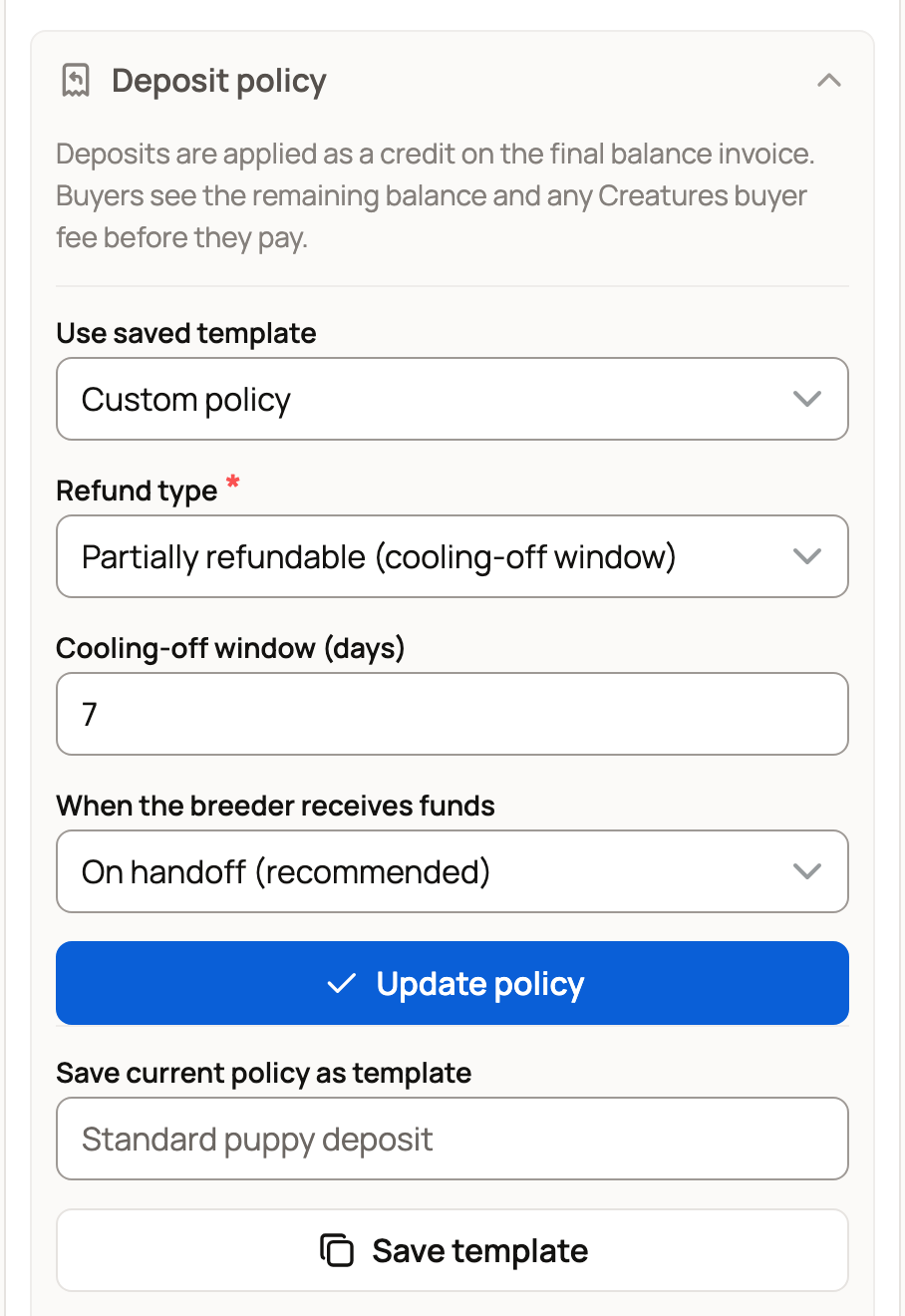
- Open the litter and go to Settings. Under the public profile, open Add a deposit policy. (Once saved, it reads Deposit policy.)
- Choose a Refund type: Fully refundable until handoff, Partially refundable (cooling-off window) or Non-refundable once deposit posts.
- Set the Cooling-off window (days), from 0 to 30. This is how long a buyer can change their mind.
- Choose When the breeder receives funds: On deposit (released immediately), On individual match or On handoff (recommended). A match is when you pair the buyer with one animal from the litter.
- Select Save policy. To change it later, edit the fields and select Update policy.
A change applies to new deposits only. Deposits already paid keep the terms the buyer agreed to.
To reuse these terms, type a name under Save current policy as template and select Save template. On your next litter, pick it from Use saved template.
Open reservations
- Accept buyers on the litter's Applications tab.
- On Settings, set Public step to Reservations open and select Save changes.
Only accepted buyers who asked for Priority or Specific match pay a deposit. Buyers who chose Interest don't.
Buyers can't pay until the litter has a deposit amount. If an accepted buyer's row says Deposit amount needed, contact Creatures support before you invite buyers to reserve.
Follow each buyer
Each accepted application on the Applications tab shows where its deposit stands:
- Awaiting reservations: the public step isn't Reservations open yet.
- Deposit policy needed: select Add deposit policy.
- Awaiting deposit: the buyer can pay from your public page.
- Deposit held: the buyer paid, and Creatures is holding the money.
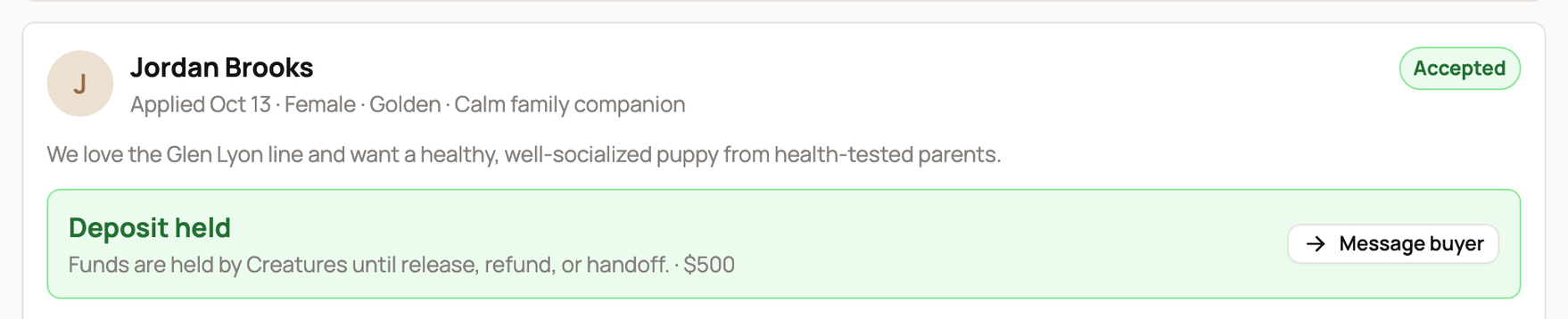
You get a notification when a buyer pays. The deposit moves to your Wallet at the point you chose under When the breeder receives funds. With On deposit (released immediately), that happens once the payment is confirmed.
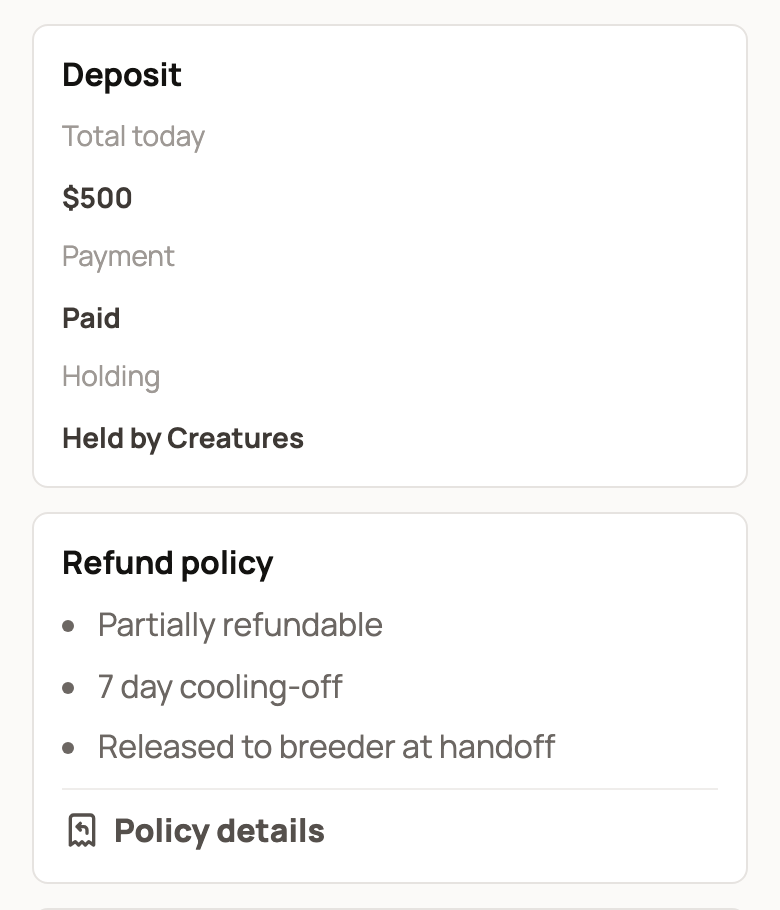
On their reservation page, the buyer sees the deposit as Paid and Held by Creatures, along with your refund terms.
Collect the balance
When you create individual profiles from the litter, choose the buyer under Buyer match. Their row then reads Matched to and the animal's name.
Select Create balance invoice and enter the full sale price. The deposit comes off as a credit, and the buyer sees the balance and any buyer fee before paying. Don't send a second deposit request.
If plans change
Select Message buyer on their row to talk it through. To cancel or refund a litter deposit, contact Creatures support. The buyer can also ask support for help from their reservation page.
Related information
- Offer a litter or group to buyers
- Requesting a deposit for one animal
- Reserving from a breeder: applications and deposits
- How seller payout works
Updated on: 29/10/2026
Thank you!