
Care history: see what was done and correct a record
Care history lists every care task for one account, such as your personal account or your farm, with what happened, who did it and when. Open it from the Care history link at the bottom of your Today page.
It covers care for animals, groups and places. Care Helpers don't use Care history. They see their own tasks on Today.
Find the care you need
Care history opens on today's care. To look further back:
- In Care for, choose the account. This appears when you manage more than one.
- Set the From and To dates.
- If you use places, pick one in Place, or keep All places.
- Select Apply.
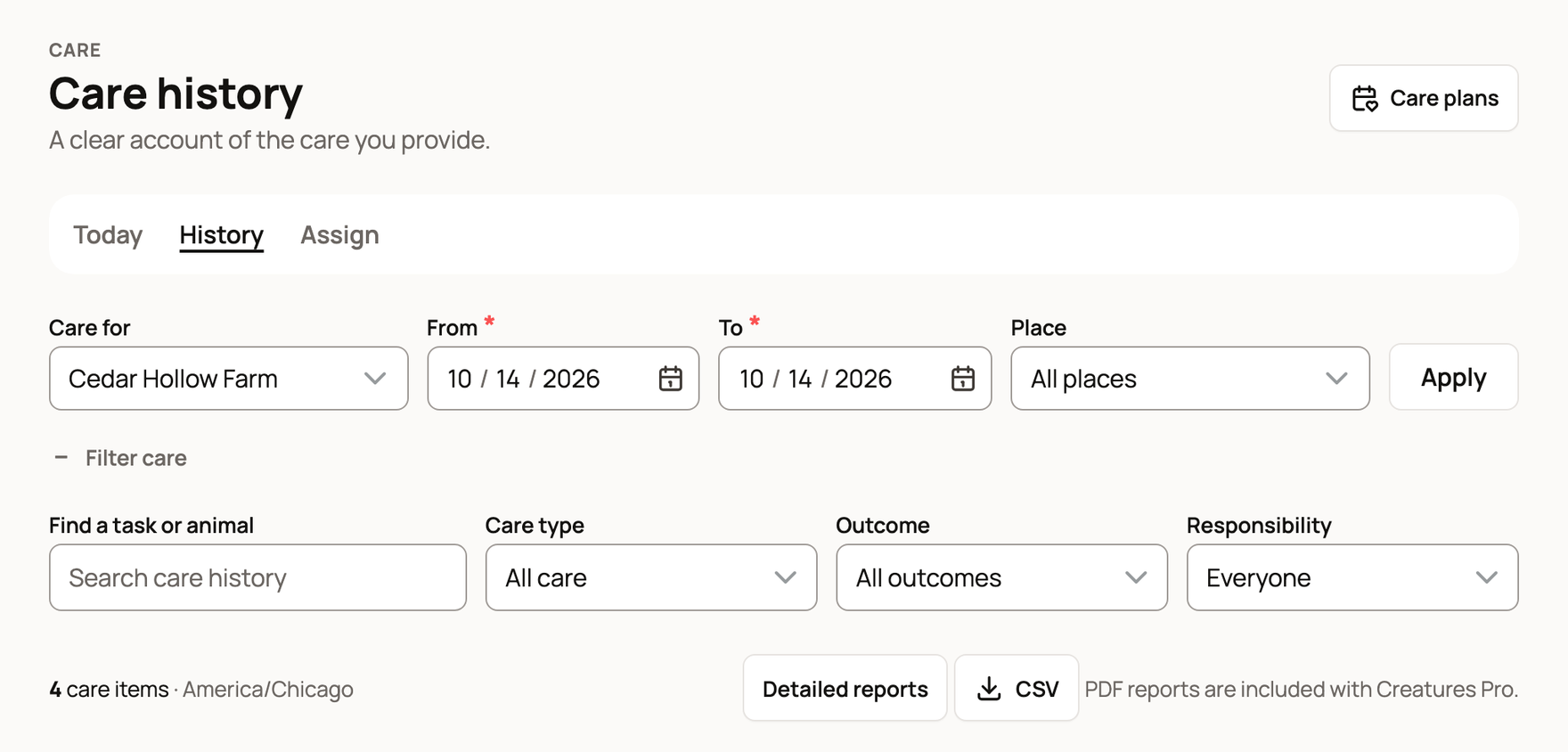
Open Filter care to narrow the list:
- Find a task or animal searches by name.
- Care type: Animals, Groups or Places.
- Outcome: Outstanding, Performed, Not performed, Missed or Cancelled.
- Responsibility: Assigned to me or Needs assignment. It appears when tasks on that account can be assigned (see Assign care).
Read an entry
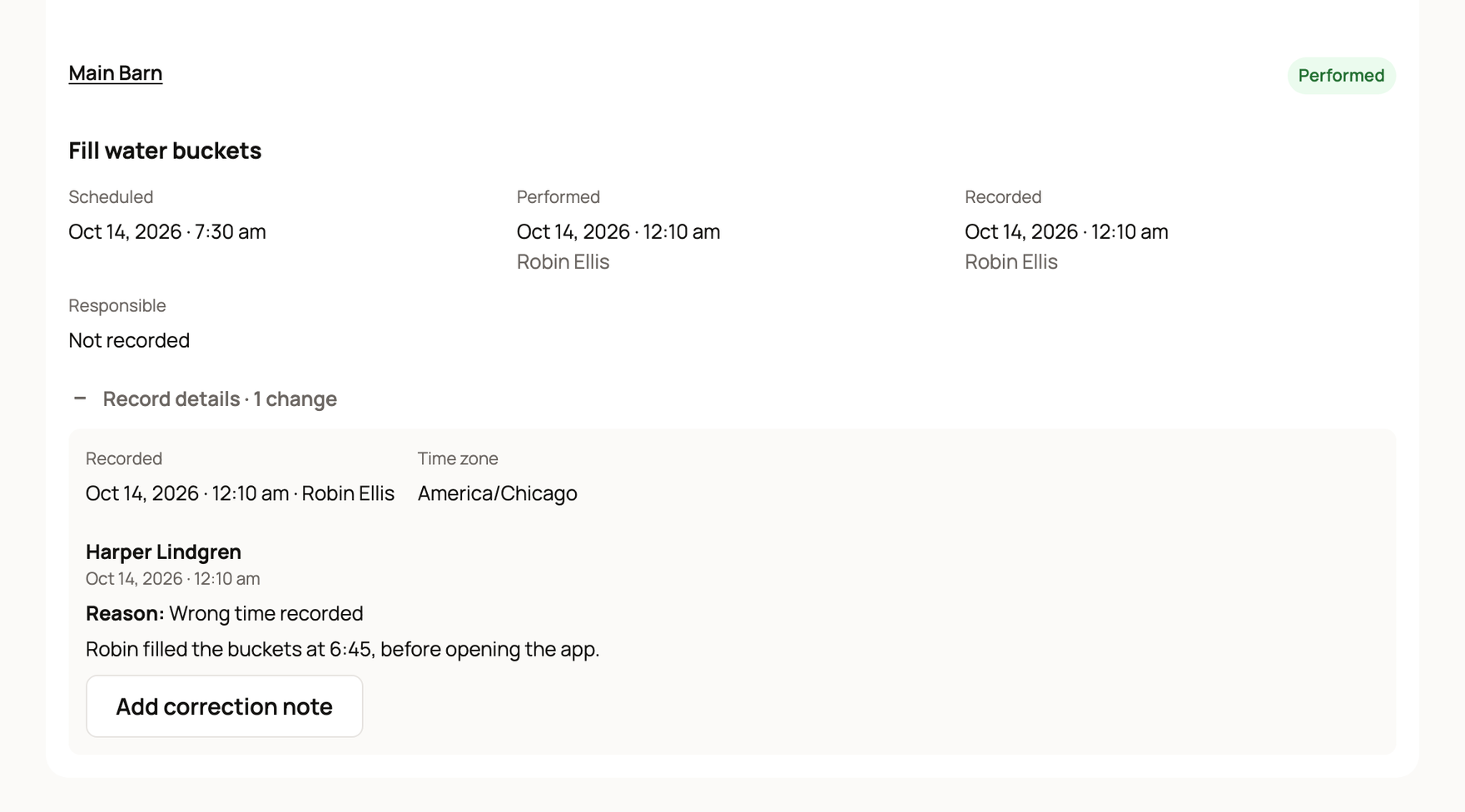
Each entry names the animal, group or place, the task and its outcome. Below that you'll see:
- Scheduled: when it was due.
- Performed: when it was done, and by whom.
- Recorded: when it was logged, and by whom.
- Responsible: who was meant to do it.
A skipped task shows Not performed with its Reason, such as "Not needed." Missed means its time passed with nothing logged. Open Record details for any note, the time zone and earlier changes.
Fix a mistake with a correction note
If something was logged wrong, add a correction note. It sits beside the original record and doesn't erase it.
- Open Record details on the entry and select Add correction note.
- Enter a Reason for the correction, such as "Wrong time recorded."
- Explain what really happened in the Correction note.
- Select Save correction note.
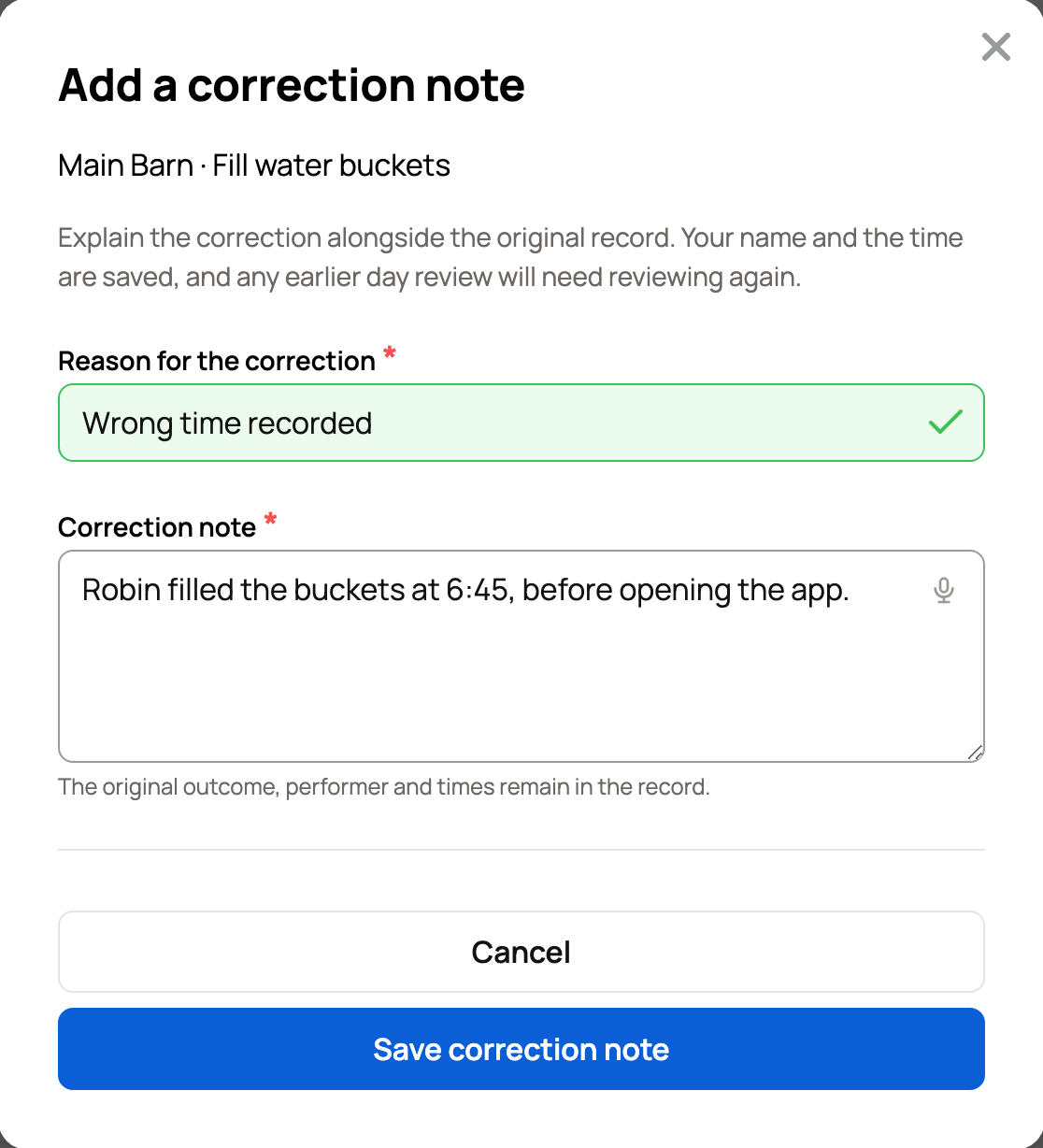
The original outcome, the person who did it and the times all stay in the record. Your name and the time are saved with the note, and Record details then shows "1 change." If you had already reviewed that day, review it again.
Add correction note appears on most finished entries, but not on ones that are still Outstanding.
Download it
- CSV downloads the list you're looking at, for any account.
- PDF is included with Creatures Pro on that account. Without Pro, you'll see "PDF reports are included with Creatures Pro."
- Detailed reports opens your herd reports for the same dates (see Download herd reports).
Review the day and leave a handover
Below the toolbar, select Review day. The page shows the day's totals: performed, outstanding, and missed or not performed.
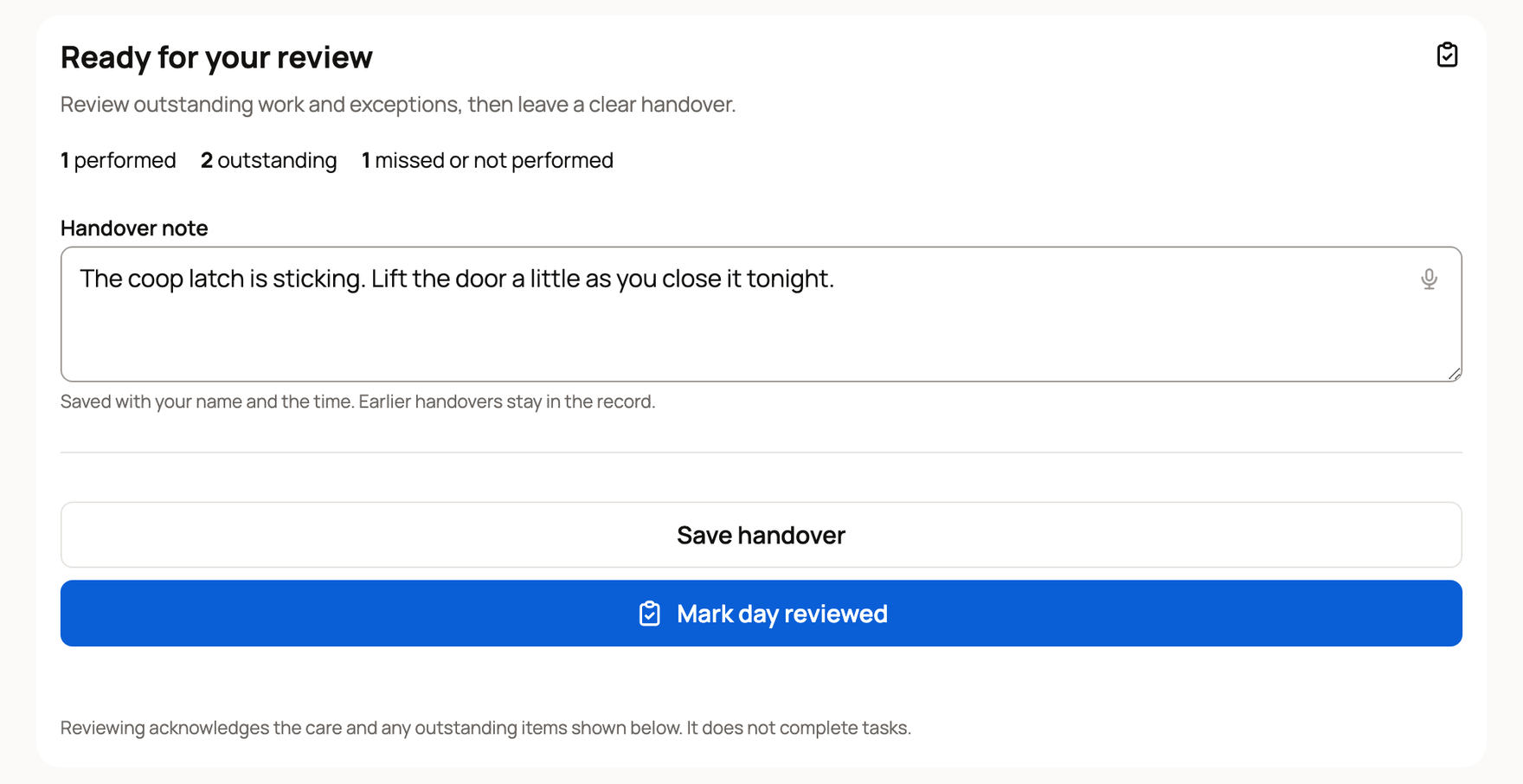
- Write a Handover note for the next person and select Save handover. Your name and the time are saved, and earlier handovers stay in the record.
- Owners and co-owners can also select Mark day reviewed. This confirms you've seen the day's care and anything still open. It doesn't complete tasks.
If care changes after you review, the day shows "Care changed after review." Select Review updated day to review it again.
Related information
- Your Today page: what's due and how to check it off
- Assign care and manage your care duties
- Download herd reports
- Creatures Pro: pricing, benefits, and managing your plan
Updated on: 29/10/2026
Thank you!