
Merging duplicate animal profiles
If two profiles describe the same animal, merge them into one. Open the duplicate, choose Merge with another profile from its arrow menu, pick the profile to keep, and review the comparison before anything changes.
Merge is only for two profiles of the same animal. If the animal is going to a new owner, use Sold, rehomed, or deceased instead. See Transferring an animal to its new owner.
Just added a duplicate by mistake, with nothing on it yet? You can delete it instead. See Removing an animal from your account.
Merge two profiles
You can start a merge from an animal you own or co-own, or from a reference you added. A reference is a profile for an animal you do not own, kept for pedigrees.
- Open the profile you want to fold in. This one goes away, so the other profile is the one you keep.
- Select the arrow button under the animal's name (More animal actions), then Merge with another profile.
- Under Find the other profile, search for the profile to keep and pick it.
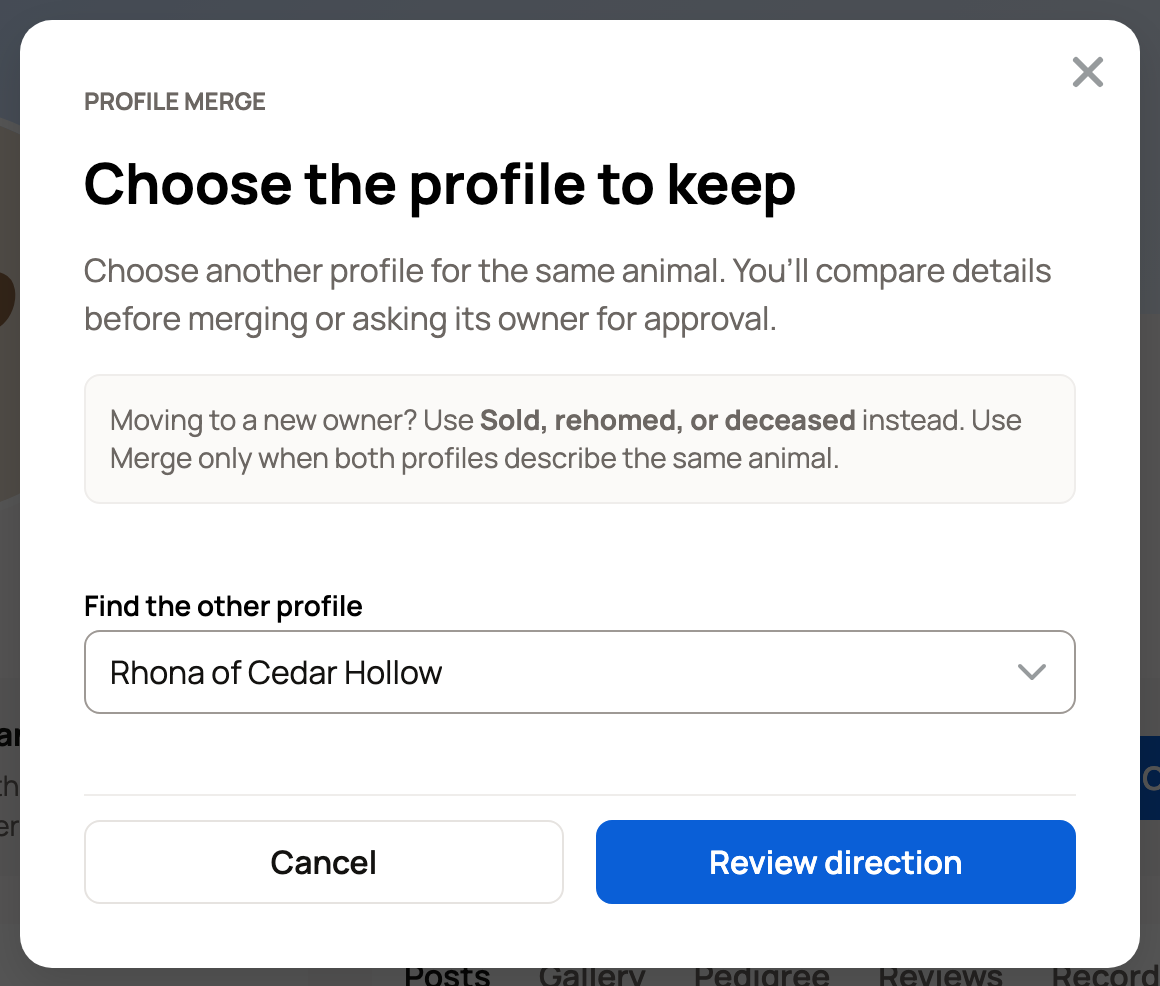
- Select Review direction.
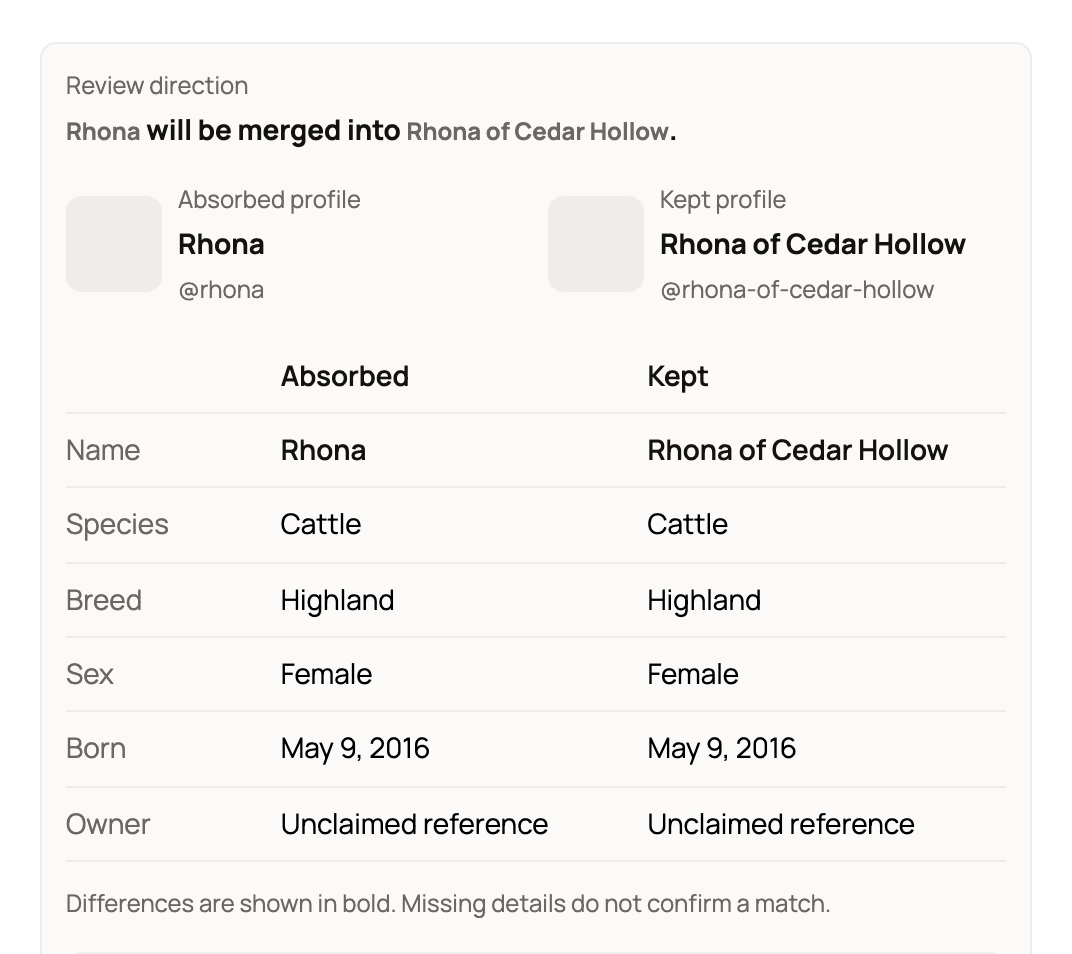
Creatures shows the profile being absorbed and the one being kept, side by side. Differences are in bold. Below the table, After merge lists what the kept profile will hold. Where both profiles have a value, the kept profile's value stays and the other one is dropped. Blanks on the kept profile are filled from the other profile.
What the button means
The button at the bottom tells you what happens next:
- Merge now: you control both profiles, because you own both or you added both as unclaimed references. You confirm before anything changes.
- Send merge request: another owner controls the profile you chose to keep, so they approve it first. Creatures shows "Merge request sent for approval".
- Claim profile first: the profile to keep is an unclaimed reference. Claim it, then come back and merge.
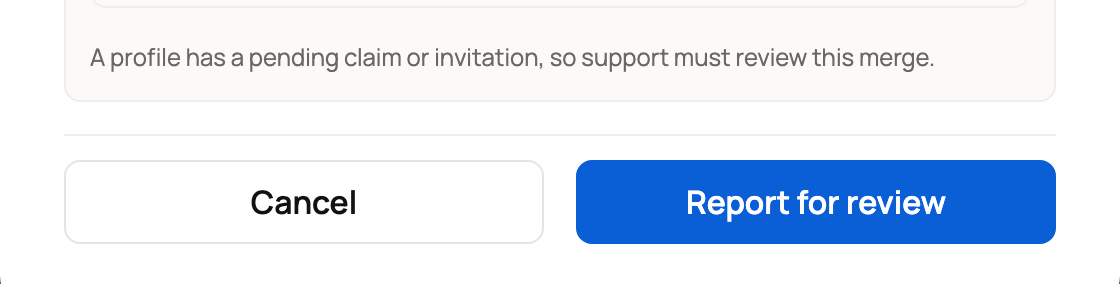
- Report for review: our team needs to look first, for example when a profile has a pending claim or invitation. The reason shows above the button. Select it, then Report for review again on the short report that opens.
Some things cannot move to another profile, such as an active listing, Finance entries, or care history. If the profile you are folding in has one, Creatures tells you what to do first. Often the answer is to merge the other way. A published stud offer on either profile also stops a merge. Pause it in the Stud services panel first.
Confirm the merge
After Merge now, Creatures asks you to confirm. It names the kept profile and the absorbed profile, lists anything that will be dropped, and reminds you that This cannot be undone.
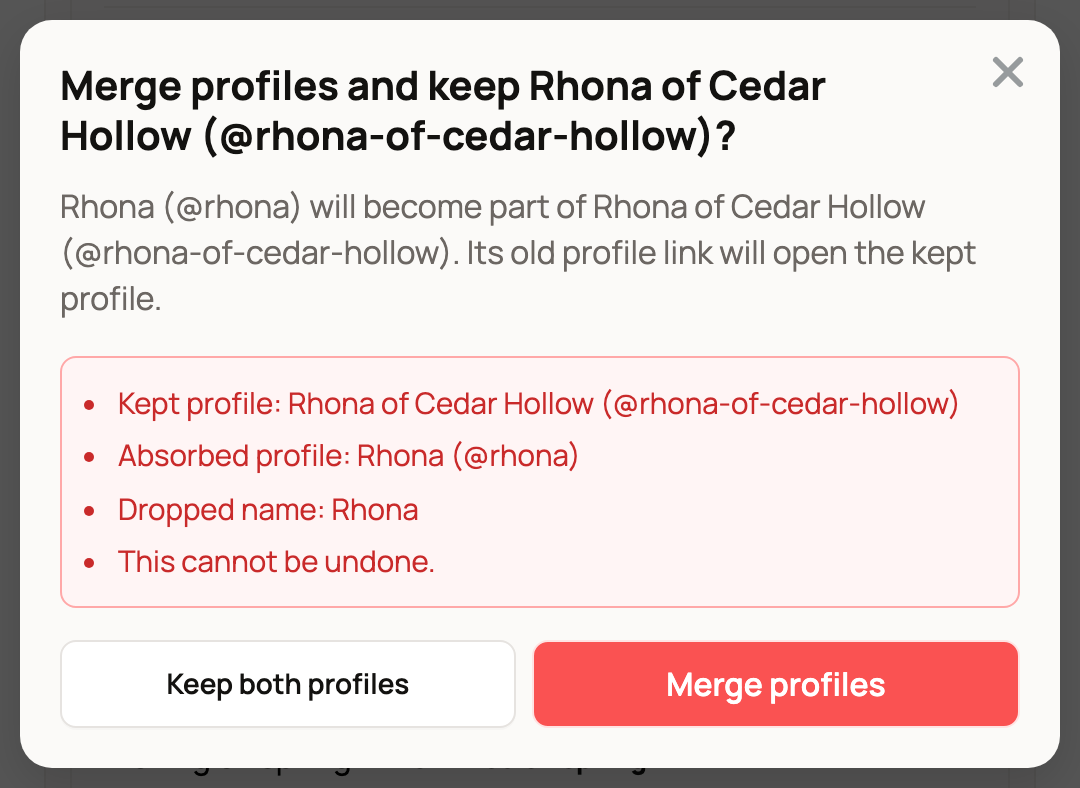
Select Merge profiles to finish, or Keep both profiles to stop. Records, identifiers, pedigree links, and photos move to the kept profile, and the old profile's link now opens it.
If someone asks to merge into your animal
You get a notification that opens Review this merge. It shows the Profile being merged, the Profile kept, a Respond by date, and Ownership after merge (you keep ownership).
Select Approve merge only if both profiles describe the same animal. Decline keeps them apart, and the same request cannot be sent again without help from our team. If nobody answers by the Respond by date, 14 days after the request, it ends and nothing changes.
Report a duplicate you do not manage
Signed in, open the arrow menu on the animal's profile and select Report duplicate. Pick the other profile under This animal is a duplicate of:, add a note if you like, and select Report for review. Our team reviews the report.
Related information
- Reference animals: documenting lineage and inviting the owner
- Claiming a reference animal someone created for you
- Transferring an animal to its new owner
Updated on: 29/10/2026
Thank you!