
Split, merge, or archive a group
You split, merge or archive a group from its Settings tab. None of these erase history: past records, costs and activity stay with the group, and each animal keeps its own profile history.
Before you start
Split and Merge show for groups chosen by hand and for count groups (groups that track animals by number). A group updated by rules changes when you change its rules, so it has no split or merge. If you need a fixed part of a rules group, create a new group and choose its animals by hand.
Split a group
- Open the group and select the Settings tab.
- Under Split, enter a New group name.
- For a group chosen by hand, pick the animals in Animals to split. For a count group, enter the Count to split.
- Select Split group.
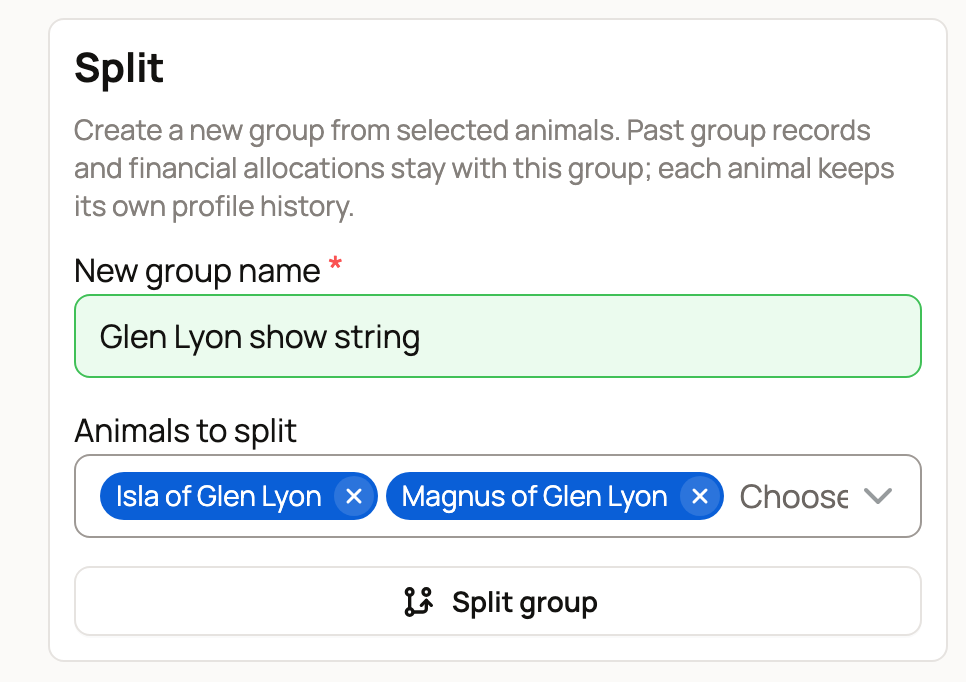
Creatures makes the new group with the same type, owner and location note, and moves those animals (or that count) into it. A message confirms the split and offers Undo, which moves them back. Past group records and money entries stay with the original group, and the split is noted in Activity.
Merge two groups
- Open the group you want to fold into another one, and select Settings.
- Under Merge, pick a group in Merge into. The list shows your other active groups with the same owner and the same kind: groups chosen by hand with each other, count groups with each other.
- Select Merge group, then confirm with Merge group. Keep separate cancels.
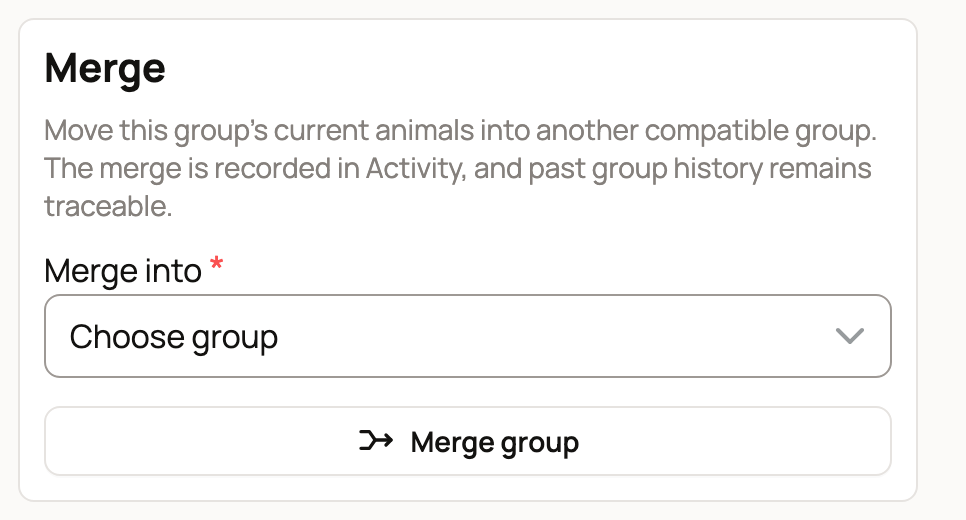
Every current animal (or the whole count) moves into the other group, and the group you merged from is archived. A message offers Undo. If you see No compatible active groups to merge with, you have no matching group to merge into.
Archive a finished group
- Open Settings. Under Lifecycle, select Archive group.
- Confirm with Archive group. Keep group cancels.

Archiving pauses the group: you can still read its records, activity and costs, but you cannot edit it or add records until you restore it. Records already saved on each animal's profile stay there.
Upcoming care plan tasks for the group are cancelled, and its care plans show Archived group. You can still open Manage plan to end one, but you can't add or change care plans until you restore the group.
Find or restore an archived group
- On the Groups page, select Archived. The list now shows archived groups along with your active ones. Each is marked Archived. Select Hide archived to go back.
- Open the group.
- Select Unarchive in the banner at the top, or Unarchive group under Settings.
The group is active again, with its history in place.
Related information
- Create and manage animal groups
- Track animals without individual profiles
- Choose a group's animals by hand or by rules
- Care plans for animal groups
Updated on: 29/10/2026
Thank you!