
Track animals without individual profiles
A count group tracks animals by number instead of one profile each, such as a litter of puppies, a pen of broilers or a batch of lambs. You keep one shared history for the group now, and you can create individual profiles later without losing the link to the group.
Create a count group
Open Dashboard > Animals & Groups > Groups and select Create group. On a phone, tap Create, then New group.
- Enter a Name and pick a Group type, such as Litter or Lot.
- Check the Owner: your own profile, or a farm or kennel you manage.
- Under What are you tracking?, choose Count group.
- Enter the Current count.
- Under Species and breed, pick the Species, and the Breed if you know it. You need a species before you can share the group on a public page, and new profiles start with these details.
- Add a Location note or Notes if they help, then select Create group.
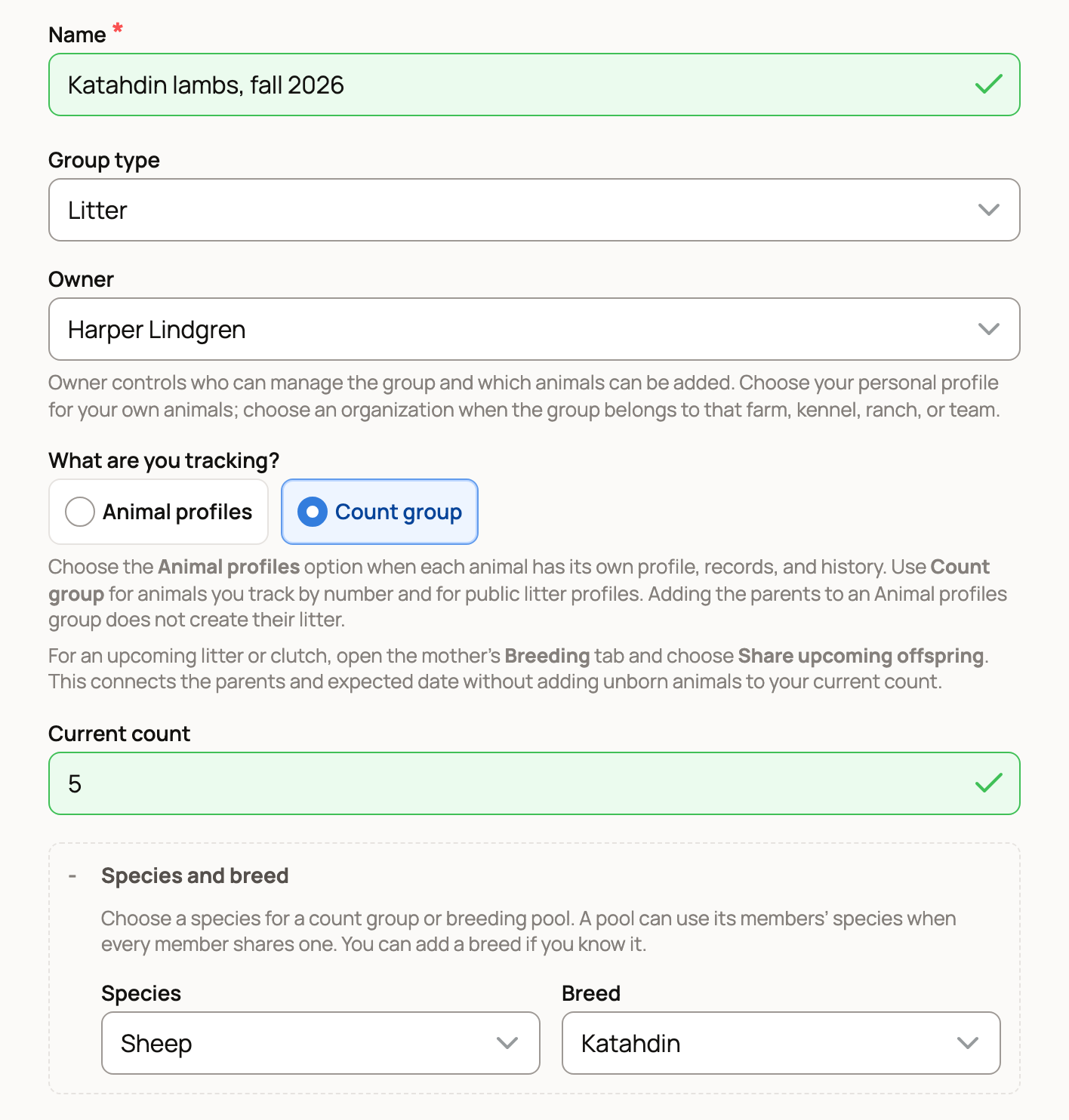
The Owner and What are you tracking? choices can't be edited after you create the group, so check both first.
Keep poultry? After you add your first bird, Add the rest of your chickens (named for your species) asks how many more. Select Track as a flock to make a count group for them.
If you record a birth on the mother's Breeding tab, Creatures makes the litter for you. See Recording a birth and adding the babies. For babies that aren't born yet, open the mother's Breeding tab and choose Share upcoming offspring instead of making a count group.
Update the count
Select Edit at the top of the group, change the Current count, then select Save group.
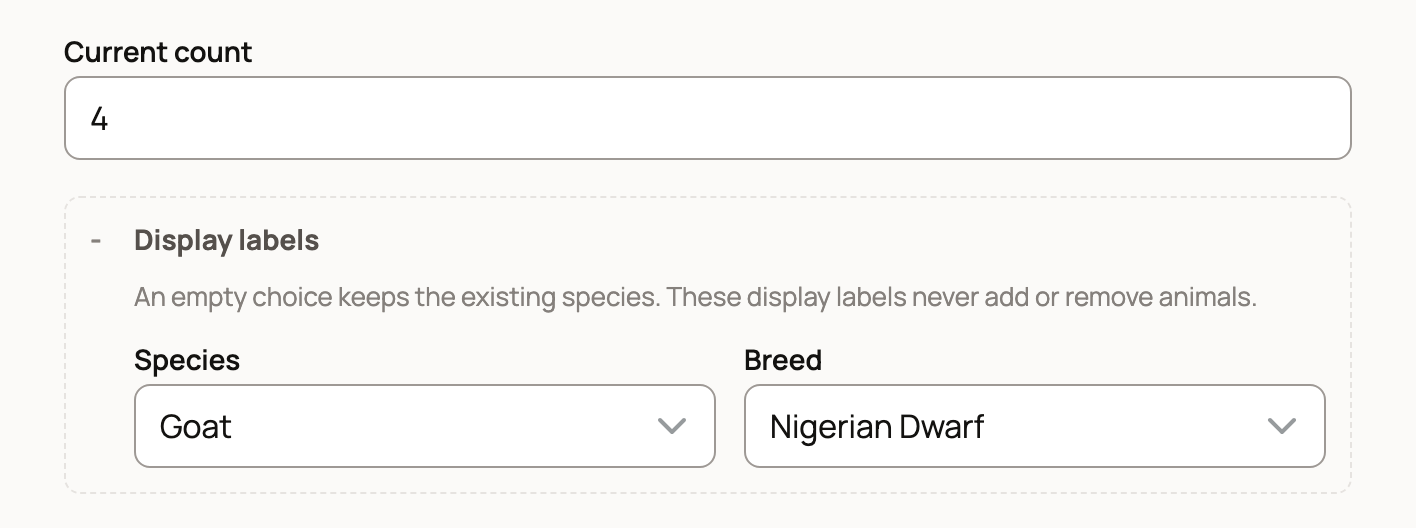
Display labels in the same form change the species and breed shown on the group. They never add or remove animals.
If the count is 0, the Overview tab says No counted animals yet. Select Update count to open the same form.
For fish and other animals kept in tanks or ponds, the group page also offers Turn on tank counts. Once it's on, update the number with Count a tank, one at a time, not with Edit. Before you offer any for sale, use Count a tank to count every tank, and choose Not in a tank or pond to count the rest, even if that's 0. An invoice for the group then asks which Tank or pond they come from, and only that tank's count changes when it's paid.
Keep records for the whole group
On the Overview tab, use Add a record to log a vaccination, treatment or other record once for everyone. Select Preview record to check it, then Save group record.
These records stay with the group. They are not copied to individual profiles you create later. For more, see Add a record for a whole group.
Create individual profiles later
When you can tell the animals apart, open the Animals tab and find Promote to individual profiles. The species, breed, owner, birth date and parentage are filled in for you. The badge shows how many profiles remain.
- Enter a Call name and choose a Sex.
- Add Color / markings, a Microchip number or Temperament notes if you have them.
- Buyer match lists buyers who hold a reservation on this litter. Pick one to pair them with this animal, or leave No buyer yet.
- To add several at once, select Add another profile. To add a row for every animal left, select the Add all button (for example, Add all 7).
- Select Create profile. Every profile in the batch saves together.
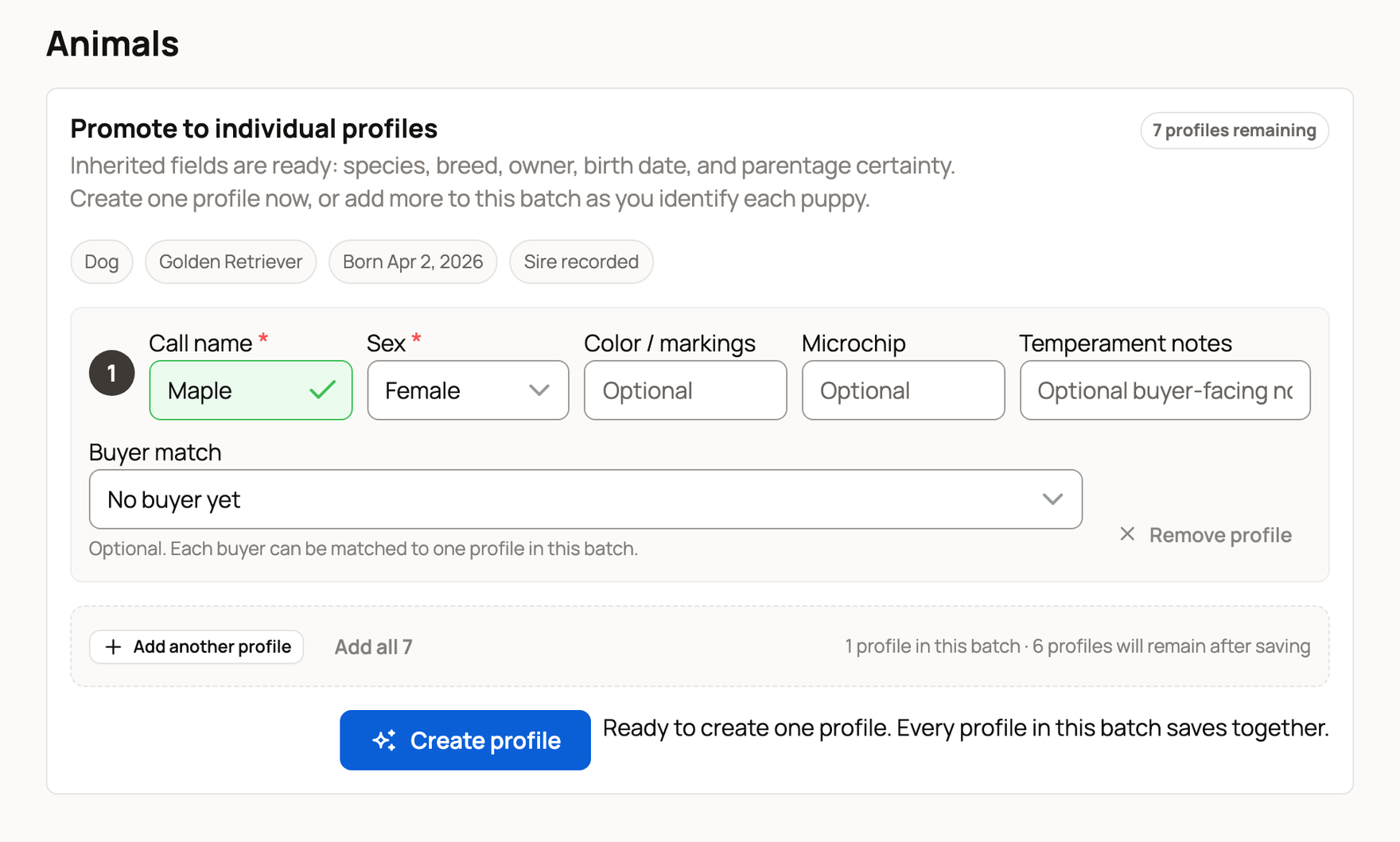
Each new profile keeps its link to the group, and the group's shared history stays in place.
For a litter made from a recorded birth, names are optional and each row has a Status: Here, Sold or Died. For egg-laying species, each row also takes an identifier, such as a Band, and a Hatched on date. See Record a hatch and add your chicks.
When to use Animal profiles instead
Choose Animal profiles when every animal needs its own health, ownership or show history from day one. Add the animals first, then put them in a group.
To move part of the count into its own group, see Split, merge, or archive a group.
Related information
Updated on: 02/11/2026
Thank you!