
Track water quality in a tank or pond
Each tank or pond in Locations keeps its own water records: every test you log, your latest results and the full history. You don't need animals or a care plan to start.
Start with a new tank or pond
Open Locations and select the tank or pond. A new one's page offers Log water, Add a routine and Add an animal (or Add animals here when you have animals to move in). Water records, routines and animals are all optional, so start with any of them.
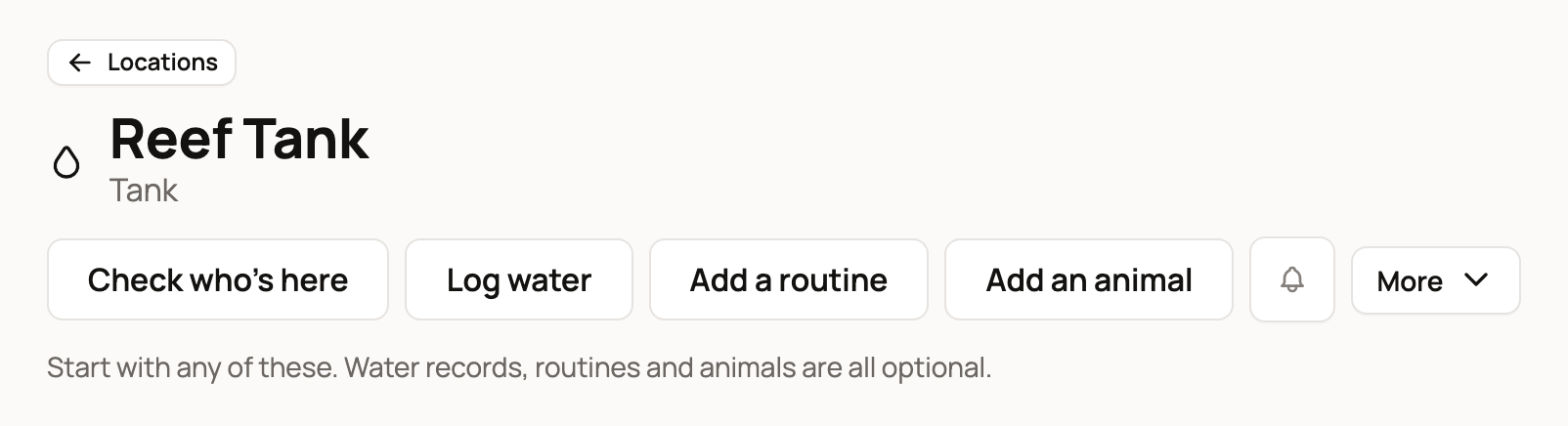
The Water section on the page shows your latest results. Log water and browse history opens its Water records.
Log a water test
- Select Log water on the tank's page, or open Water records.
- Under When did you test?, choose I know the time or Just the date.
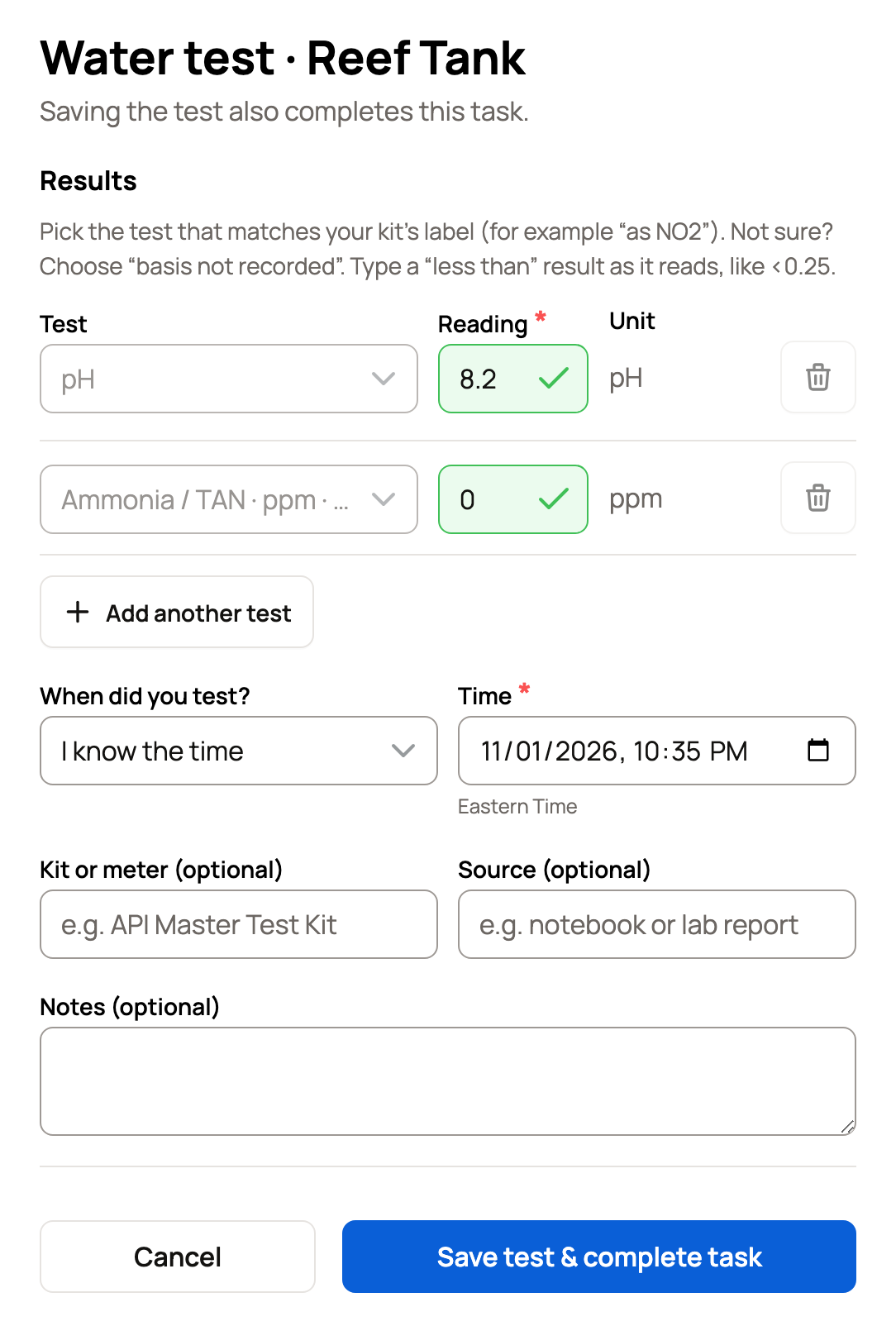
- Under Results, pick each Test and type its Reading. Pick the test that matches your kit's label, such as "as NO2". Not sure? Choose "basis not recorded". Type a "less than" result as it reads, like <0.25. For water temperature, pick °F or °C under Unit. Add another test adds a row.
- Add the Kit or meter, Source or Notes if you like, then select Save water session.
Zero is a reading. A blank value means you didn't measure it.
If tanks share water, such as tanks on one sump, open Water records for the tank that holds the shared water. Under Shared water (sump or central filter), select Use this tank as shared water, then add the others with Connect tank or pond. When you log water there, What did you test? asks whether you tested that tank or the shared water. A shared-water test applies to every connected tank or pond at the time of the test.
Read your results
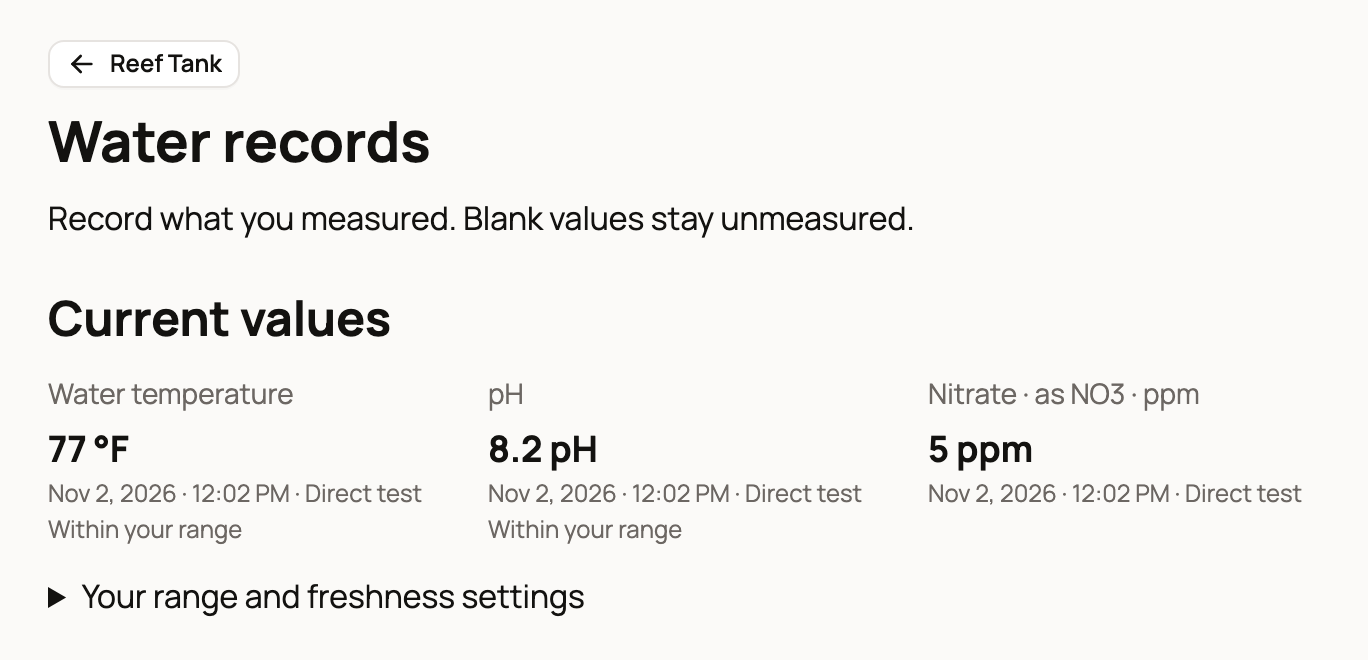
Current values at the top of Water records shows the latest reading for each test. Water history below it lists every test. Filter history finds tests by date, test, kit or notes. Show trends charts one test over time: each dot is one test, and readings like <0.25 stay in the table. Download water records saves a spreadsheet file, or a .zip of them when there are shared-water tests.
Set your own ranges
Owners and co-owners can open Your range and freshness settings, choose a Parameter for your range, then select Edit settings.
- Pick the unit to show and to enter the range in, such as °F for water temperature.
- Enter a Minimum, a Maximum or both.
- To flag old results, fill in Mark stale after (hours, optional).
- Select Save settings.
Each latest result then shows Within your range, Below your range or Above your range, and, if you set a stale time, Freshness: current or Freshness: stale. These settings never send alerts.
Fix a mistake
In Water history, select the test's date. Change what's wrong, fill in Why are you correcting it? and select Save correction. The original stays in the record's history. If the whole test was wrong, for example logged on the wrong tank, say why under Void this record and select Void record. A voided record can't be corrected or restored.
Bring in records you kept elsewhere
Owners and co-owners can select Import water records on Water records.
- Choose a CSV, or a water ZIP downloaded from Creatures, and select Inspect file.
- For a spreadsheet from somewhere else, check the suggested columns under Map columns, choose the Date format, then select Choose destinations and parameters.
- Pick the tank or pond for the readings, and the exact test and unit for each column, such as °F for temperature.
- Select Preview every row. Check each row, then select Save reviewed batch. A big file is split into batches, and you save each one.
Nothing is added before you save, and importing never creates places or animals.
Schedule regular tests
To get water tests on Today, add a care plan for the tank or pond, for example with Add a routine. Open Start with a tank or pond routine and pick a Routine starter. Established tank or pond, Cycling: observe and test and Grow-out include a water test. Quarantine: observe is observations only. Set how often the tasks repeat and the water tests you use, select Add starter tasks, then select Save care plan. Starters are lists you can edit. They never set treatments, dosing or target ranges.
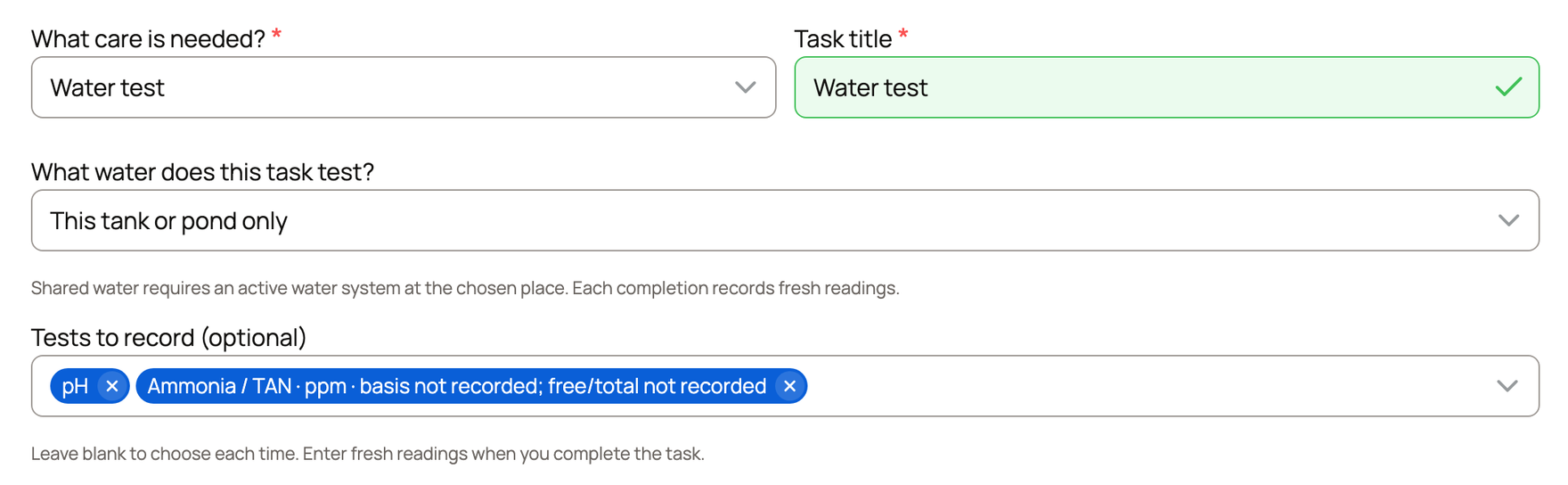
You can also add a single task: choose Water test under What care is needed? and, if you like, the Tests to record, then save the plan. See Create and manage a care plan.
On Today, Record test opens the same form with the plan's tests listed. Save test & complete task saves the readings and checks the task off.
Link a spawn to a water test
On the tank or pond's page, Record a spawn, drop or colony under Aquatic observations has a Water test (optional) choice. Pick up to five tests from the seven days through the observed date. The record links to each test and shows Corrected since linked if a test changes later.
To count fish tank by tank, or sell some from a tank, see Track animals without individual profiles.
Related information
- Set up and organize locations
- QR location signs and place chores on Today
- Create and manage a care plan
Updated on: 02/11/2026
Thank you!