
Set up and organize locations
Locations is your private list of the real places your animals live, like your farm, barns, pastures, pens and habitats. Set it up once and your team can see where every animal is, plan moves and keep chores tied to the right place.
On a computer, select Locations in the menu on the left. On a phone, tap your photo (or initial) at the top right, then Locations.
Before you start
Only an owner or co-owner of an account can create or change locations. Team members can see the places and record moves. Until an owner adds the first place, they see No locations yet.
If you help run more than one account, pick the right one under Workspace first. Places you add for an organization stay with it, so the whole team can use them.
Start from a suggested layout
An empty workspace shows Set up your locations. Creatures suggests a layout that fits the animals you keep. For example, rabbits get Rabbitry and cattle get Farm & pasture. Each card says how many places it creates and lists the first few names. Adjust counts changes how many of each it makes.
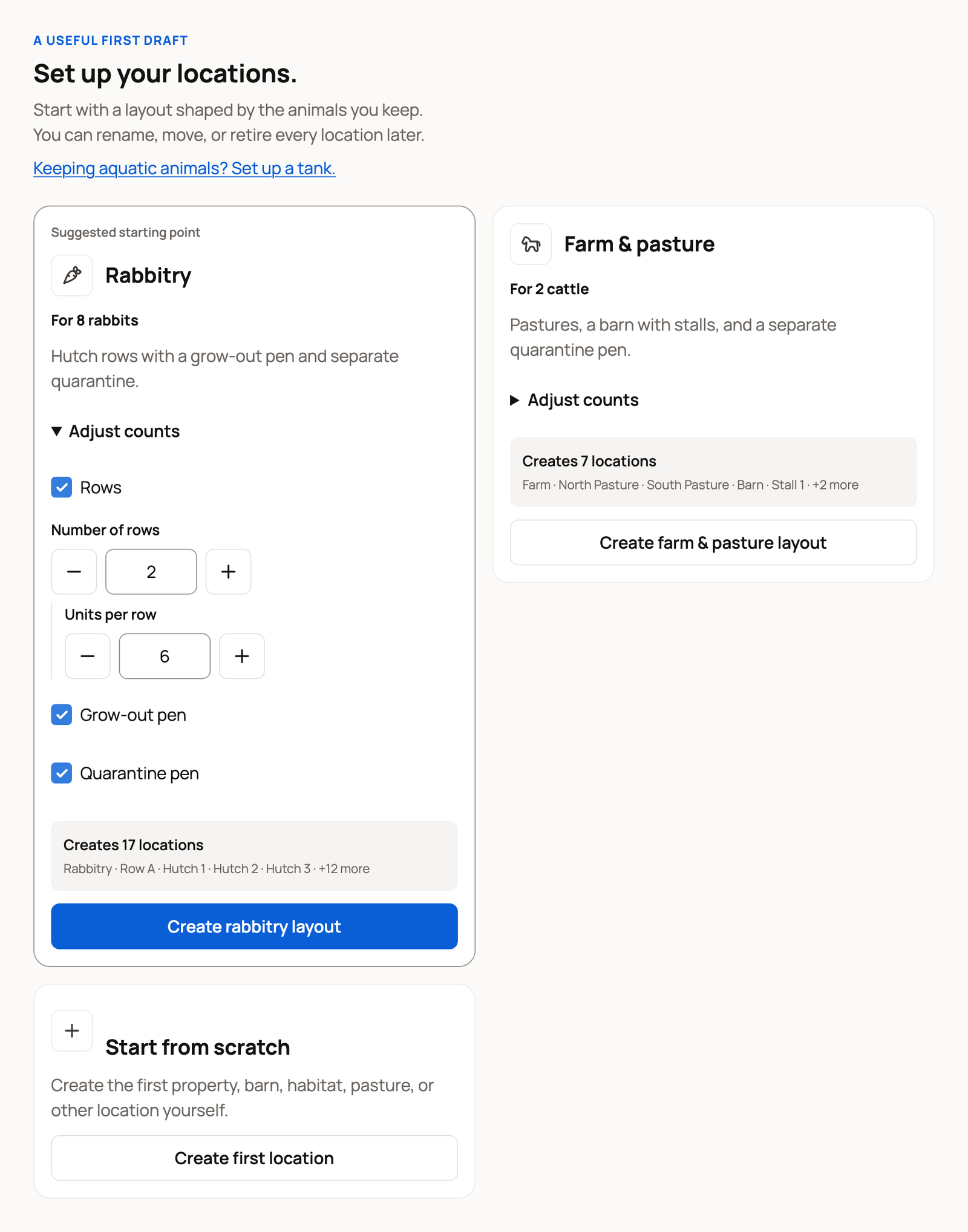
Select the button on the card you want, such as Create rabbitry layout. To build your own list, choose Create first location.
If you have no animals yet, Creatures suggests a layout for the species you said you keep, or Property basics: a property, a building and two pens to rename. Later, Add a layout at the top of Your locations adds another layout, at the top level or inside one of your places.
Create a location
- Select Create location. On the Places tab, it sits at the top of Your locations.
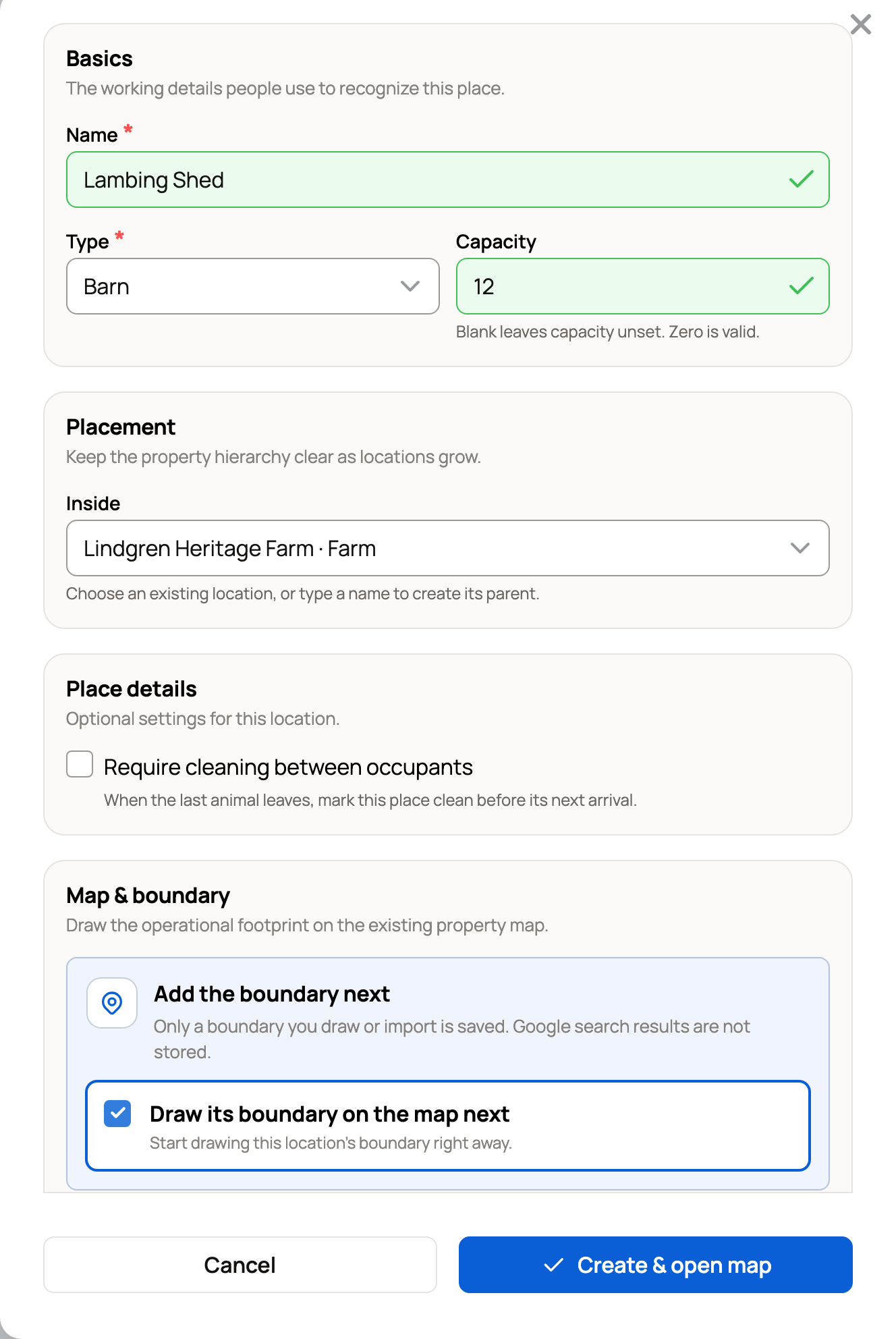
- Enter a Name, such as Lambing Shed.
- Choose a Type, such as Barn, Pasture, Pen, Stall or Habitat.
- Add a Capacity to get a warning when the place is too full.
- Under Inside, choose the bigger place that holds this one, or leave Top level. You can also type a new name to create that bigger place too.
- To draw the boundary right away, turn on Draw its boundary on the map next. The button then reads Create & open map. To map it later, leave it off and select Create location. Indoor places, like a stall, skip this step.
If you already know the size of a place you can map, enter it under Area. A boundary you draw works out the acreage for you. See Map location boundaries.
Keep the structure simple
Nest smaller places inside bigger ones, the way you would describe them out loud. For example, Lindgren Heritage Farm holds the Calving Barn and three pastures, and the Calving Barn holds a Quarantine Pen.
Put a place at the top level only when it's a separate property. You can move it under another place later from Manage. See Manage, retire, and restore a location.
What you see next
Each row in Your locations shows the type, the place it sits inside and whether it is Mapped. A place with animals shows a count, like 1 of 4, with their photos. A bigger place shows a total, like 11 across 4 places. When care is due somewhere today, a Today here link shows how many tasks.
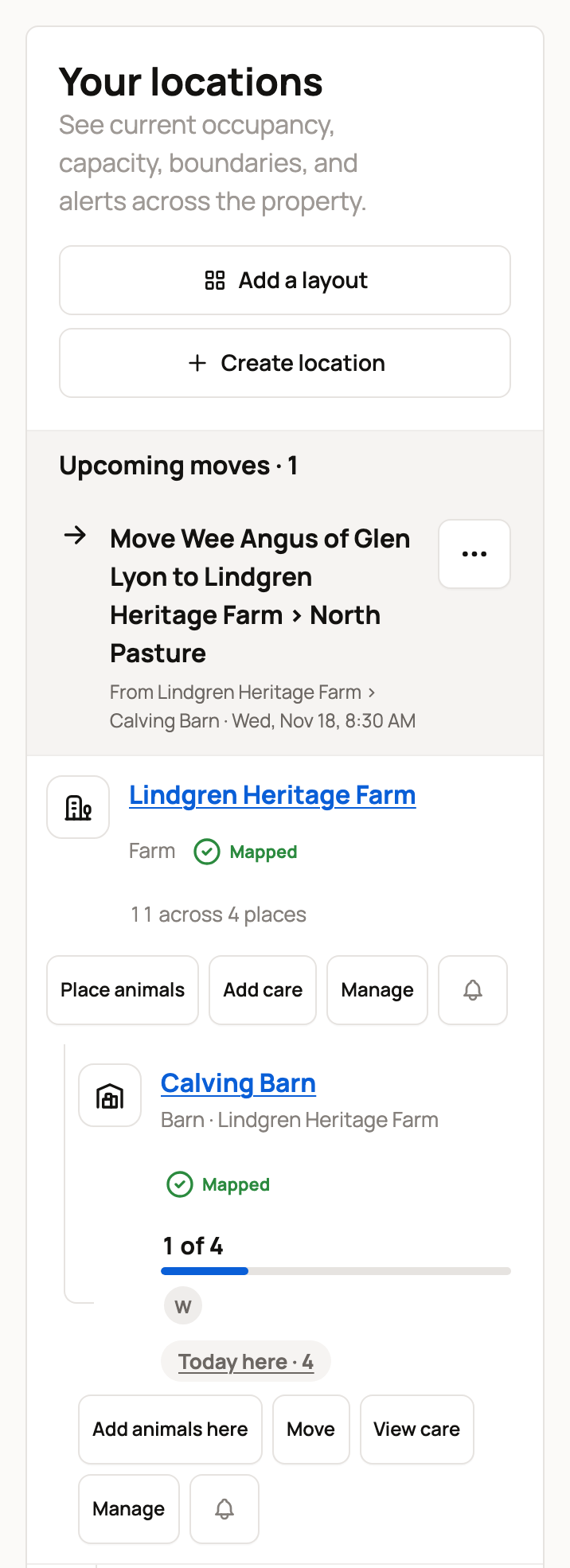
The buttons on each row:
- Place animals, Add animals here or Move records who is where. See Move animals and review location history.
- Add care or View care sets up care for the place: chores for the place itself, or care for every animal there. See QR location signs and place chores on Today.
- Manage changes the details or retires the place.
- The bell turns on notifications for moves.
The Bring your locations to life checklist tracks three steps: create places, place your animals and add a care plan for a place. The second step is done once every active animal has a place. Dismiss hides the checklist.
If you own one organization and your places are still on your personal account, you'll see Move to my organization. See Bring your animals, groups and places into your organization.
Related information
- Check occupancy, pasture rest, and property activity
- Move animals and review location history
- Map location boundaries
- QR location signs and place chores on Today
Updated on: 29/10/2026
Thank you!