
Manage, retire, and restore a location
To change a place, open Locations and select Manage next to it. When you stop using a place, you retire it: its history stays, and you can restore it later. A place that has never held an animal or any history can be removed instead.
Only owners and co-owners see Manage. It's on every place on the Places and Status tabs.
Change a location's details
- Select Manage on the place.
- Under Basics, change the Name, Type or Capacity. Leave Capacity blank for no limit. Zero is fine too.
- Under Placement, use Inside to put it inside a different place. Choose Top level if it's a separate property.
- Select Save changes. You'll see Location updated. If nothing changed, you'll see Already up to date.
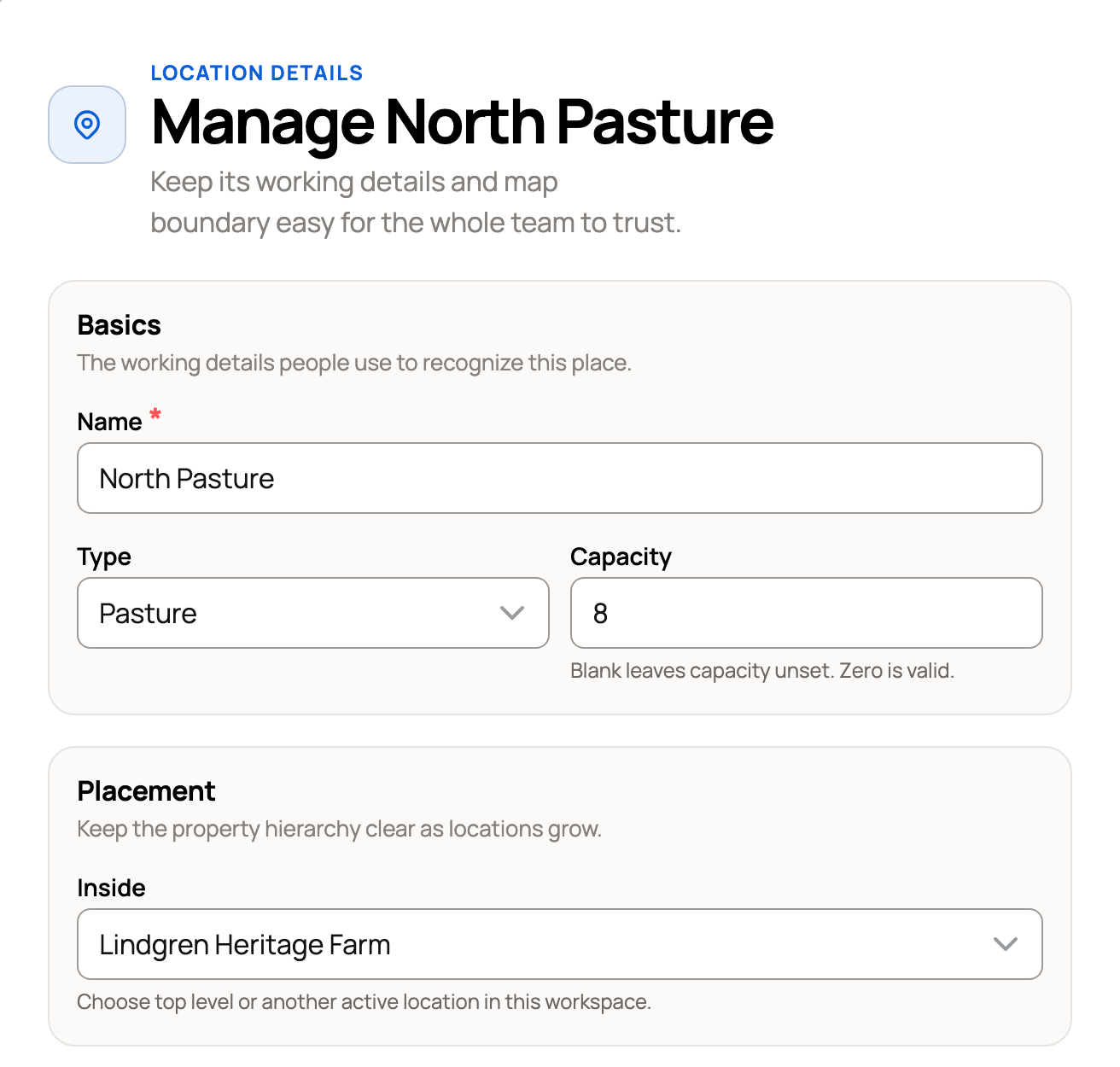
A place you move inside another keeps its animals, care, QR sign and history.
To change its outline, select Save & edit boundary on map, or Save & draw boundary on map if it has none yet. Creatures saves your changes first, then opens the map. See Map location boundaries.
Retire a location
Retire a place you no longer use, like a pen you took down. It leaves moves, care and Today. Its history and activity stay, and its QR sign stops working until you restore it.
- Select Manage and scroll down to Retire this location.
- If anything still depends on the place, you'll see a list of steps. Each one has a button that takes you to the fix:
- Move current occupants: select Open Move to move the animals somewhere else.
- End and a care plan's name: select Manage care to end that plan.
- Choose a new home for a group: select Change home to give the group another home.
- Finish or cancel location updates: a planned move involves this place. Select See planned moves to cancel it, or Action Center to finish one that's due.
- Close the open gate session: gates are open between this place and another one. Select Close gate.
- End its shared-water connection (or connections): a tank still shares water with others. Select Manage shared water. Ended connections keep their history.
- When you've cleared every step, open Manage again. The retire button stays grayed out until the list is gone.
- Smaller places inside this one move up into the place around it, or to the top level, when you retire. To choose other places, open Choose different destinations. If a name is already taken there, Creatures asks where that one goes.
- Select the retire button, such as Retire Calving Barn. When Creatures asks you to confirm, select it again, or Keep Calving Barn to stop.
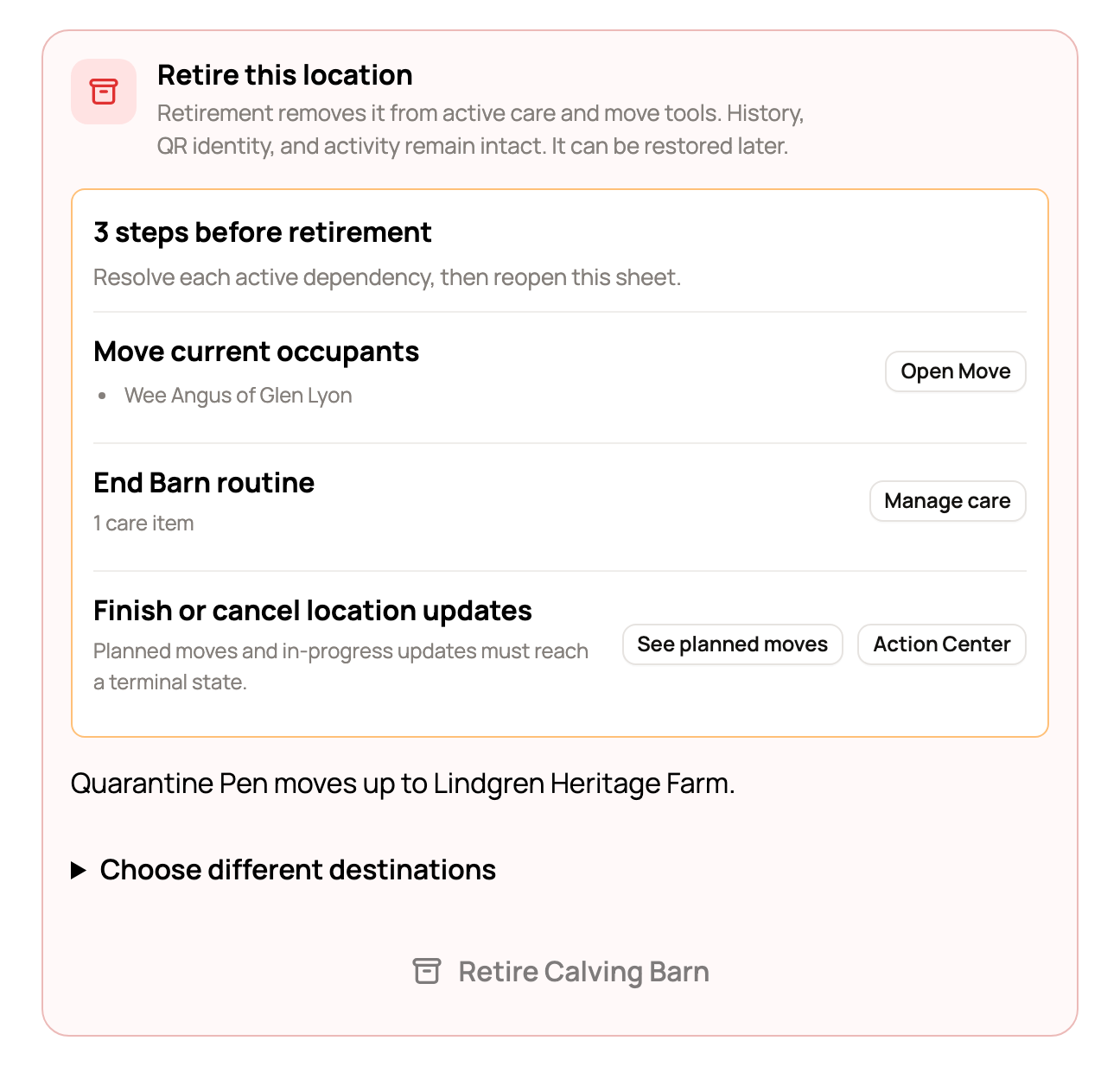
You'll see a message such as Calving Barn retired.
Remove a place you never used
If a place has never held an animal or any history, Manage shows Remove this location instead. Select the remove button, such as Remove Pen 2, then Remove. It won't appear in Retired locations, and Undo on the next message brings it back. Retire it instead keeps it in Retired locations.
Restore a retired location
- On Locations, open Retired locations below your list. Each place shows its type and the date it was retired.
- Select Restore.
- Check Inside. It starts with the place it used to sit in, if that place is still active. You can change the Name here too. Type and Capacity are locked, so change them from Manage afterward.
- Select Restore location. You'll see Location restored.
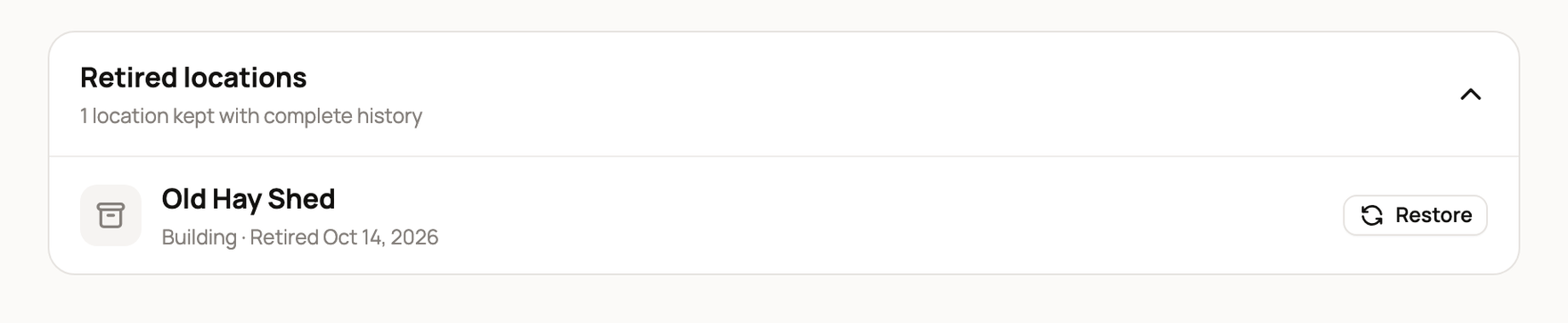
A restored place keeps its history and its QR sign, but it comes back empty. Move animals back in and add care again if you need it.
A place you moved into an organization shows View history instead, with a link to its new place.
See what changed
Manage and Restore both end with Change history. It lists each rename, move, type or capacity change, retirement and restore, newest first.
If something looks wrong
- "A sibling location already uses that name." Two places inside the same place need different names. Pick another name or a different Inside.
- "… already has a location called …" A place inside the one you're retiring would land next to a place with the same name. Rename one of them, or choose another destination for it.
- "This location changed; refresh and review it again." or "Something now depends on this location." Someone changed it while you had it open. Close the panel, open Manage again and check the latest steps.
Related information
- Set up and organize locations
- Move animals and review location history
- Who can see your locations
- Create and manage a care plan
Updated on: 29/10/2026
Thank you!