
Move animals and review location history
To record a move, open Locations and select Move animals. Pick the animals or group, where they're going and when it happened, then record it. Creatures updates who is where and keeps every move in the animal's location history.
Record a move
You can start in three places on Locations:
- Move animals at the top of the page. It shows once your workspace has an animal or group.
- Move on a place that has animals. This fills in where they're moving from.
- Place animals on an empty place, or Add animals here on one with animals. This lists animals without a place yet. Tick who lives there and select the button, such as Place 3 goats.
To move animals that already have a place, fill in the panel:
- Under What is moving?, choose One or more animals or A group.
- Pick the animals. Each name shows its breed and where it is now. A group shows its size and where it is.
- Under Move to, choose where they're going. Below it, Creatures shows where they're moving from.
- Leave Move type, under More options, on Move.
- Under When does this happen?, keep Now and select the button, such as Move 2 goats.
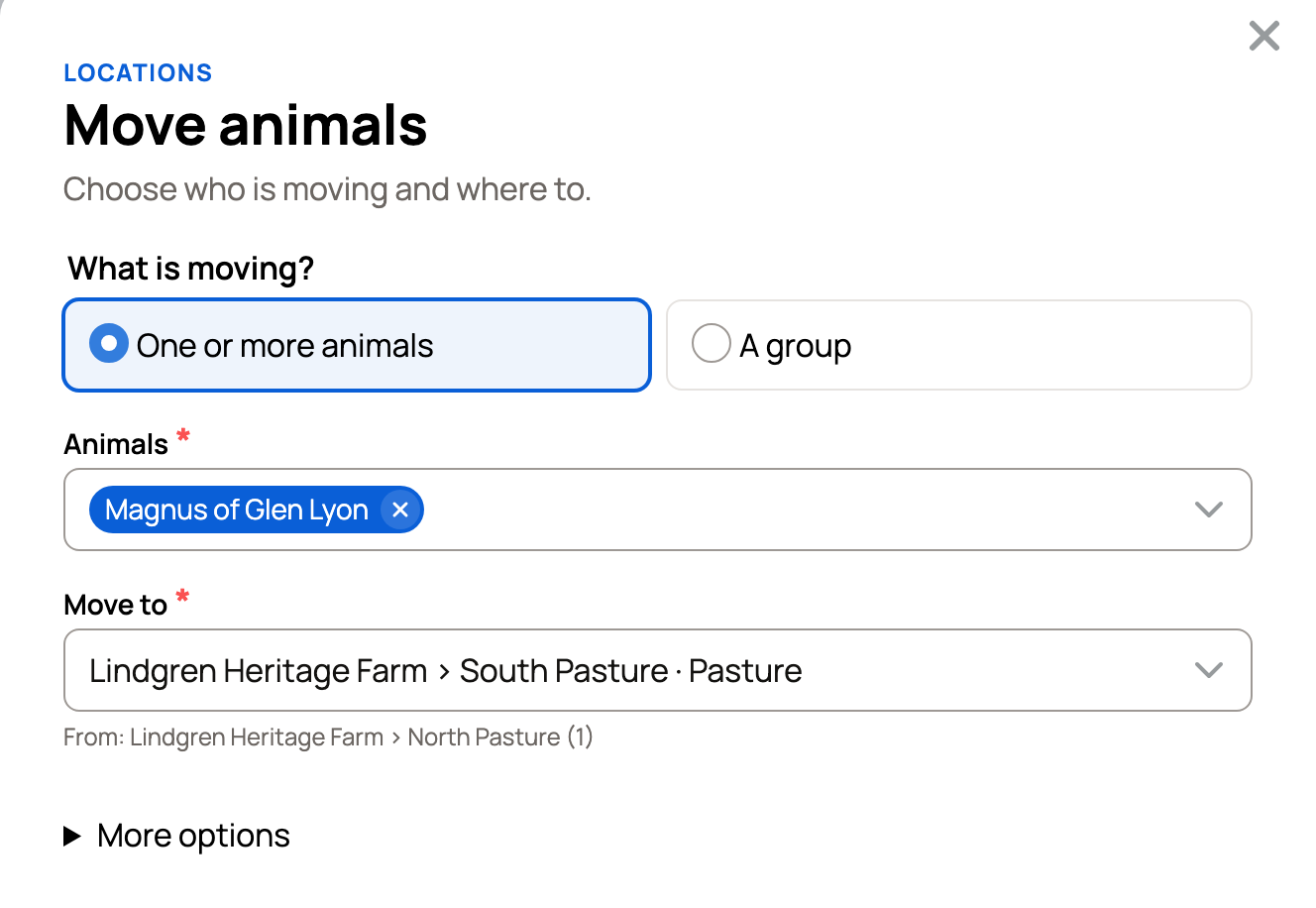
The lists only show animals and groups that this workspace owns or co-owns.
Record a move that already happened
Choose Earlier, then set When did it happen? to the real date. Select Add a time if you know it. The button changes to end in earlier, such as Move 2 goats earlier.
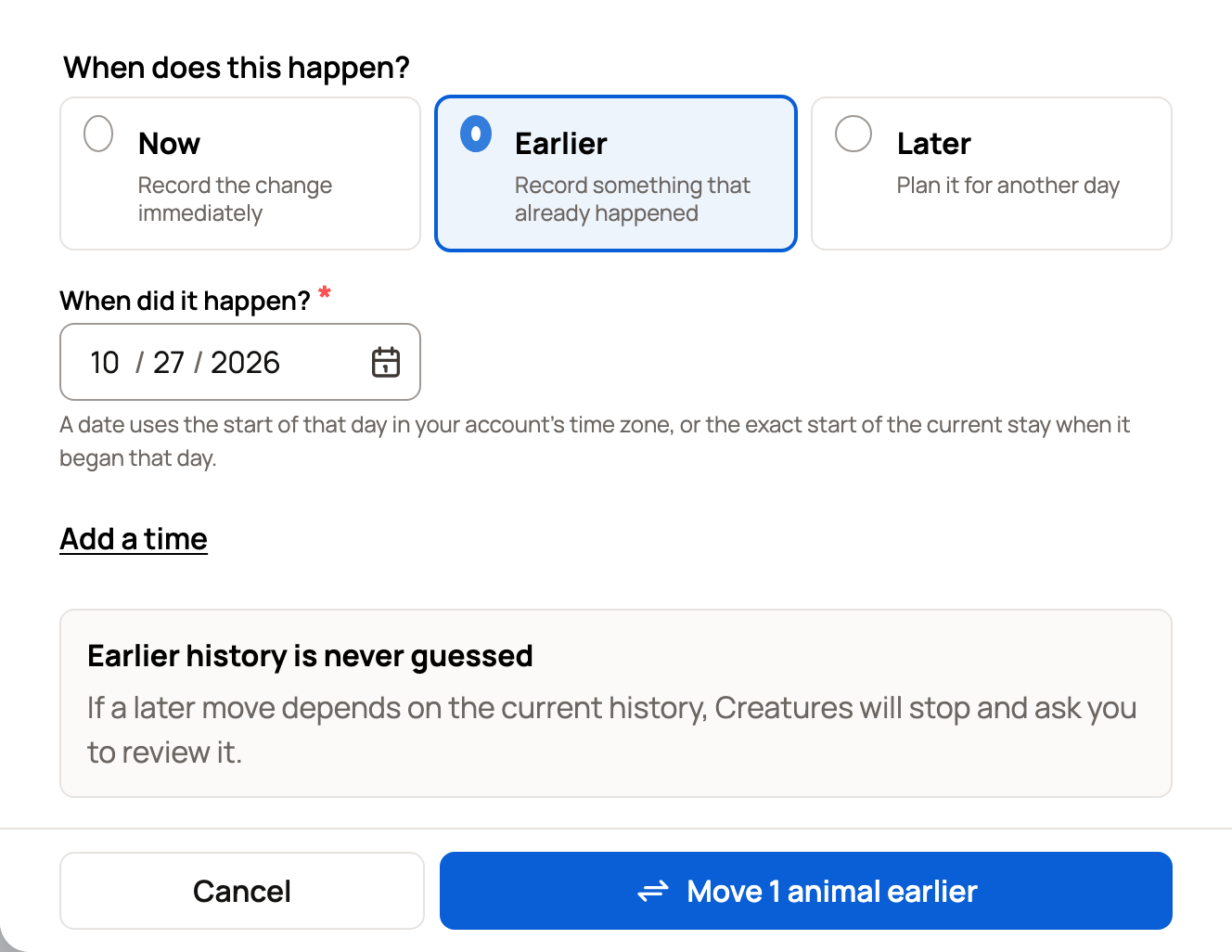
Creatures never guesses about earlier history. If a later move depends on the one you're adding, it stops and asks you to review instead of rewriting anything.
Plan a move for later
Choose Later, pick the Date (select Add a time for a set time), then select the button, such as Plan move for 2 goats. Nothing changes yet. The move shows under Upcoming moves on the Places and Moves tabs.
When it's due, that morning or at the time you set, the move appears in the Action Center on your Dashboard. The bell's Open Action Center link takes you there. Then:
- Execute records the move. Confirm with Record movement.
- Cancel keeps it in the history as cancelled, without moving anyone. Confirm with Cancel movement.
- Snooze puts it off for now.
To call it off sooner, select Cancel next to it under Upcoming moves, then Cancel move. Only the Action Center can record a planned move.
Count groups, splits and open gates
A count group tracks a headcount instead of a profile for each animal. For one, the panel asks How many animals are moving? Split moves part of the group and leaves the rest where it is. Merge adds animals to the part already at the new place. Both need a count group.
Open gates records two connected places the animals use together. Turn on These locations share a usable gate, then choose the First gate location and Connected location. To end it, open the Status tab, select Close gates under Open gates, choose Keep the animals in, then select Close gates now.
See where an animal has been
Open the animal's profile and find Current location in its About details (select About if they're hidden). Select Location history to see each move, newest first. Each one shows its type, status (Completed, Planned, Cancelled or Reversed), date and where it went, such as "West Pasture → North Pasture".
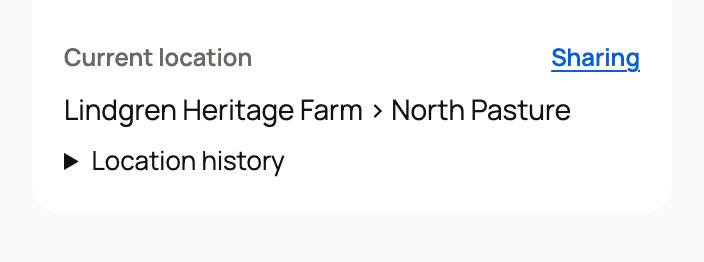
Only people who help care for the animal, like its owners and your team, can see this. It's separate from the public location you set with Update location. Sharing controls what visitors see. See Who can see your locations.
To see a place's history instead, select its name in Locations to open its page, then look under History. See Check occupancy, pasture rest, and property activity.
Describe a move in your own words
At the bottom of Locations, the AI-assisted Say the move. Ask the history. panel can fill in a move for you. Under Speak a move, type something like "Move Sugar from North Pasture to the barn at 4 PM" and select Prepare draft. Then select Review move to open the move panel, filled in. Nothing changes until you record it.
Under Ask where, ask something like "Where was Sugar yesterday at noon?" and select Find location.
If something looks wrong
- Recorded the wrong place? Select Undo on the message that confirms the move. It shows for about 10 seconds. After that, record a new move to the right place. Both moves stay in the history.
- "The location for … changed a moment ago. Review it and try again." Someone moved these animals first. Refresh the page and check where they are.
- "… in an open gate session. Close the gates first." Close the gates on the Status tab, then try again.
Related information
- Set up and organize locations
- Check occupancy, pasture rest, and property activity
- Map location boundaries
- Track animals without individual profiles
Updated on: 29/10/2026
Thank you!