
QR location signs and place chores on Today
Print a QR sign for each barn, pasture or pen from Locations with Print QR signs. When your team scans it with a phone camera, the place's page opens, with who's there, today's care and its moves.
To give a place its own chores, select Add care on its row in Locations.
Print your signs
- Open Locations and stay on the Places tab.
- At the bottom of Your locations, select Print QR signs.
- Check the signs. There is one for every active place, and each prints on its own page.
- Select the print button, such as Print 7 signs.
Each sign shows the account name, the place, the bigger place it sits in and the code. To print only a few, choose those pages in your printer settings. For one place's sign, open the place's page and select More, then Print sign.
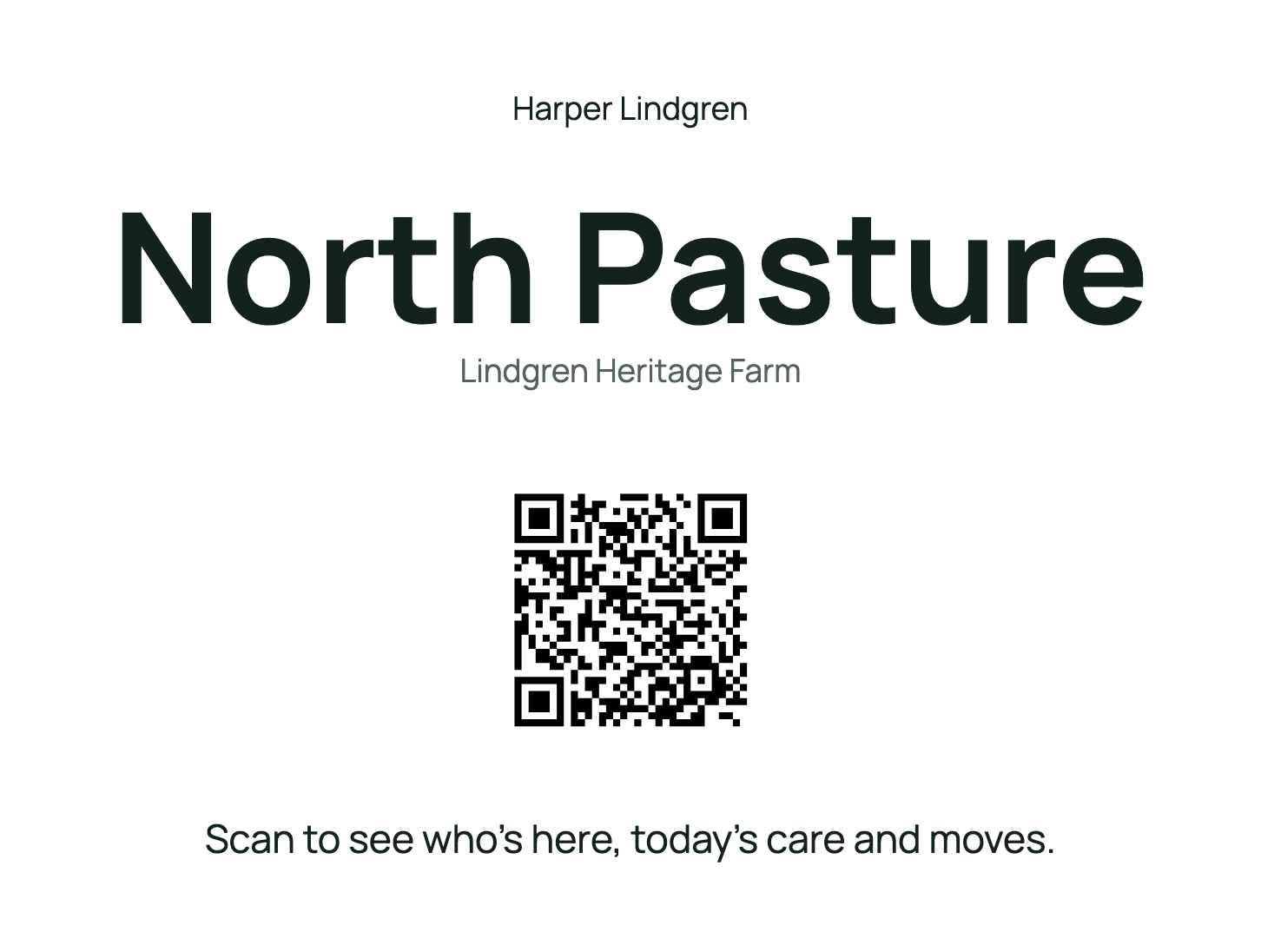
Scan a sign
Point a phone camera at the code and open the link. If Creatures asks you to sign in, do that first. The place's page opens, with the animals Here now, Today here and the place's History. To confirm who's there, select Check who's here (see Check occupancy, pasture rest, and property activity). When care is due, select Open today's care here. Today then shows a Location box with the place name and how many animals are here, followed by that place's chores and the care due for the animals there now. Check items off as usual. Older signs still work and open Today for the place. See Your Today page: what's due and how to check it off.
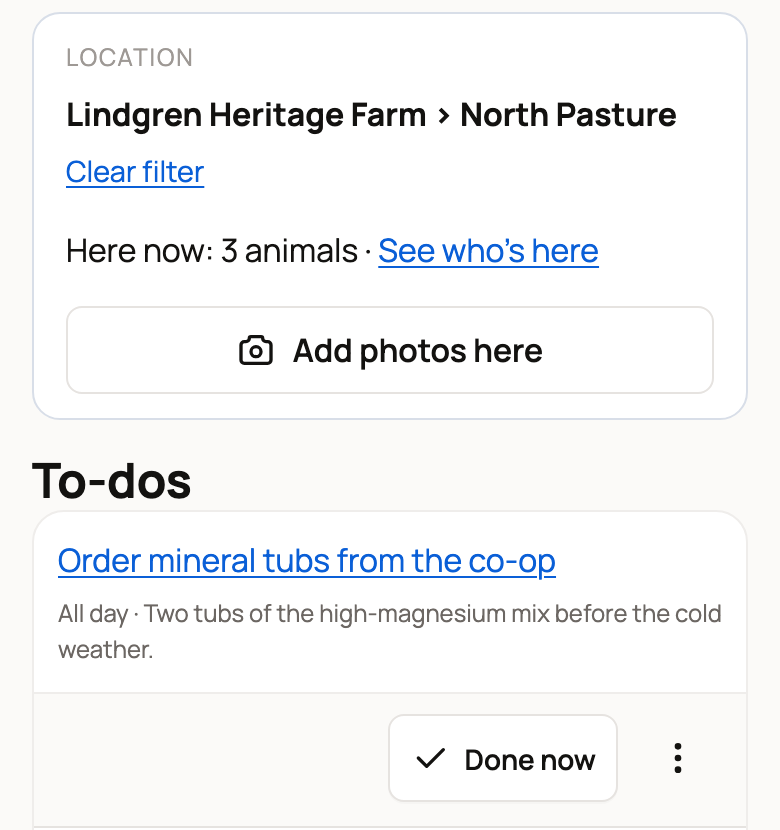
Select Clear filter to see your whole day again. The Today here link on a place's row in Locations opens the same view.
Signs work for the account's owners, co-owners and team members. Anyone else sees This location isn't available. Right now that includes Care Helpers (people you invite to help with daily care), so they should use their own Today page instead. See Get help with daily care: invite a care helper. A sign for a retired place shows the same message.
When nothing is scheduled there
If nothing is scheduled at a place today, Today says Nothing scheduled here yet. The Location box shows how many animals are here now, and See who's here opens the place's page with their names. From there:
- Set up care for the animals here makes a care plan for them.
- Add a place task adds a chore for the place, like checking a fence (owners and co-owners only).
- Add photos here saves photos of the place.
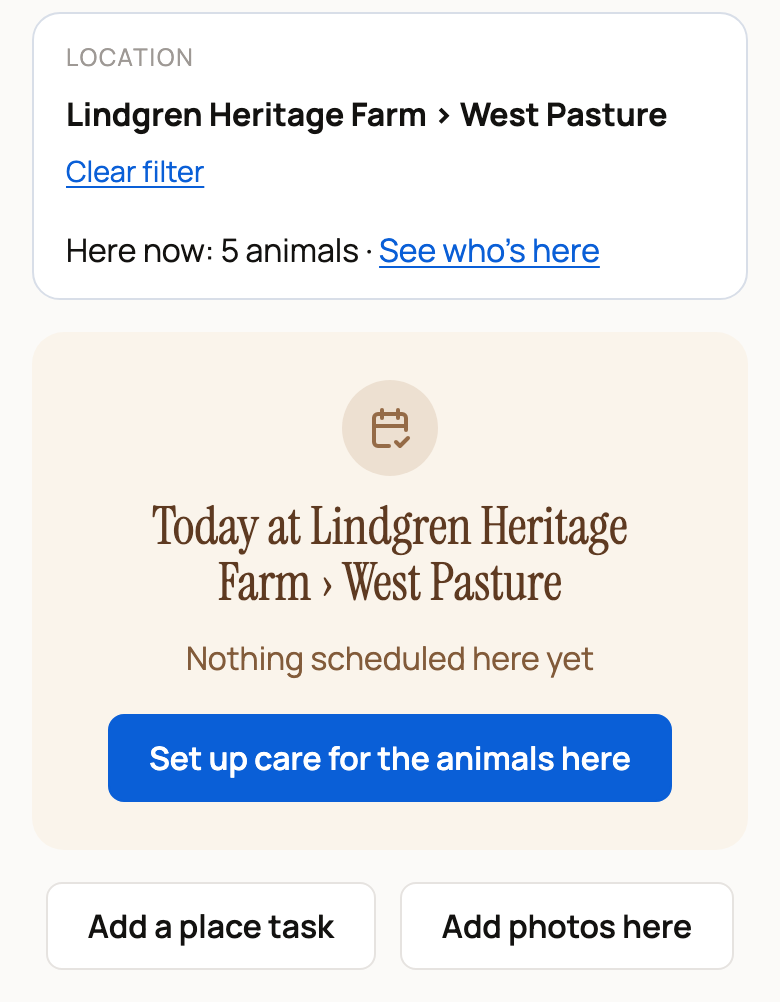
If an animal is missing from the place, record its move first. See Move animals and review location history.
Add chores for a place
Select Add care on the place's row in Locations, then choose Chores for this location. (Care for everyone here sets up care for each animal at the place instead.) A new care plan opens with the place already chosen. Give the task a title, such as Walk the fence line, choose how often it repeats, then save. For the details, see Create and manage a care plan.
Afterward, the row shows View care. The chores appear on Today under the place's name, and each finished chore is saved to the place's activity log. See Check occupancy, pasture rest, and property activity. Place tasks can't send alerts yet.
Add photos of a place
Photos are a quick way to record a fence repair or a flooded corner.
- On Today for the place, select Add photos here.
- Scan the code with your phone. If you're already on your phone, select Open upload link instead.
- Add up to 3 photos on your phone. Keep the Today page open while you do.
- When the photos are ready, select Save photos.
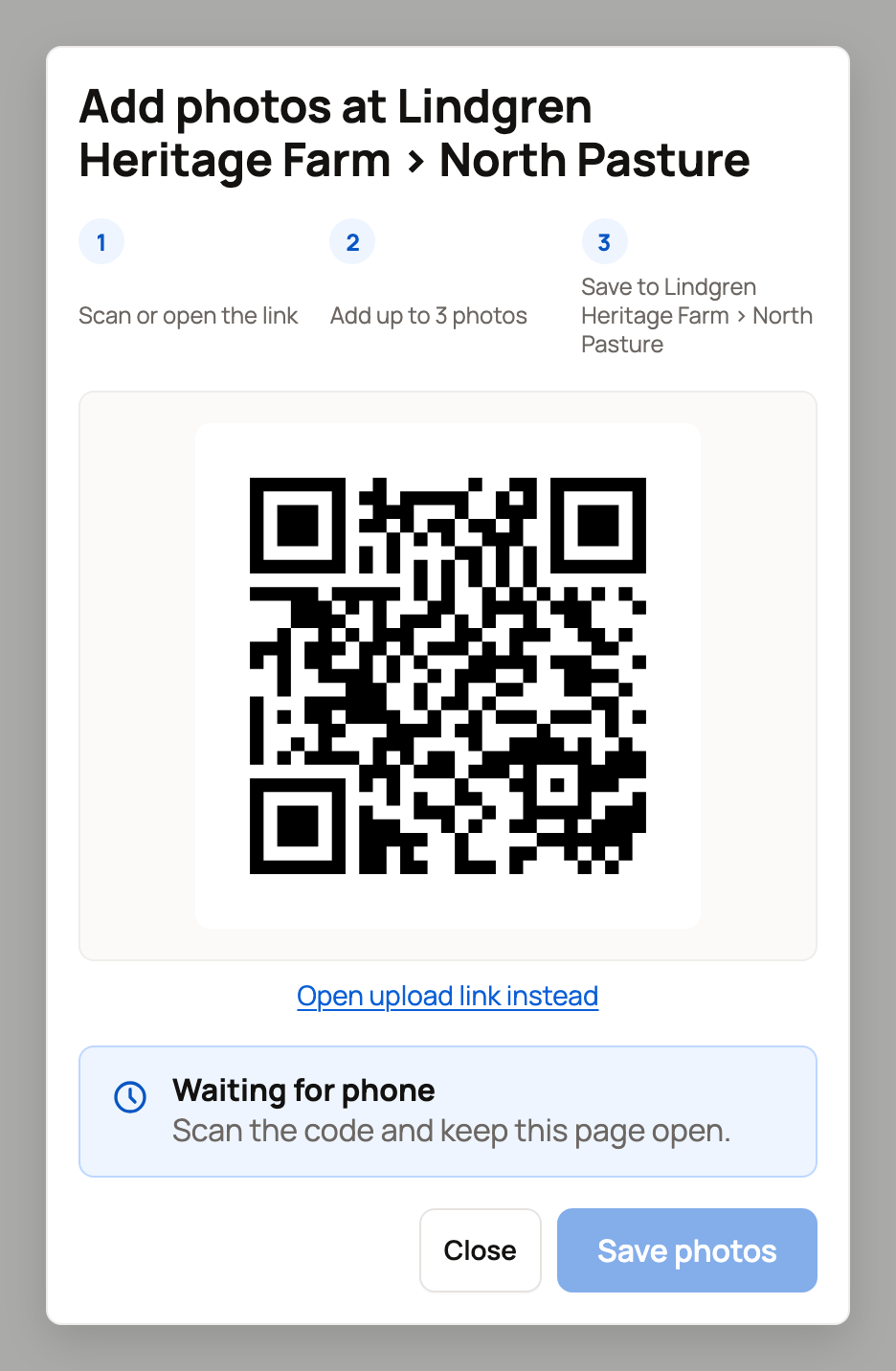
The photos are saved to the place's activity log, and View activity takes you there. The code expires after 10 minutes. If you see Code expired, close the window and try again.
Related information
- Your Today page: what's due and how to check it off
- Create and manage a care plan
- Set up and organize locations
- Check occupancy, pasture rest, and property activity
Updated on: 29/10/2026
Thank you!