
Weigh or measure a whole group at once
On the group's Overview tab, choose Physical measurement under Add a record. A Batch measurements panel opens with one row per animal: enter each value, select Review measurements, then Apply measurements, and every animal gets its own record.
Before you start
This works for groups of animal profiles. A count group (one that tracks animals by number) doesn't offer Physical measurement, because each value needs its own animal. Create profiles for those animals first. See Track animals without individual profiles.
Only animals you can edit appear in the rows. If some are left out, the panel says how many.
Set up the session
- Open the group's Overview and find Add a record.
- Under Record, choose Physical measurement. The Batch measurements panel opens.
- Set what you're measuring. For a weigh day, keep Category on Body Size / Conformation and Measurement on Weight. Then pick the Unit, such as lbs or kg.
- Under How captured?, choose Measured directly for a scale, or Estimated for a weight tape or a guess by eye. For a score, like body condition, choose Observed score and pick a Score scale.
- Add a Context if it helps, such as Weaning or Routine.
- Check the Date, and add a Time if you like. Both apply to every animal in the session.
- Note the Method, such as the scale or tape you used.
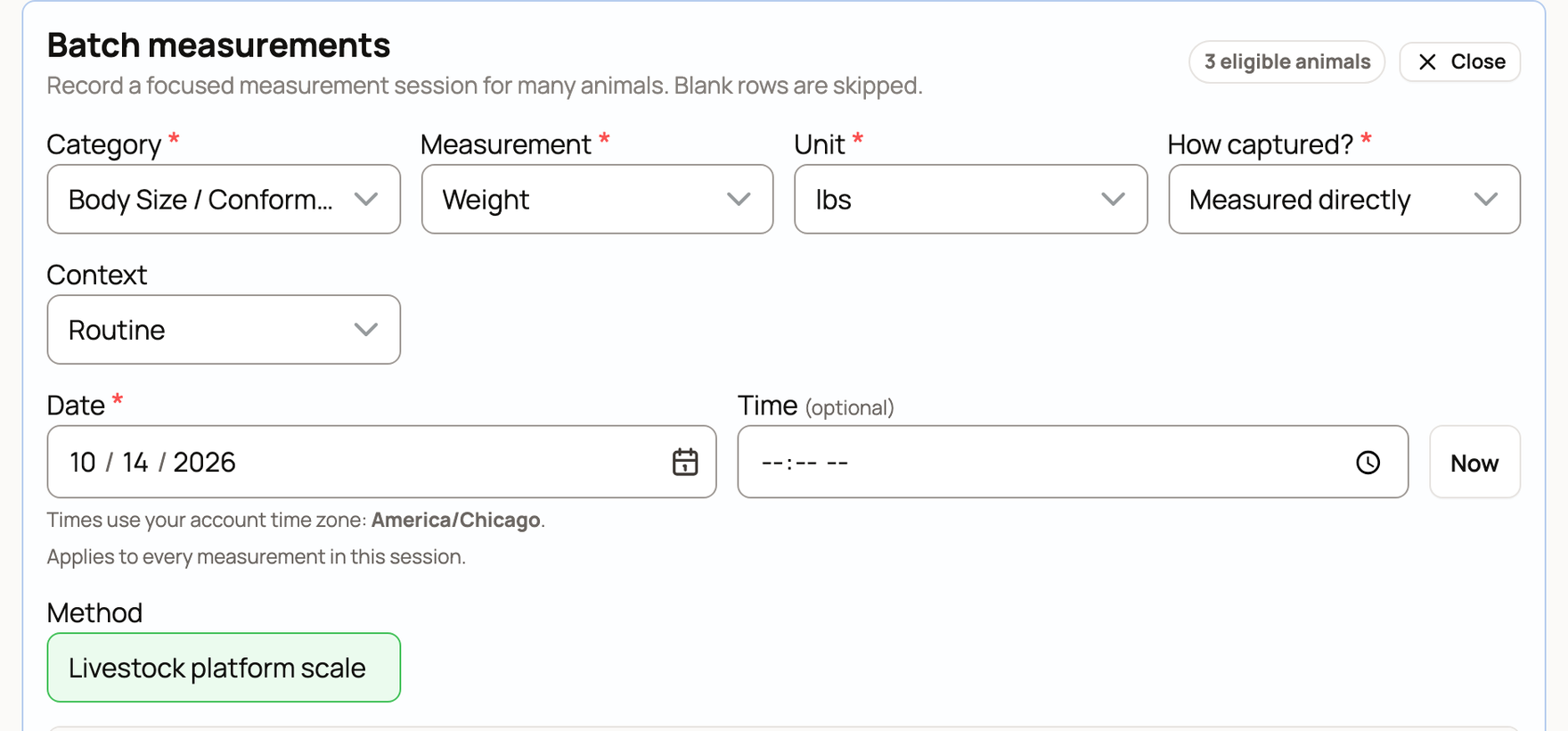
Enter each animal's value
Each animal has its own row with a box for the value and an optional Note. On a phone, each animal shows as its own card.
- Leave an animal blank to skip it. Blank rows aren't saved.
- Public on each animal profile makes the records public without posting them to the public feed. Some measurements start private, based on the measurement and your privacy settings.
- Use Session notes for the equipment, the weather or who helped.
The count at the bottom shows how many values are ready. Clear values empties the rows so you can start over.
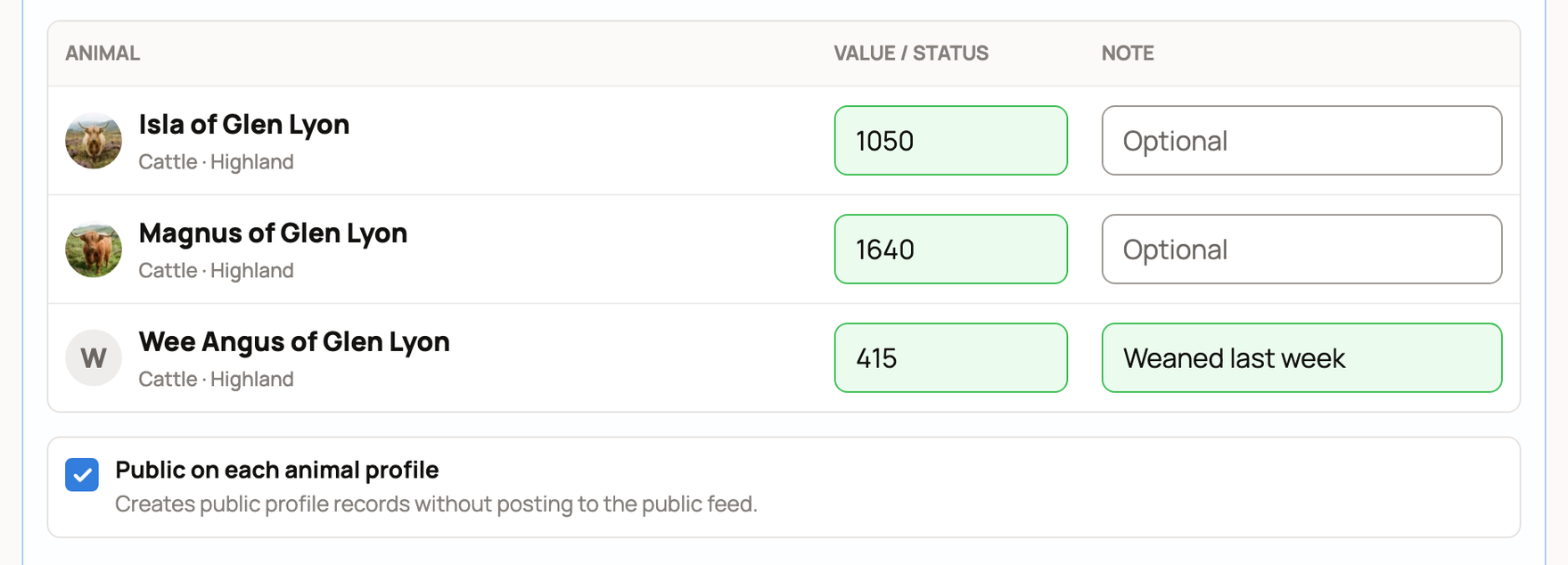
If the group adds animals by rules, you'll see a Rule-updated group note. Only rows with values are saved, and Creatures keeps the list of animals as it was when you apply.
Review and apply
- Select Review measurements. The Review measurement session box says how many records will be created. It also shows your setup and each animal's value.
- Check the numbers, then select Apply measurements.
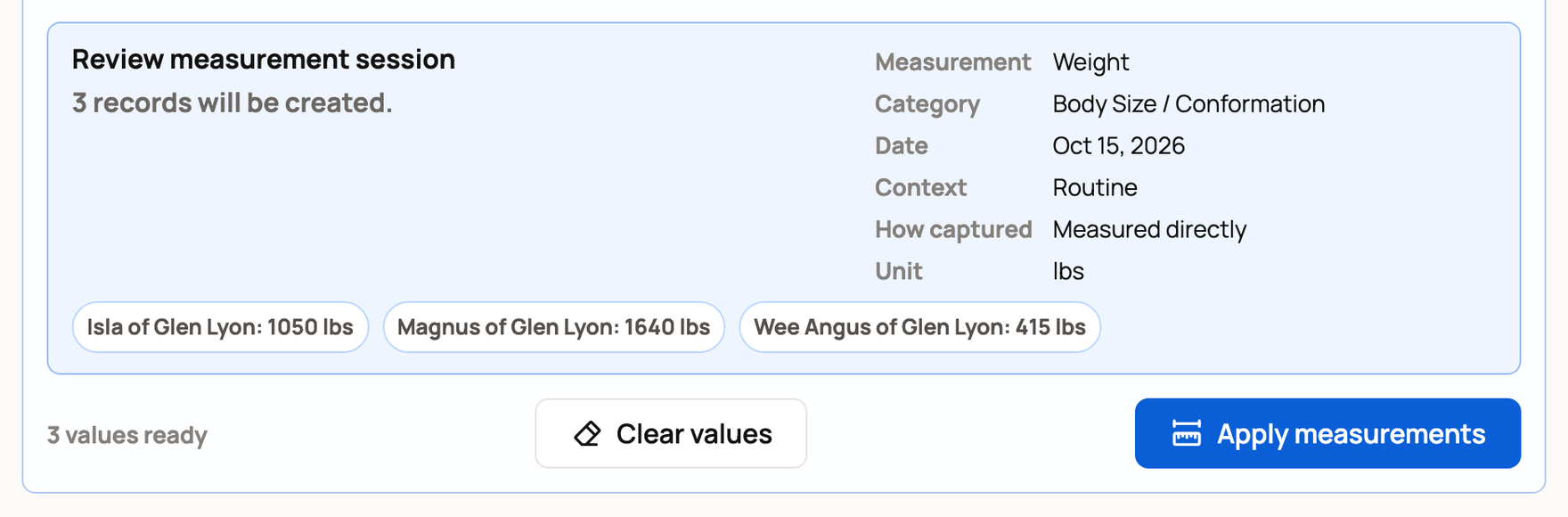
Each animal gets its own measurement record. To see the new value on the animal's trend, open its Records tab and choose Measurements. See Track weight and growth.
The session also shows on the group's Records tab. If you applied it by mistake, use Reverse recorded work there. See Add a record for a whole group.
From a scheduled care task
If a group care plan has a measurement task, the group shows Record measurements when it's due, or Continue once you've started. This session saves as you go:
- Enter values and select Save measurements. You can come back later to finish.
- To close the task early, select Finish task…. For each animal left, enter a value or turn on Not measured and give a Reason. Then select Save & finish task.
- Saving the last value finishes the task too.
See Care plans for animal groups.
Related information
Updated on: 29/10/2026
Thank you!