
Offer genetic storage as a provider
If you store semen, embryos or other genetic material for other farms, create a storage service, publish it, and approve the customers who apply. Each customer's material then lives in their own storage account, and you record intake, placement and releases from Dashboard > Services > Storage.
A storage account is the monthly link between one customer, your service and the material you hold for them.
Before you start
Setting up is free, and you can save a draft at any time. To publish, you need a verified phone number and a completed identity check.
You can offer storage as yourself or as an organization you own or co-own. Want customers to see your facility's business name? Create that organization first. The form links to it.
1. Create the service
Select Create storage service on the Services tab, or Offer storage on Marketplace > Storage. Then fill in the form:
- Service title, Provider (your Personal account or an organization) and Description.
- Facility location. Public pages show the city and region.
- Accepted materials, such as straws, embryos, oocytes or hatching eggs.
- Under Billing, your Monthly rate, any Minimum commitment, and what the Rate applies per. Storage account (best for automatic billing) is the simple choice. Inventory item (manual adjustment) and Stored unit (manual adjustment) bill on the count when storage starts, so you review billing as stock changes. Those two also need customer approval.
- Turn on Online subscriptions through Creatures, Offline or external billing, or both.
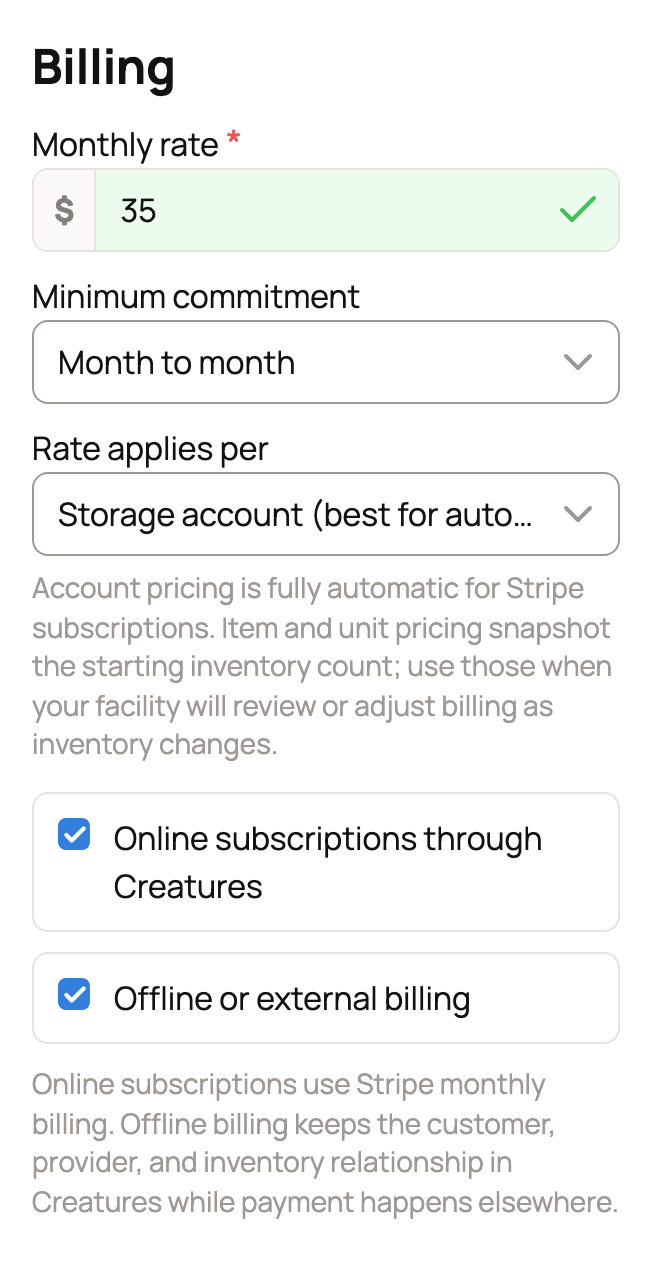
Write your Storage terms and facility rules: how to send material, tank access, release and shipping fees, insurance, and how you invoice. Customers see your Minimum commitment on the service page and when they start storage. Creatures doesn't enforce it, so say in your terms what happens if a customer leaves early. By offering storage, you agree to the provider duties in the Creatures Terms, such as reasonable care and accurate records.
Under Customer approval, keep Require approval before customers can start storage on to review each customer first. Choose an Application form, or keep the default one. Then select Save draft.
2. Publish and share
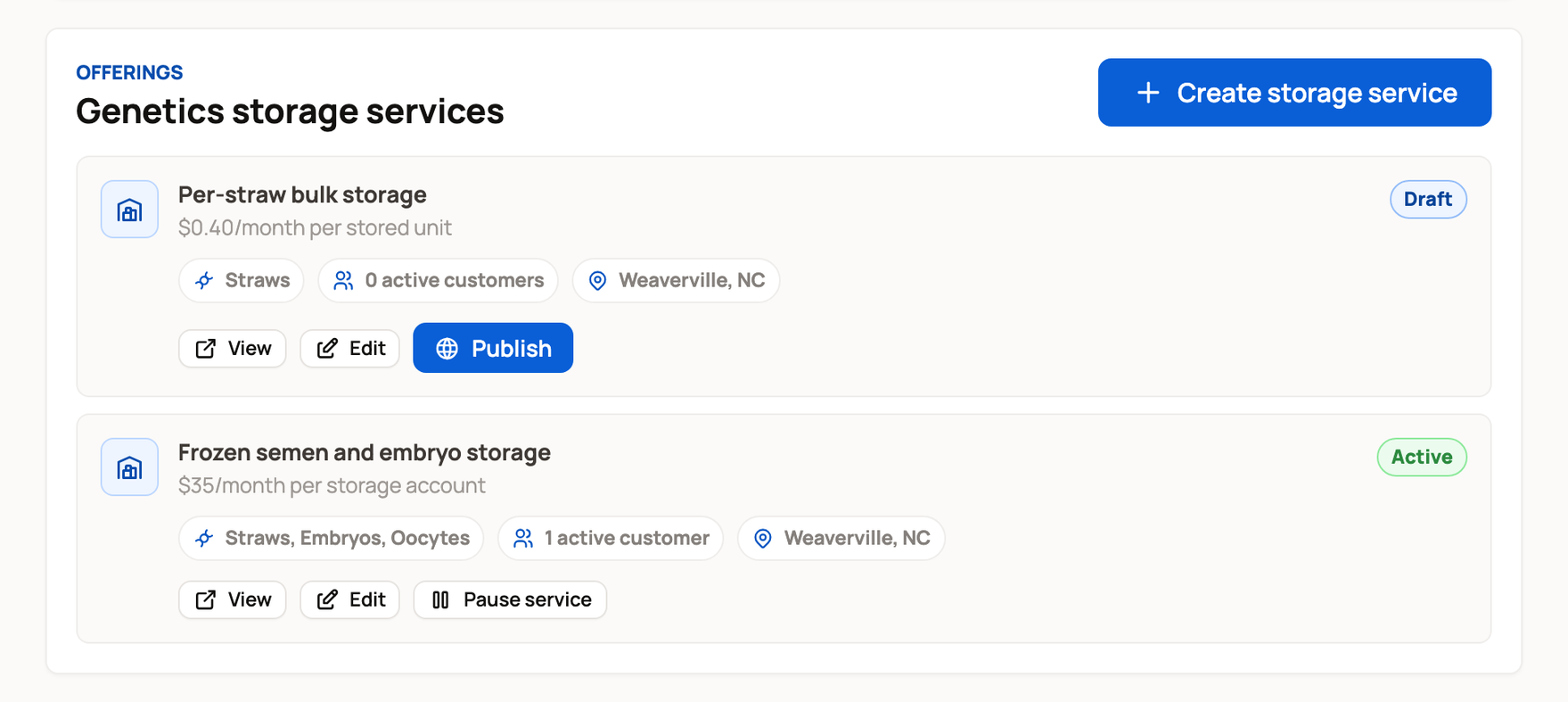
The Services tab lists each service with View, Edit and Publish. Once a service is live, Publish becomes Pause service. Send the public service page to your current customers so they can apply.
3. Approve customers
New applications appear on the Applications tab. Select Review to read the answers and any material listed, then Approve or Reject.
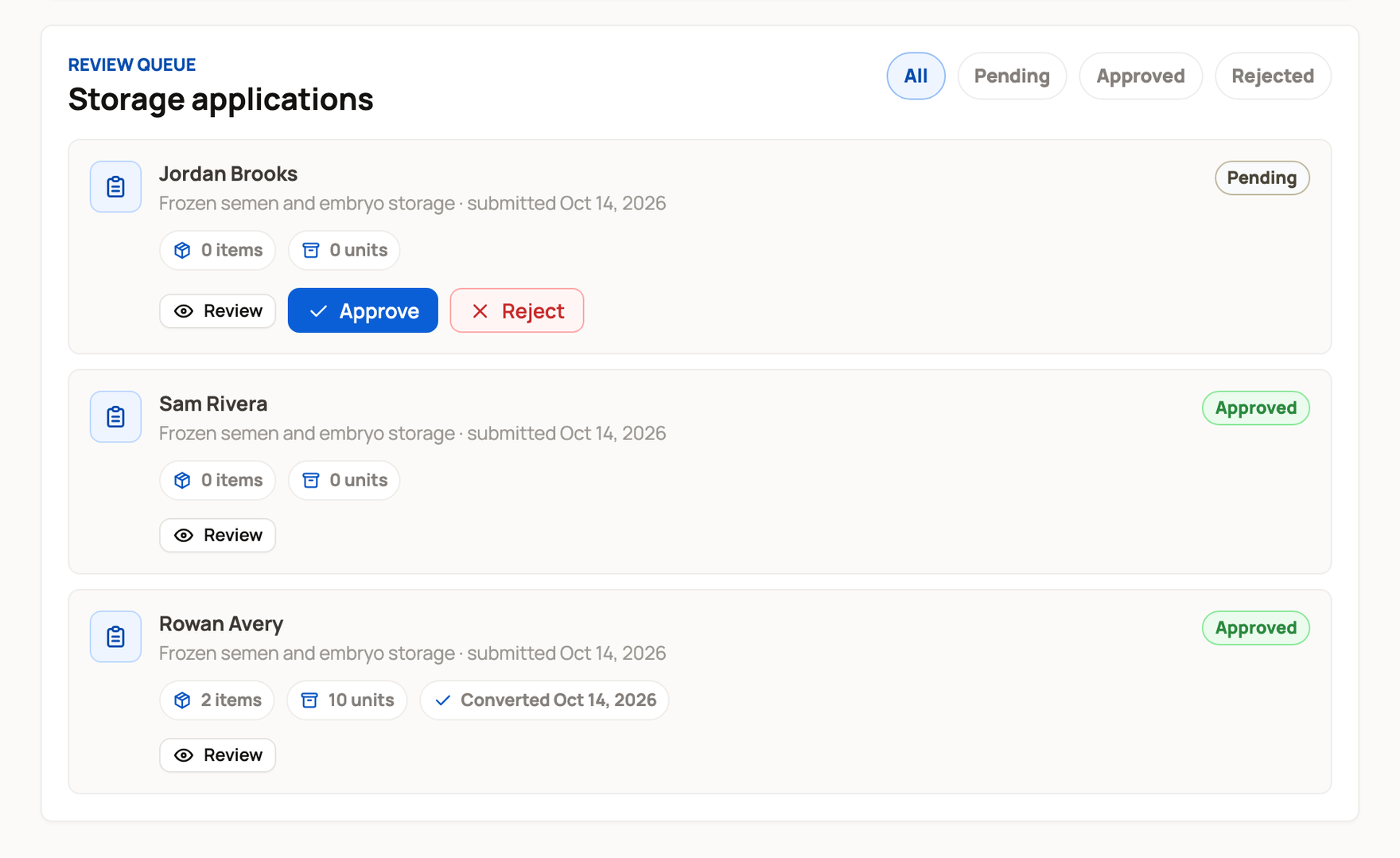
Approved customers get a notification and can select Start storage with card or offline billing. They show up under Customers once they start.
4. Bring in and place material
First, build your map on the Facility tab: rooms, tanks, canisters, canes, goblets, boxes and slots. Then open Customers and select Manage storage for a customer. Material is listed by its batch number.
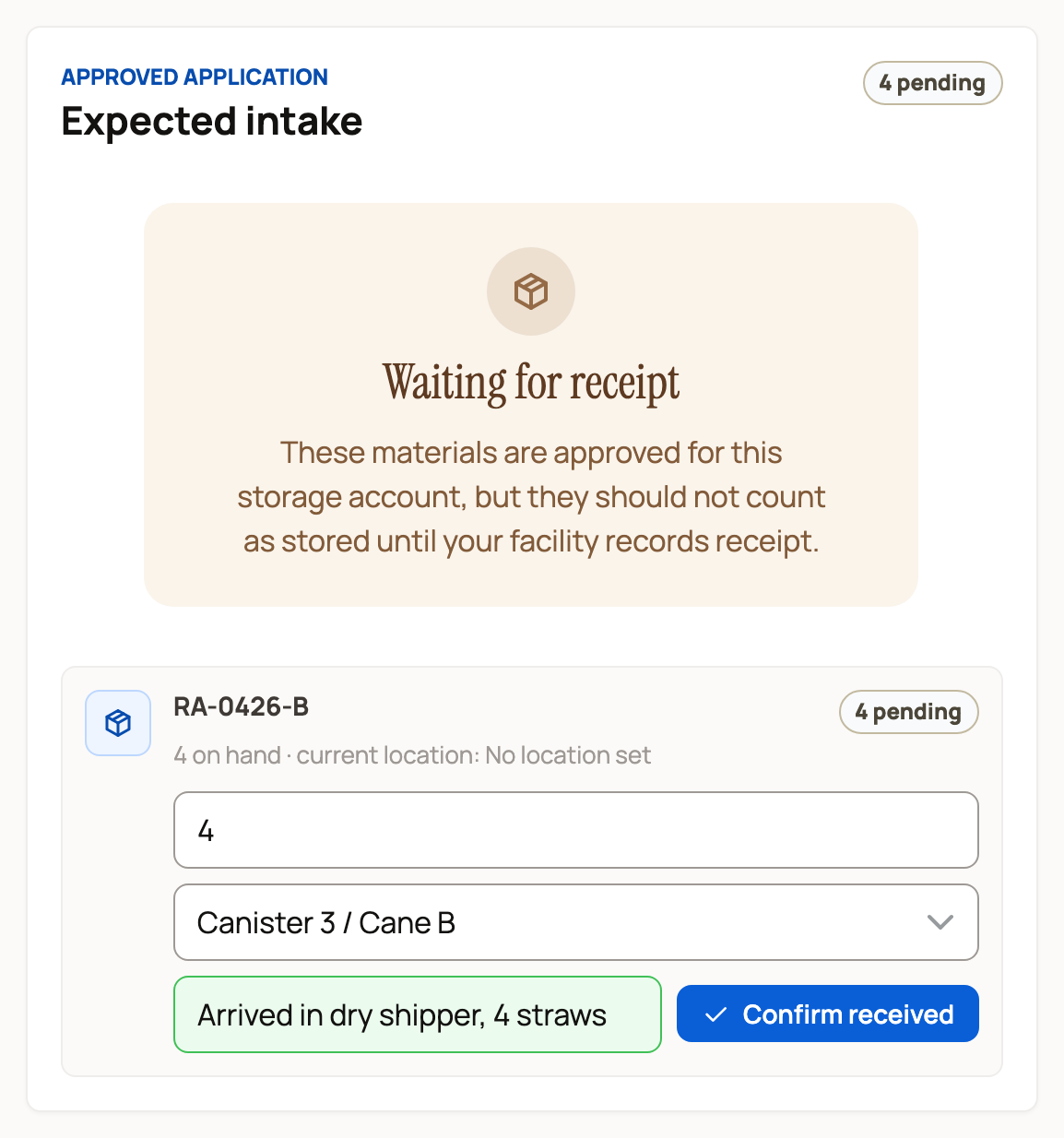
- Expected intake lists the material named in the customer's application, marked Waiting for receipt. When it arrives, choose where it goes, add a receipt note, and select Confirm received. It counts as stored only after that step.
- Place or move units moves stored units to a new spot. Select Record placement.
- Import inventory loads a customer's existing records from a CSV or XLSX file of up to 1,000 rows. Start from Download sample CSV. Imported items always belong to that customer.
When a buyer keeps a marketplace purchase with you, it shows in the Provider receipt queue on Customers. Select Receive transfer once it is in your tank. See Keep purchased genetics in storage for the buyer's side.
5. Answer release requests
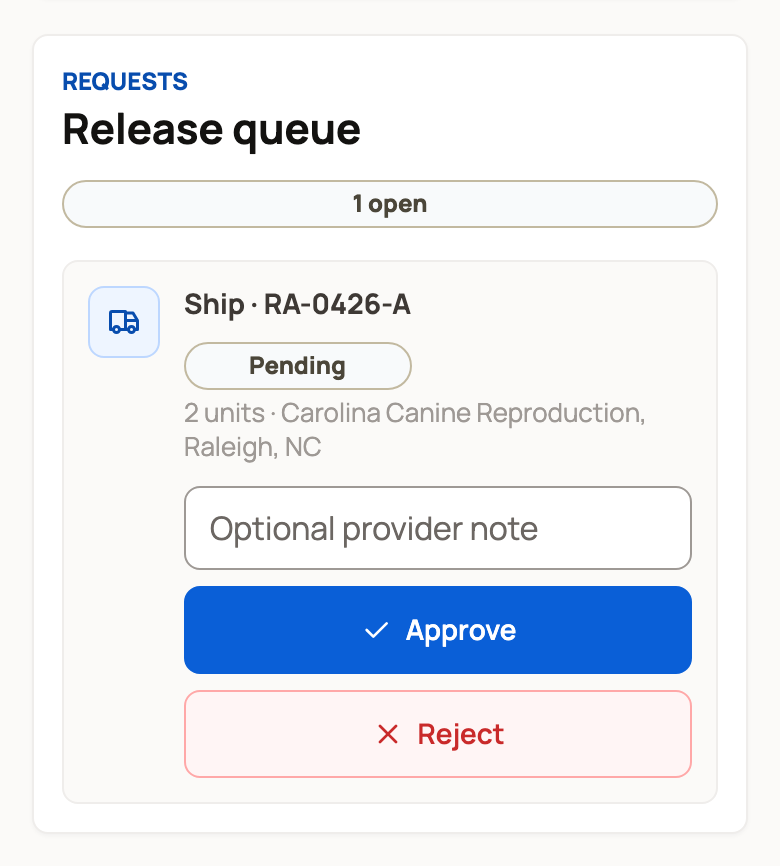
Customers can ask to ship, pick up, release or use their material. Each request shows in the Release queue on that customer's page, with the quantity and destination. Add a note if you like, then select Approve or Reject. Set up the shipment or pickup directly with the customer.
Fees and payment
Offline billing has no Creatures fee. With card billing, the customer pays a 5% Creatures service fee on top of your rate. Creatures also keeps a 5% provider fee from your payment. Creatures Pro waives the provider fee. Each monthly card payment, less any provider fee, arrives in your Creatures Wallet as a monthly storage payout.
Related information
- Subscribing to genetic storage
- Keep purchased genetics in storage
- Requiring buyer applications and building a form
- Your Creatures Wallet: balance, holds, and getting paid
Updated on: 29/10/2026
Thank you!