
Review applications and the waitlist for a litter
Open the litter's Applications tab, read each application under Review, then choose Accept application, Move to waitlist or Reject. People on the waitlist get offers one at a time, in the order you set under Waitlist order.
Find your applications
The Applications tab shows up on a litter or other count group once you turn on its public page or someone applies. On the Overview tab, the Applications card has a Review button that opens it.
To see every group's applications together, open Dashboard > Selling > Applications and choose Groups.
At the top of the tab, counts show Pending, Accepted, Held (reserved with a deposit), Waitlisted and Rejected. Export answers CSV downloads every answer as a spreadsheet.

Review an application
Each card shows the buyer, the day they applied, what they're hoping for (such as sex, color or temperament) and a status: Pending, Waitlisted, Accepted or Rejected.

Under Review, read their answers about their home, their care and the match they want. Then:
- Add a Review note if it helps you remember. Buyers never see it.
- If you're turning them down, you can add a Reason to share if rejecting. The buyer sees it in the email, in their notifications and on the litter's apply page.
- Select Accept application, Move to waitlist or Reject, then confirm.
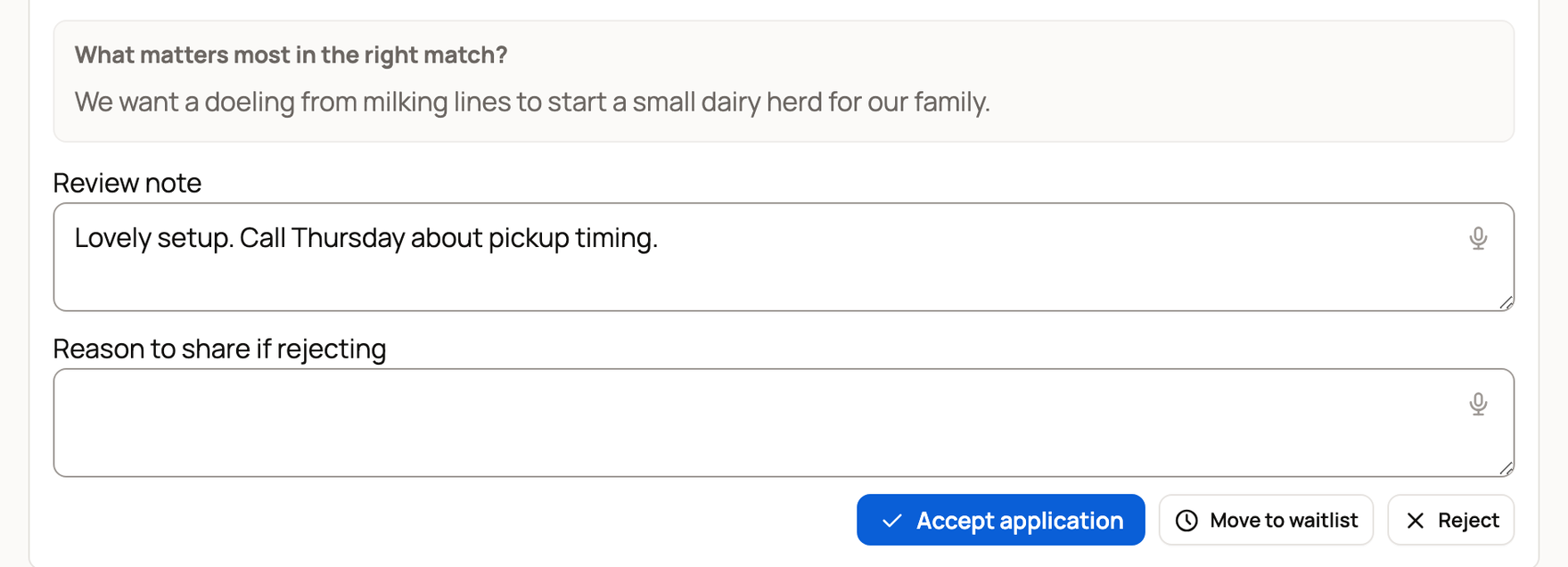
The buyer gets a notification about your choice. If the litter has an application fee, Accept application stays off until the buyer pays it.
To give back a fee the buyer paid, select Refund screening fee on their card, then confirm, such as Refund $25. The money goes back to their original payment method, and what you received for it comes out of your Creatures balance. Their application, your notes, the waitlist and any deposit stay as they are, and the buyer gets a notice.
Want a second opinion? Under Suggested review, select Draft review. Creatures uses AI to write a short take on fit, any concerns and a possible reply. Nothing changes until you decide, and you can Save suggestion or Reject suggestion.
What accepting means
Accepting doesn't take any money, and it doesn't promise a particular animal. No deposit is collected until the buyer chooses to reserve.
After you accept, the card shows the next step. While the page is at Applications open, it says Awaiting reservations. For deposits, see Taking deposits on babies from a litter.
If you use an email series that starts when an application is accepted, the buyer is added to it.
Run the waitlist
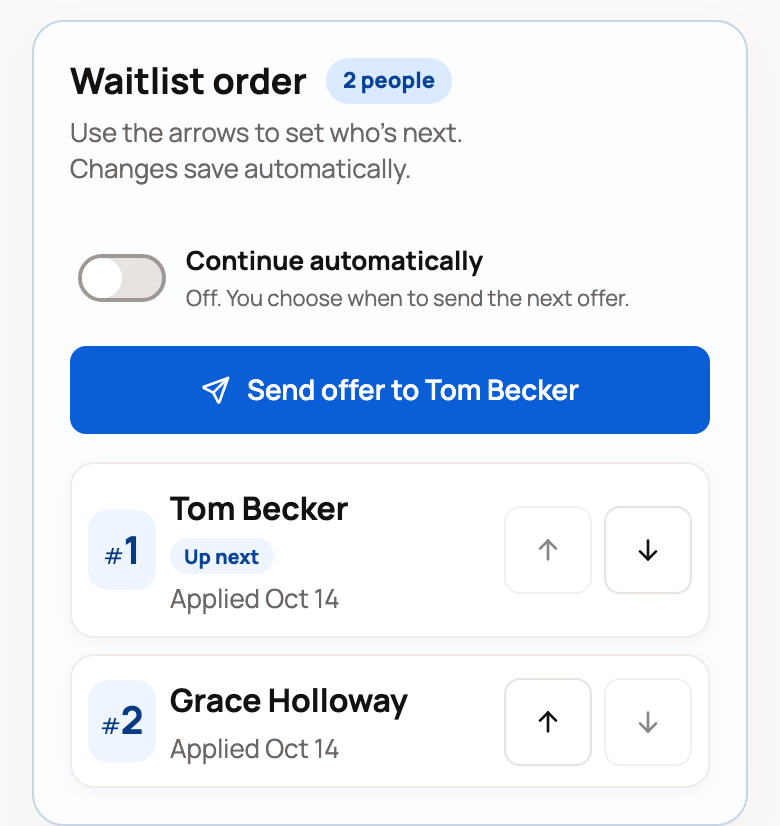
Waitlist order lists everyone you've waitlisted. The person at the top is marked Up next.
- To change the order, drag the grip or use the arrows. On a phone, use the arrows. Changes save on their own.
- Select Send offer to and the person's name, then Send offer. They have 72 hours to respond, and only one offer can be active at a time.
- While you wait, the list says Offer sent to that person, with the deadline.
If they take the place, their application moves to Accepted. If they say no or the time runs out, they move to the end of the line.
Turn on Continue automatically to send the next offer as soon as one ends. Leave it off to send each offer yourself. You can also accept or reject a waitlisted buyer from their card at any time.
If something looks wrong
- No applications yet: check that the page is visible and its step takes applications. A brand-new buyer account can take up to an hour to show up here.
- The next person can't get an offer: a note explains if they need to finish setting up their account or pay an application fee first.
- You want one waitlist for your whole program: see Opening your program to applications and running a waitlist.
Related information
- Offer a litter or group to buyers
- Your buyer pipeline
- Reserving from a breeder: applications and deposits
Updated on: 05/11/2026
Thank you!